

Are you wondering how to easily use lead source tracking in Google Analytics for your site in 2021? If so, you’ve come to the right place.
If you’re running your own website then, it’s important for you to know your user’s behaviour, how they interact with your site, which marketing campaigns are performing well and where you should focus more to capture leads etc.
To know all these, you’ll need to set up lead source tracking inside your WordPress site and in this blog post, we’ll show exactly how to track your lead sources with the help of Google Analytics plugin.
Here’s what you’ll learn today:
- Why Should You Track Lead Sources?
- How to Track Lead Source Tracking in Google Analytics?
- Install MonsterInsights Plugin
- Connect Google Analytics Account with MonsterInsights
- How to Easily Use Lead Source Tracking in MonsterInsights Google Analytics Plugin
- Analytics Overview Report
- Real-Time Report
- Search Console Report
- Track eCommerce Report
- Conclusion
Without any further ado, let’s get the ball rolling!
Reasons Why You Should Track Your Lead Sources
Lead tracking is an essential element of your website. Without using an effective lead tracking strategy, it is very difficult that you will be able to increase the overall sales of your site, understand your audience and know the status of your campaigns etc. And that is the reason why you should use lead source tracking for your site. Let’s take a quick look at some of the points below:
- Leads tracking helps you to identify your target audience, Where are those people from, And how did those people reach you.
- With the help of lead tracking, you can easily identify which campaign is working best for you and in which campaign you need to do more work
- Lead tracking helps you to effectively monitor data in real-time
- Leads tracking also helps to analyze the full report of your website, increase ROI and improve marketing campaigns. You can also track the lead generation form on your site.
- You can learn more about it from here.
I hope you now know how important lead source tracking is for your site, Now it’s time to configure it for which all of you were waiting!
How to Track Lead Source Tracking in Google Analytics?
For this, we will be using MonsterInsights Google Analytics Plugin. It is one of the best Google Analytics plugins in the market that helps you to set up advanced tracking code in just a few clicks within the WordPress dashboard.
Here’s how you can use MonsterInsights to track your lead sources in Google Analytics right inside your WordPress dashboard.
Ste #1: Install MonsterInsights Plugin
To Install MonsterInsights, simply log into your WordPress admin panel. Click on Plugins » Add New” and type “MonsterInsights” in the search field. Now, install the plugin and activate it.
Step #2: Connect Google Analytics Account with MonsterInsights
Once the MonsterInsights is installed and activated on your WordPress website. It’s time to connect your Google Analytics account with MonsterInsights. To do so, You’ll need to go to Insights » Settings.
Under the “General” tab, click on the “Connect MonsterInsights” button. Simply, login to your Google Analytics account and give permission to MonsterInsights to access your Google Analytics account. Within a few seconds, your MonsterInsights will be get connected to your Google Analytics account. That’s it.
How to Easily Use Lead Source Tracking in MonsterInsights Google Analytics Plugin

1. Analytics Overview Report
To view the overall performance of your WordPress website, simply go to Insights » Reports » Overview.
Under this report, you can see the Sessions, Pageviews, Avg. Session Duration and the Bounce Rate of your site. If you scroll down a little, you will see a device breakdown report which will tell you which device your visitors use to open your website.
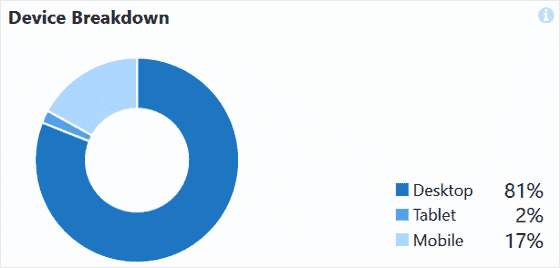
By default, it will show you the last 30 days of data, But by changing the date range, you can view the site report of any day (such as last 6 months, last 1 year etc) according to you. You can also view the report of the New vs Returning visitors to your site.
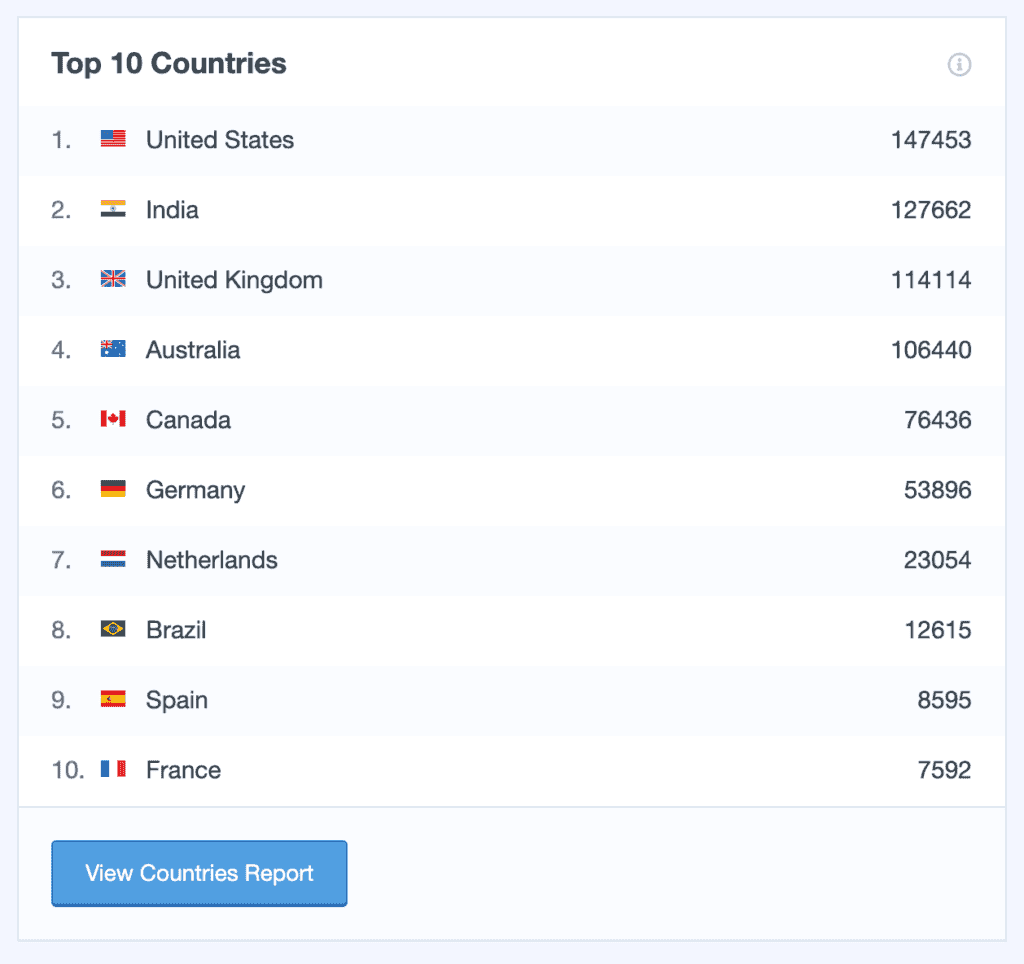
Apart from this, you can also view the top 10 countries from where your visitors are coming from. With the help of this report, you can run a special campaign for them and promote different offers.
In addition to this, you can also check the Top 10 Referrals report that shows which websites send the most traffic to your site. It will be a WIN-WIN situation if you join hands with all these websites owners.
2. Real-Time Report
With the help of MonsterInsight’s Real-Time Report, it shows you the exact number of active users you have on your website in real-time. You can also see where people are coming from, how long they are staying on your site, on which post they are spending the most time etc.
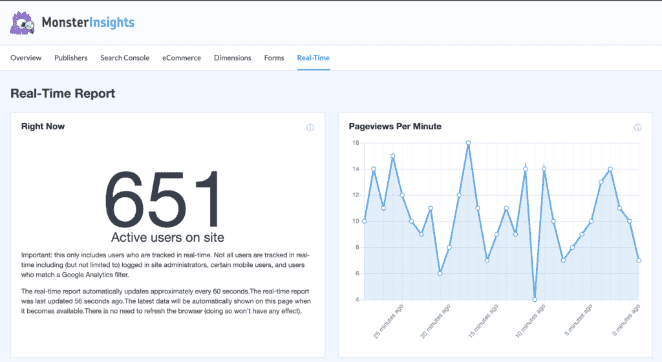
It helps to track your site’s performance. The best part is that you can view all these reports inside the WordPress admin panel.
3. Search Console Report
Using the search console report, you can easily check the top 50 Google search terms of your WordPress website. But that’s not all, you can also check how many clicks your site is getting, impressions, CTR (click-through-rate), and the average position of the keyword.
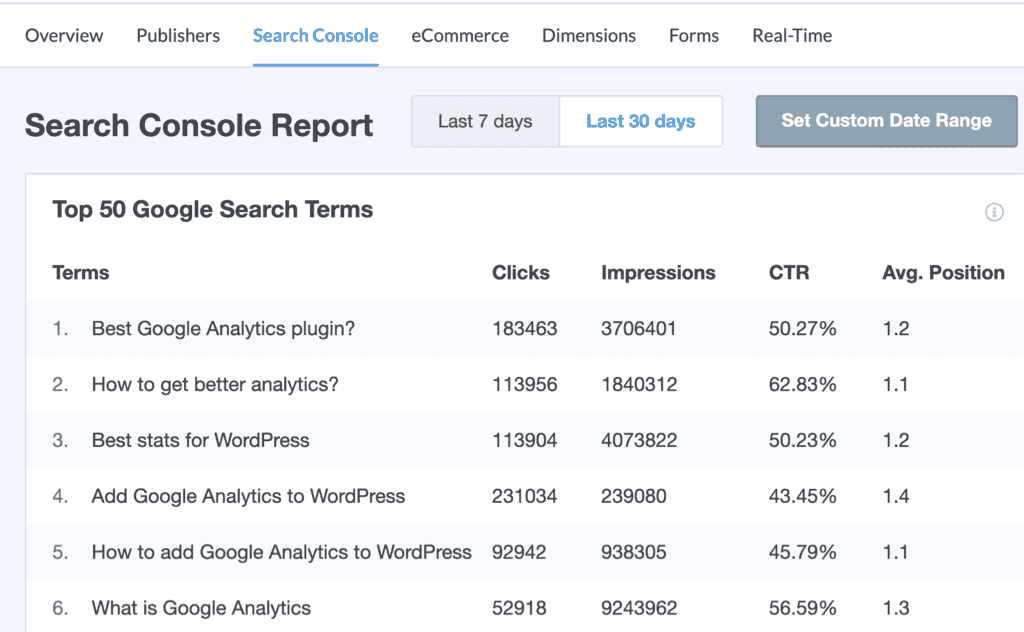
As we know, how much is the importance of keyword research from the aspect of SEO and these keywords can bring you millions of organic traffic to your site from search engines like Google, so with these search terms, you can use them to find more similar keywords for your site to boost your rankings.
4. Track eCommerce Report
If you have an eCommerce website and you want to know, where your traffic comes from and how many of them were converted into real customers then MonsterInsights eCommerce report can help you out by providing more details about it right inside your WordPress dashboard!
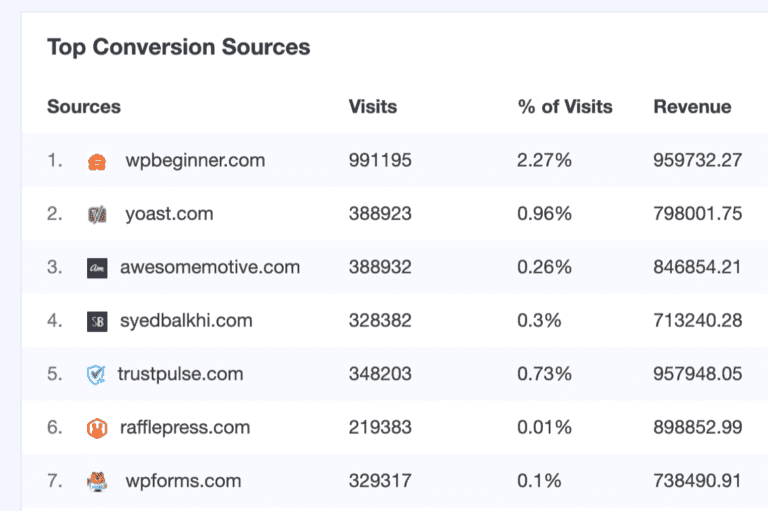
You can easily check all the top conversion sources of your e-commerce store. In addition to this, they also allow you to see which sources send more traffic to your online store.
Conclusion
So there you have it. You can now easily track your lead sources with the help of MonsterInsights Google Analytics plugin. This way you will be able to focus on other campaigns to capture more leads for your site.
Do you want to give a try to MonsterInsights Plugin? Click here to get started and claim your 50% discount or you can visit www.monsterinsights.com for more details.
I hope you found this blog post helpful. If it has added some value, then do not forget to share it on your social network. As always, you can drop your question in the comments section below.
