Affiliate Disclosure: This article contains affiliate links. If you choose to sign up for WordPress.com through these links, I may earn a small commission at no additional cost to you.
Ever feel like starting an online store is way harder than it should be?
I’ve helped beginners set this up, and honestly, most people get stuck before they even begin. Too many tools. Too many confusing steps. And for a long time, using WooCommerce on WordPress.com wasn’t even an option unless you paid for higher plans.
But that just changed.
Now, every paid WordPress.com user can install plugins, unlock full design control, and build a real online store without jumping through hoops.
That’s a big shift—and it makes getting started a lot easier than you think.
Let me show you how to do it, step by step.
The New WordPress.com: Why the Rules Just Changed
For a long time, there was a catch with WordPress.com.
If you wanted real control—like installing plugins or building a proper online store—you had to upgrade to higher-tier plans. That meant more cost, more hesitation, and a lot of beginners just gave up before they even started.
I’ve seen it happen over and over.
Someone has a great product idea, signs up, clicks around… and then hits a wall.
No plugins. Limited customization. No real flexibility.
But now? That wall is gone.
WordPress.com has opened up plugin and theme access on all paid plans. That means you can install tools like WooCommerce, customize your store the way you want, and actually build something that looks and feels professional—without jumping to expensive plans.
Here’s why that matters more than people realize:
You’re no longer choosing between “easy” and “powerful.” You get both.
You can start simple, but still have the tools to grow. Add payment gateways. Improve SEO. Speed up your site. Increase conversions. It’s all within reach from day one.
And honestly? This puts WordPress.com in a completely different position now.
Before, most people would say:
“Just use Shopify” or “Go self-hosted.”
Now, that advice isn’t so obvious anymore.
Because you can build a serious eCommerce store on a simpler setup, without dealing with hosting headaches.
That’s a big change—and if you’re just starting out, it works in your favour.
WordPress.com vs WordPress.org (Quick Reality Check)
This is where most beginners get stuck.
You search “how to start a WordPress store”… and suddenly you’re hit with two options:
WordPress.com and WordPress.org.
They sound the same. But they’re not.
Here’s the simple way to think about it:
WordPress.org is like building a house from scratch.
You get full control—but you also handle hosting, security, updates, and setup. Great if you know what you’re doing… overwhelming if you don’t.
WordPress.com, on the other hand, is more like moving into a ready-to-live-in house.
Hosting is handled. Security is handled. The basics are already done for you.
And until recently, that convenience came with a trade-off—less control.
But that’s exactly what changed.
Now, with plugin access available on all paid plans, WordPress.com is no longer “limited.” You can install tools like WooCommerce, customize your store, and run a real eCommerce business—without dealing with the technical side of things.
So what should you choose?
If you’re a beginner, or you just want to launch fast without messing with hosting and backend setup… WordPress.com now makes a lot more sense than it used to.
It gives you the balance most people actually need:
Simple to start. Powerful when you grow.
And honestly, that’s what most first-time store owners are looking for.
What You Need Before You Start
Before you jump into setting things up, let’s keep this simple.
You don’t need a big budget. You don’t need technical skills. You just need a few basics in place.
First, you’ll need a domain name.
This is your store’s identity. The name people type in to find you. Keep it simple, easy to remember, and easy to spell. If someone hears it once, they should be able to type it without guessing.
Don’t overthink it. Most people get stuck here for days. Pick something clear and move forward—you can always build the brand around it.
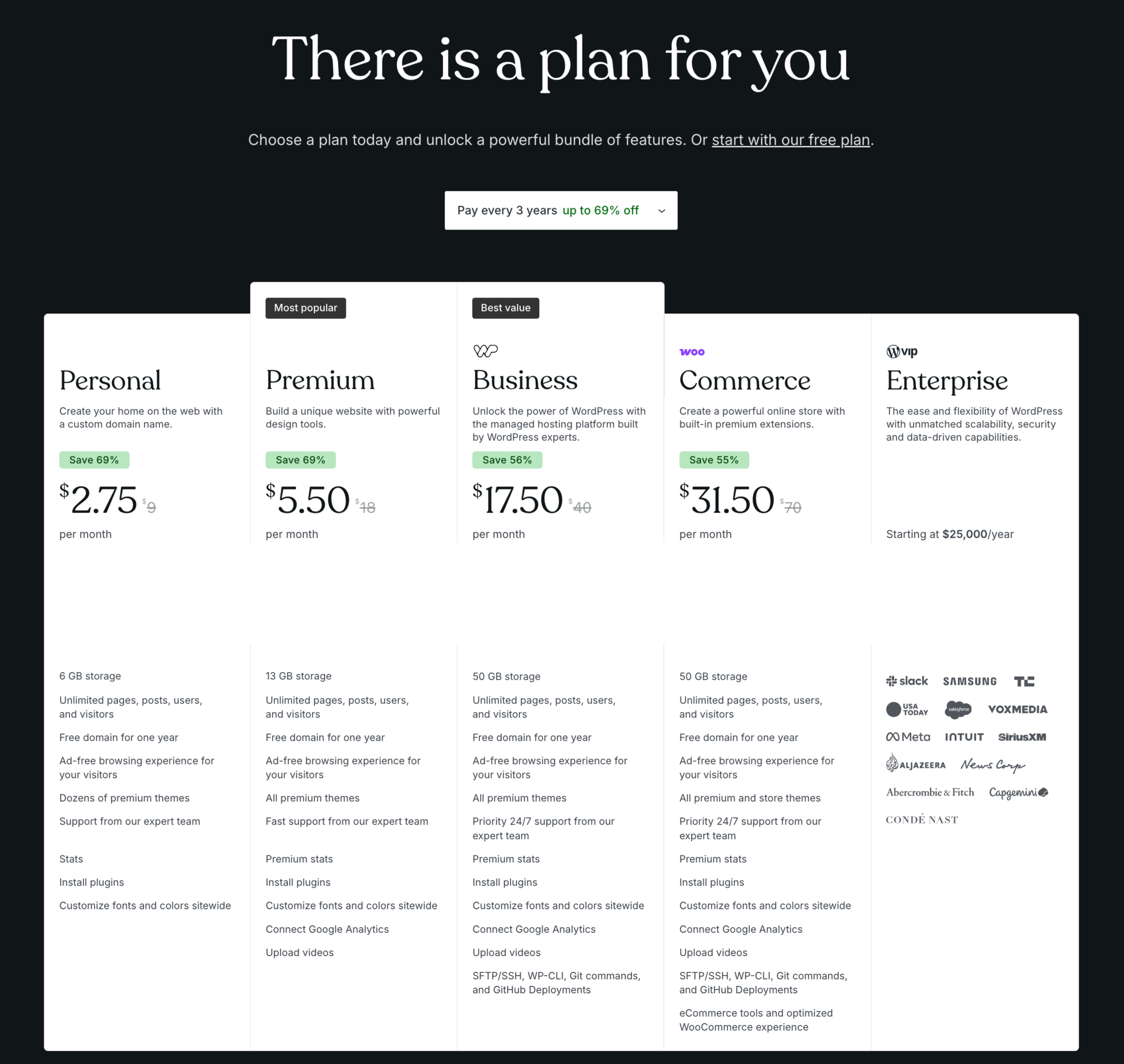
Next, you’ll need a paid plan on WordPress.com.
And this is where things are different now.
Before, paying didn’t unlock much unless you went higher tier. But now, even basic paid plans give you access to plugins and themes. That means you can install WooCommerce and actually build a proper online store from the start.
So now, paying isn’t just a requirement—it’s actually worth it.
Finally, you need a simple idea of what you want to sell.
Notice I said simple.
You don’t need a full catalog. You don’t need 50 products. In fact, starting with one or two solid products is often better. It keeps things focused and easier to manage.
That’s it.
No complicated setup. No tech overwhelm. Just these three things, and you’re ready to move.
Step-by-Step: Launch Your WooCommerce Store on WordPress.com
Let’s keep this simple. No tech jargon. No fluff. Just follow along.
Step 1: Create Your WordPress.com Account
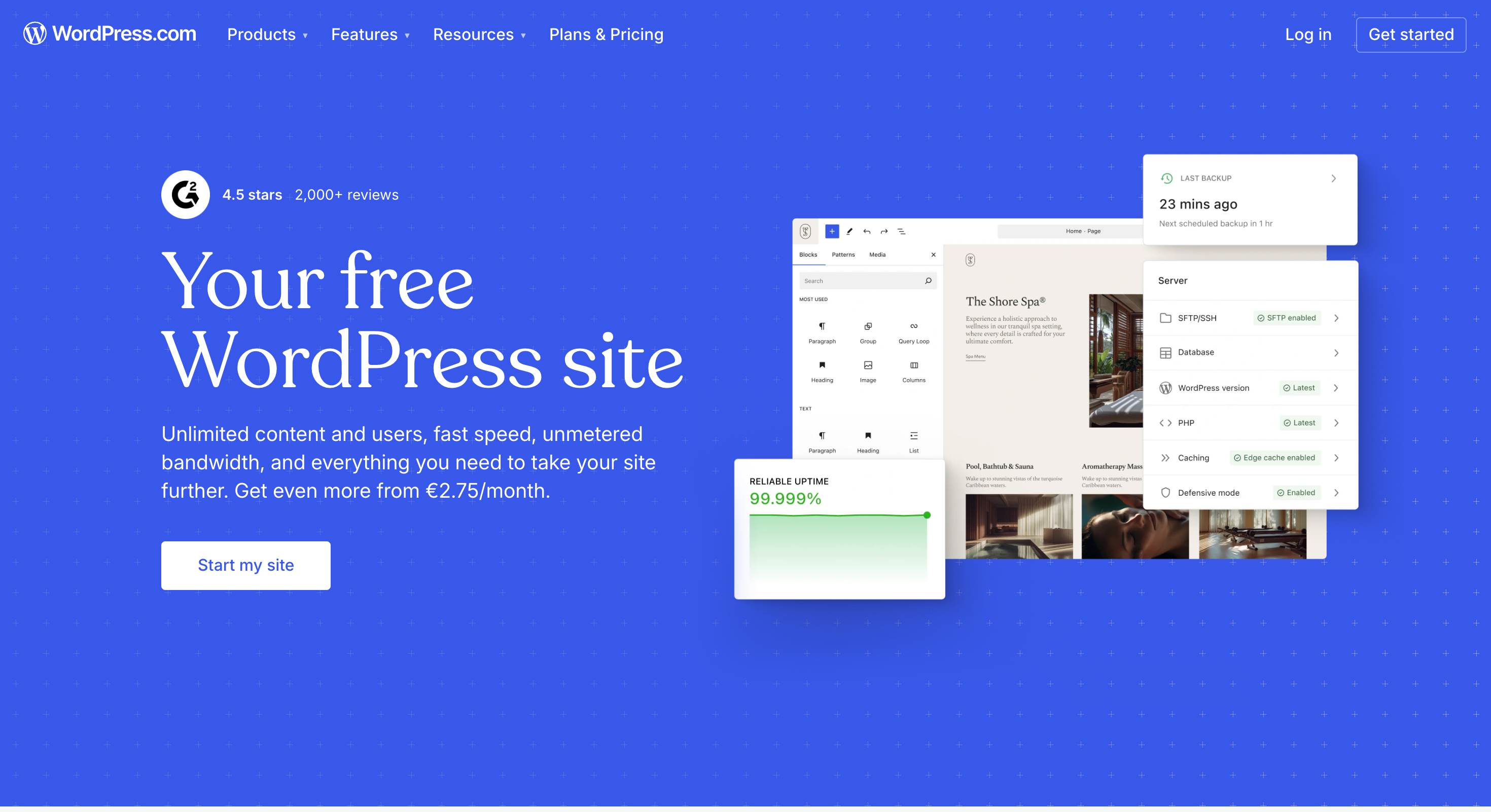
Start by signing up on WordPress.com.
Pick any paid plan that you like.
Here’s the important part:
Because of the recent update, you’re no longer locked out of key features. Even basic paid plans now let you install plugins and customize your site properly.
So don’t stress about choosing the “perfect” plan. Just get started.
Step 2: Choose & Set Your Domain Name
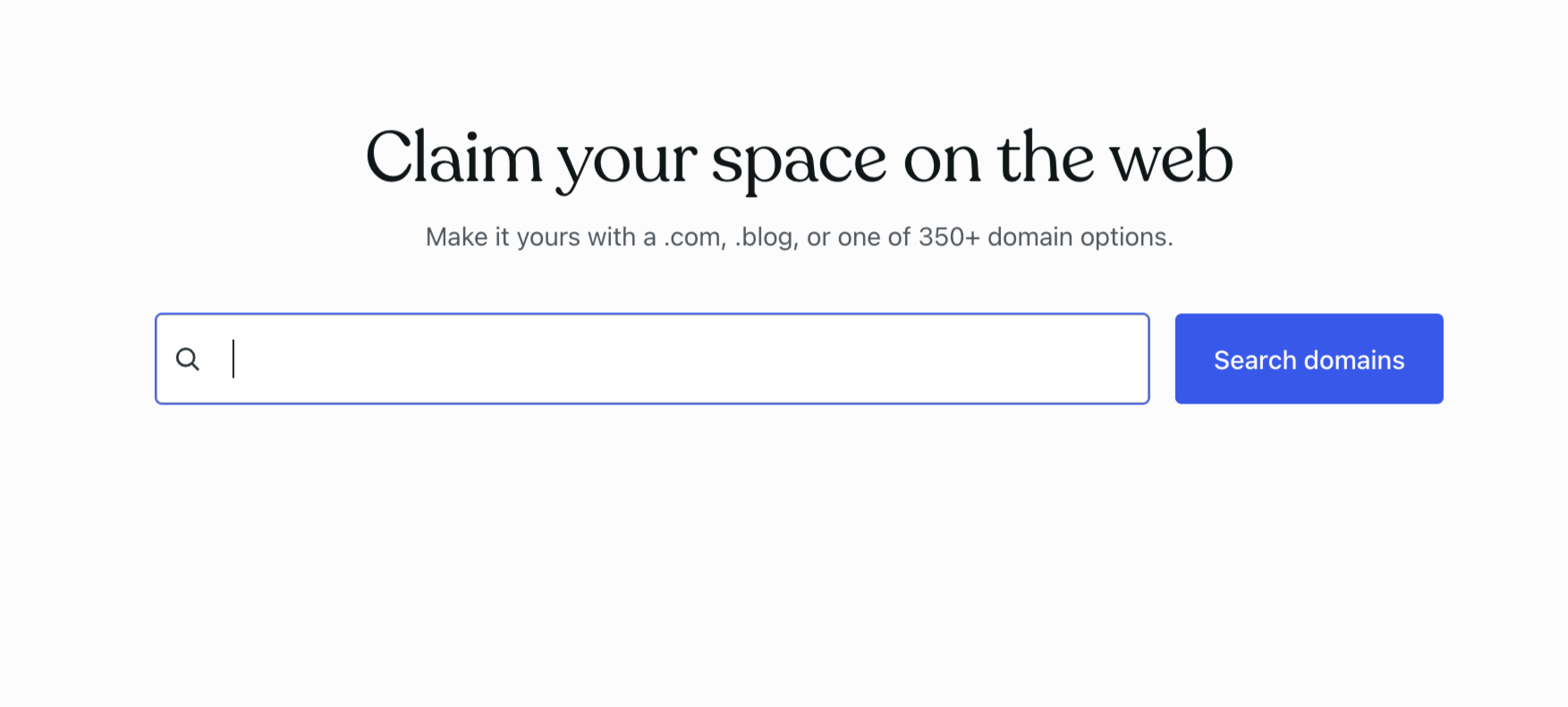
You’ll either:
- Register a new domain, or
- Connect one you already own
Keep it clean and brandable.
If it sounds awkward when you say it out loud, it’s probably not the one. Simple names win every time.
Step 3: Install WooCommerce (This Is the Big Moment)
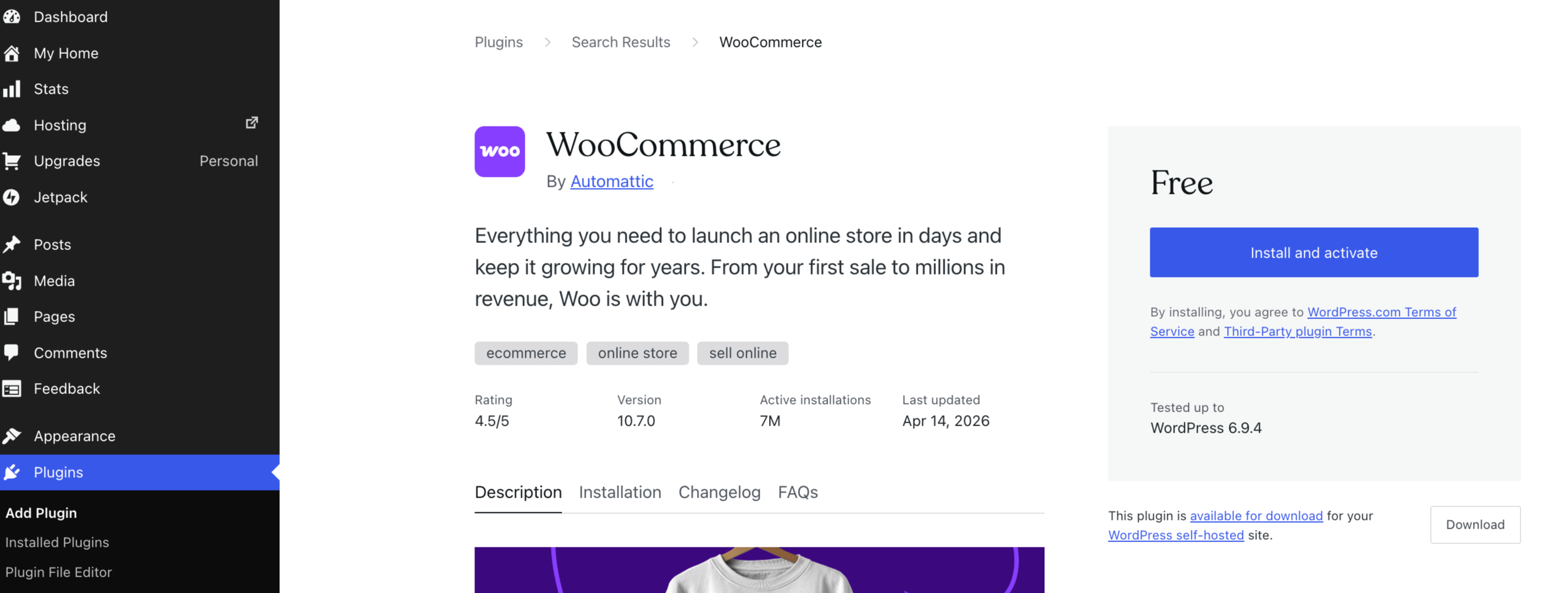
Now comes the turning point.
Go to your dashboard → Plugins → Add New
Search for WooCommerce → Install → Activate
That’s it.
This used to be locked behind higher-tier plans. Now it’s available right away—and this is what turns your site into a real online store.
WooCommerce handles everything:
- Products
- Payments
- Checkout
- Orders
Step 4: Configure Your Store Basics
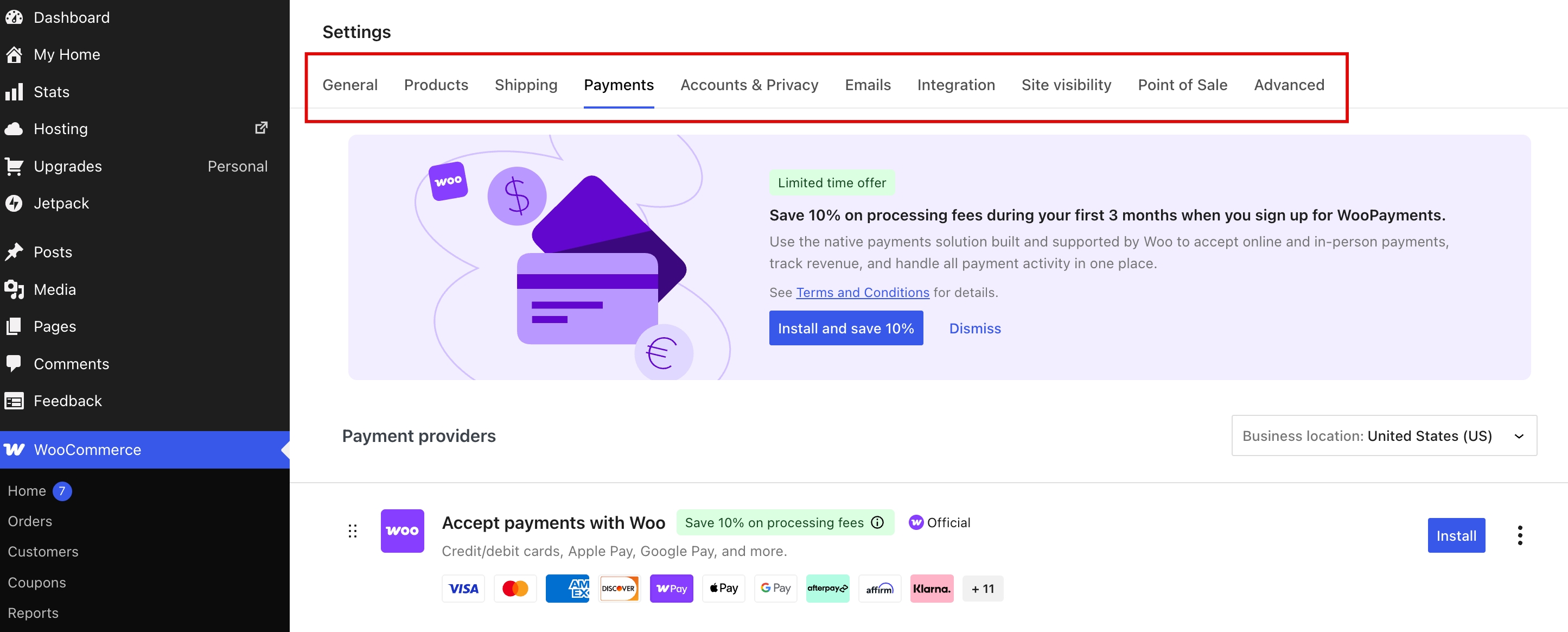
Once WooCommerce is activated, it’ll guide you through setup.
Just follow the prompts:
- Store location
- Currency
- Shipping options
- Payment methods (like Stripe or PayPal)
Don’t try to make it perfect. Just get the basics done so your store can function.
You can always refine things later.
Step 5: Pick a Theme & Customize Your Store
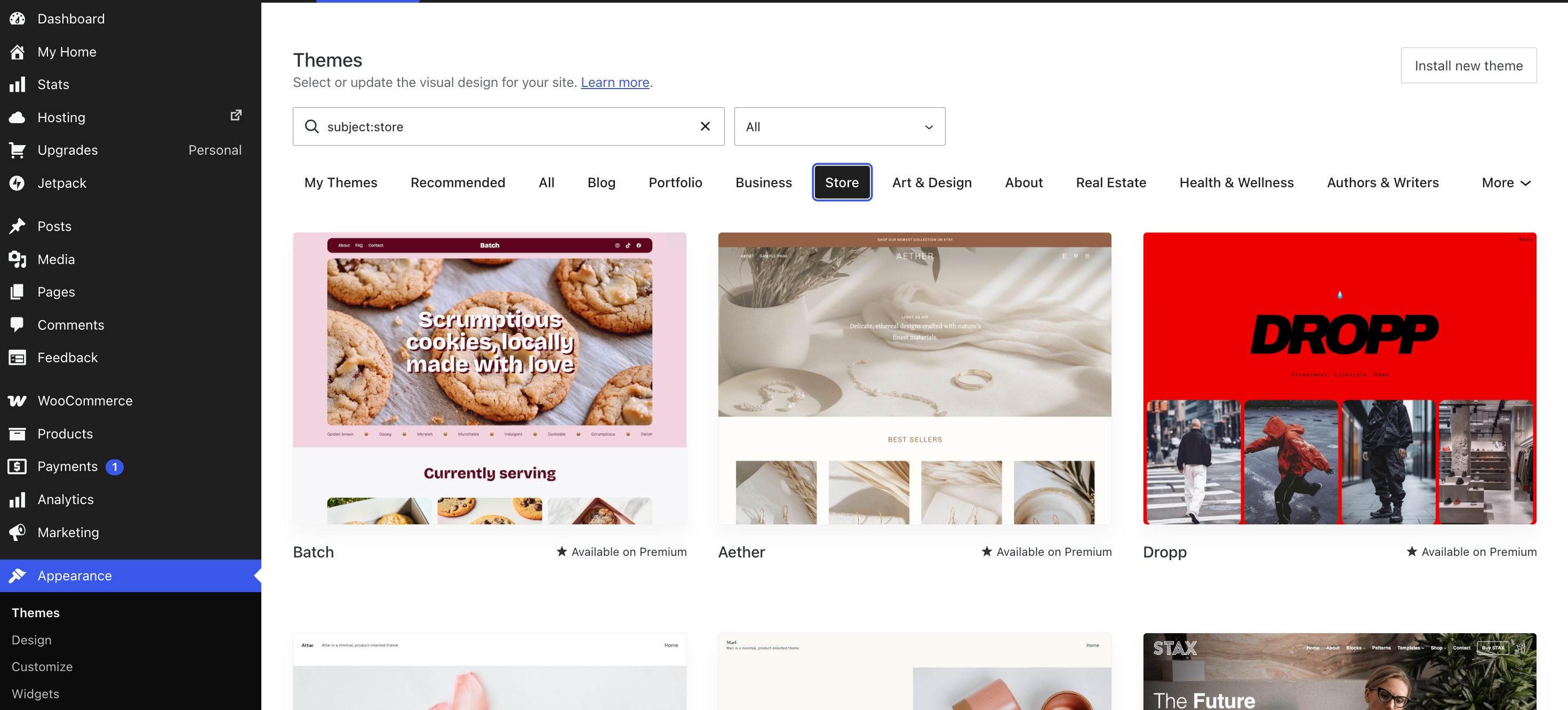
Now let’s make your store look good.
Choose a theme that feels clean and trustworthy.
Avoid anything cluttered or flashy.
With the new flexibility on WordPress.com, you can now fully customize your design without limitations.
Focus on this:
- Clear homepage
- Easy navigation
- Mobile-friendly layout
People decide in seconds if they trust your store. Design matters.
Step 6: Add Your First Products
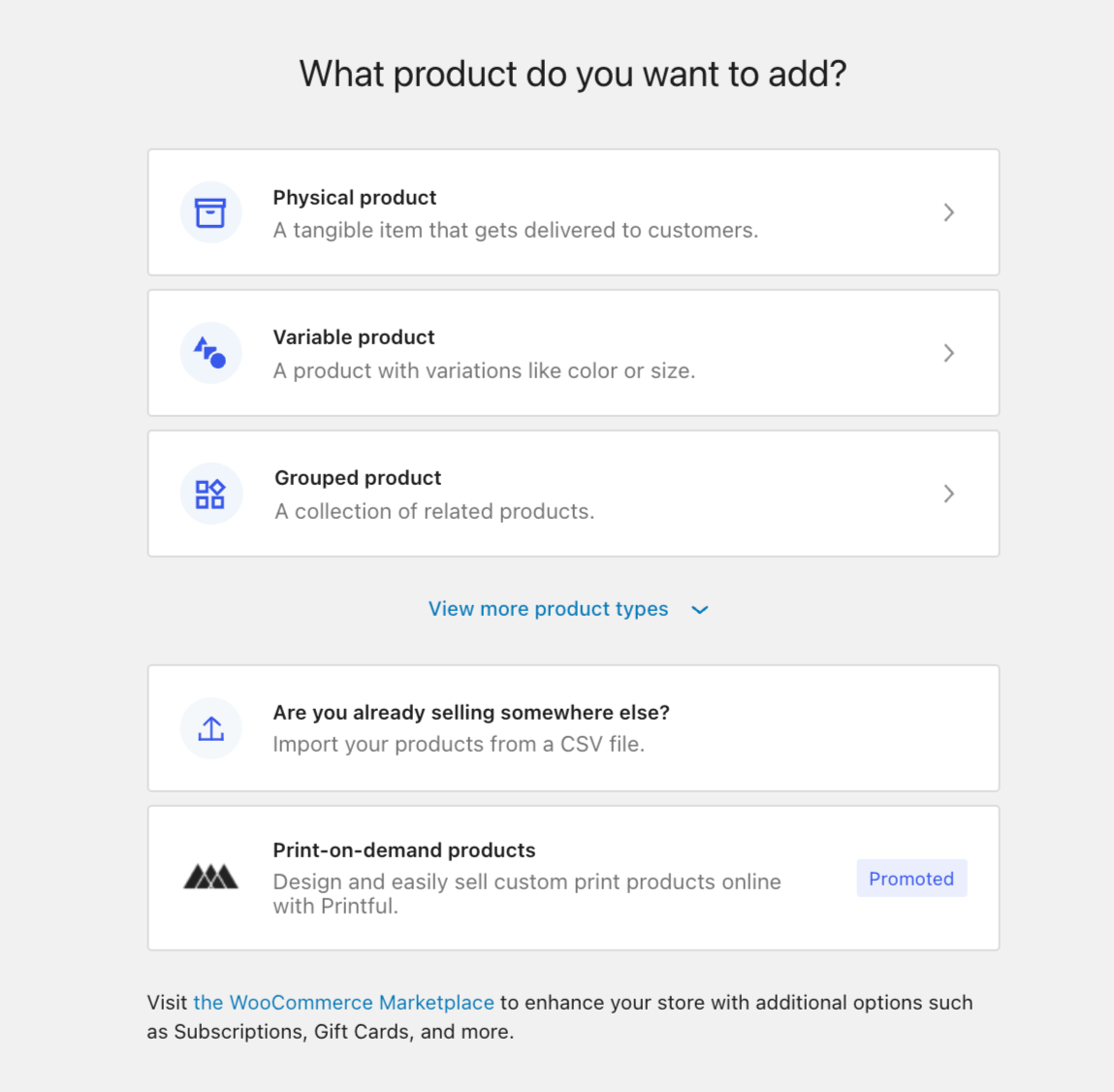
Start small.
Add 1–3 products first instead of overwhelming yourself.
When creating product pages:
- Use clear, benefit-driven descriptions
- Add high-quality images
- Keep pricing simple
Here’s the truth: people don’t buy products—they buy outcomes.
So instead of listing features, explain what problem your product solves.
Step 7: Install Must-Have Plugins
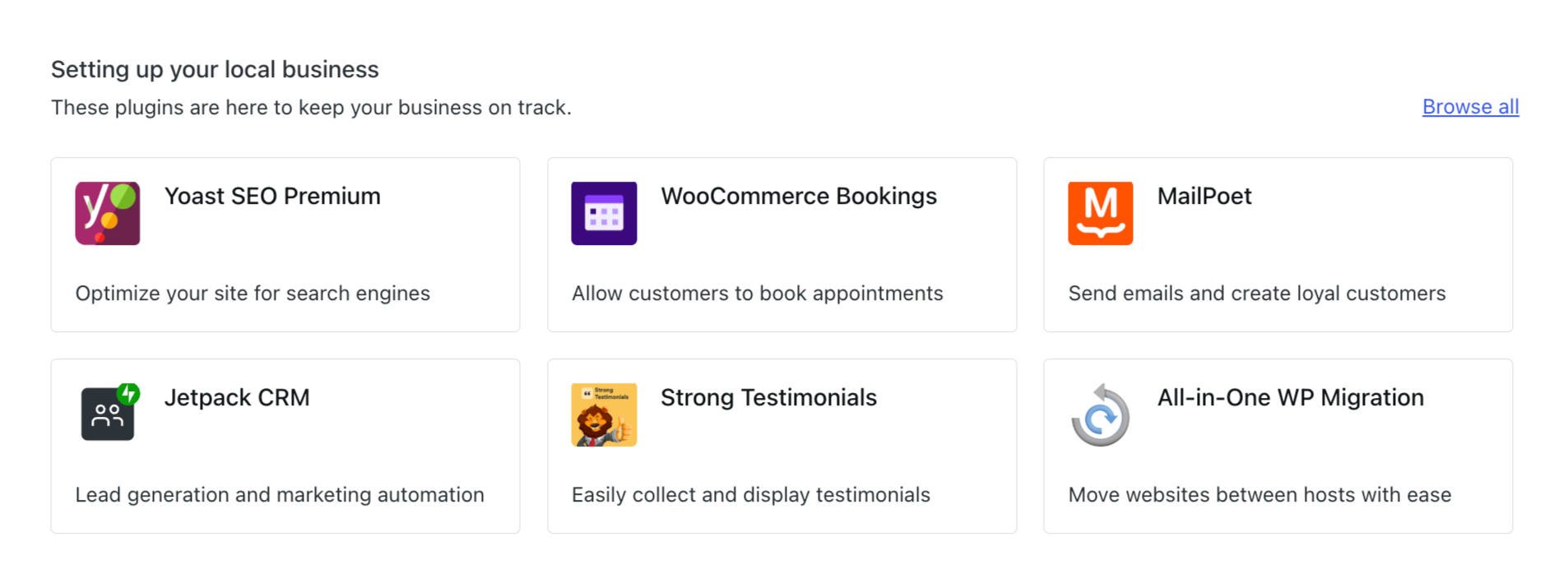
Now that plugins are fully available, you can actually improve your store properly.
Start with a few essentials:
- SEO plugin (to help people find you on Google)
- Security plugin (protect your site)
- Speed optimization (faster site = more sales)
- Conversion tools (like popups or email capture)
Don’t install everything at once. Keep it lean.
And that’s it.
You now have a working online store.
Not perfect—but live. And that’s what matters.
Common Mistakes to Avoid (This Is Where Most People Fail)
Let me be real with you.
Most people don’t fail because the setup is hard.
They fail because they overthink, overbuild, and never actually launch.
I’ve seen beginners get stuck for weeks on things that don’t even matter in the beginning.
Here are the big ones to avoid:
Trying to make everything perfect before launching
People spend days tweaking fonts, colours, layouts…
Meanwhile, their store isn’t even live.
Your first version will not be perfect. And that’s fine. What matters is getting it out there and improving as you go.
Done beats perfect. Every time.
Adding too many plugins too early
Yes, you now have access to thousands of plugins on WordPress.com.
That doesn’t mean you should install all of them.
Too many plugins can slow your site down, break things, and confuse you.
Start with the basics. Add more only when you actually need them.
Ignoring mobile design
Most people will visit your store on their phone.
If your site looks messy, slow, or hard to navigate on mobile… they’re gone.
Always check:
Open your store on your phone. Scroll like a customer. Fix anything that feels annoying.
Weak product pages
This is a big one.
A lot of beginners just upload a product, add a short description, and expect sales.
It doesn’t work like that.
Your product page should clearly answer:
- What is this?
- Who is it for?
- Why should I care?
Focus on the outcome. What does the customer get after buying?
No clear offer
If someone lands on your site and thinks,
“Wait… what exactly is this store selling?” — you’ve already lost them.
Keep it simple.
One niche. One clear message. One obvious next step.
Here’s the truth most people don’t say:
You don’t need a perfect store to start.
You need a clear store.
Clear message. Clear product. Clear action.
That’s what gets your first sale.
How Much Does It Really Cost?
Let’s clear this up, because this is where most people hesitate.
They assume starting an online store is expensive.
It’s not.
Here’s what you’re actually looking at:
1. WordPress.com Plans
| Plan | Monthly (Billed Annually) | Best For | Key Features |
| Free | $0 | Personal projects | Subdomain (yoursite.wordpress.com), 1GB storage, basic themes. |
| Personal | $2.75 per month | Blogs & Portfolios | Custom domain (free for 1 year), removes ads, email support, 6GB storage. |
| Premium | $5.50 per month | Freelancers | Advanced design tools (CSS), social media scheduling, VideoPress, 13GB storage. |
| Business | $17.50 per month | Small Businesses | Install custom plugins & themes, SEO tools, automated backups, SFTP/Database access. |
| Commerce | $31.50 per month | Online Stores | Everything in Business + premium WooCommerce extensions and integrated shipping/tax tools. |
You’ll need a paid plan on WordPress.com.
The good news?
Because of the recent update, even lower-tier paid plans now give you access to plugins and themes. That means you don’t have to jump to expensive plans just to use WooCommerce.
So you can start lean.
2. Domain Name
Usually around $10–$20 per year. But the best part is that all WordPress.com yearly plans include a free domain for the first year, which means you pay nothing at the start.
3. WooCommerce
Free.
That’s one of the biggest advantages. The core plugin gives you everything you need to start selling.
You only pay extra if you choose premium extensions—but you don’t need those in the beginning.
4. Optional Costs (Only If You Want Them)
This is where you can spend more—but only if it makes sense later:
- Premium themes
- Advanced plugins
- Paid marketing tools
None of these is required to launch.
So what’s the real starting cost?
You can realistically launch your store for the cost of:
- A basic WordPress.com plan
- Maybe a domain
That’s it.
Now compare that to other options.
With platforms like Shopify, you’re paying monthly fees plus extra app costs pretty quickly.
With self-hosted WordPress, you’re dealing with hosting, setup, and maintenance from day one.
But now?
WordPress.com sits right in the middle.
Simple to start. Affordable. And powerful enough to grow.
If cost was the thing holding you back, this is your sign—you don’t need a big budget to get started.
Tips to Get Your First Sale Faster
Getting your store live is one thing.
Getting your first sale? That’s where things feel real.
And here’s the truth: you don’t need a big audience or complicated marketing to make it happen.
You just need focus.
Start with one clear product
Don’t try to sell everything.
Pick one product. One problem. One type of customer.
When your store feels focused, it’s easier for people to understand—and trust—what you’re offering.
Talk like a human, not a brand
Most beginner stores sound robotic.
“High-quality product… best in class… premium features…”
No one talks like that.
Write like you speak. Keep it simple. Make it clear what the product actually does for someone’s life.
That’s what sells.
Use what you already have
You don’t need ads to start.
Share your store:
- On WhatsApp
- With friends and family
- On your social media
Your first few sales often come from people who already know you. That’s normal.
Build trust quickly
If someone is visiting your store for the first time, they’re asking:
“Can I trust this?”
Help them say yes.
Add:
- Clear product descriptions
- Real images
- Simple guarantees (like easy returns)
Small things make a big difference.
Don’t wait until everything is perfect
This one matters most.
A lot of people delay launching because:
“The design isn’t ready.”
“I need more products.”
“It’s not perfect yet.”
Ignore that.
Launch early. Learn fast. Improve as you go.
That’s how real stores grow.
Here’s the mindset shift:
You’re not building a perfect store.
You’re building a store that learns and improves with every visitor.
That’s how you get your first sale—and your next one.
Frequently Asked Questions
Can I really use plugins on WordPress.com now?
Yes. This is the big update. Any paid plan on WordPress.com now gives you access to plugins and themes. That means you’re no longer restricted like before—you can build a fully functional site from the start.
Is WooCommerce free?
Yes. WooCommerce is free to install and use.
You only pay if you choose premium extensions or add-ons, but most beginners don’t need those right away.
Do I need coding skills to build my store?
No.
Everything is built to be beginner-friendly. You can set up your store, customize your design, and manage products without writing a single line of code.
Can I scale this store later?
Yes.
That’s actually one of the biggest advantages of using WooCommerce. You can start small and expand over time—add more products, install advanced plugins, improve your marketing—without needing to rebuild everything.
Conclusion
Starting an online store used to feel complicated.
Too many tools. Too many decisions. Too many things that could go wrong.
But now? It’s a lot simpler.
With WordPress.com opening up plugins and themes on all paid plans, you no longer have to choose between “easy” and “powerful.” You can build a real store using WooCommerce—without dealing with the usual technical headaches.
And honestly, that removes one of the biggest barriers that stops people from starting.
So here’s the only thing that matters now:
Don’t wait.
You don’t need everything figured out. You don’t need the perfect product. You don’t need a flawless design.
You just need to start.
Set it up. Put your first product out there. Learn as you go.
Because the sooner your store is live, the sooner you give yourself a chance to make that first sale.
You might also like…