Welcome to my WordPress.com review article.
2026 is here, and if you’re looking to start a brand new WordPress blog for your business or want to migrate your existing site to WordPress.com, then this article is for you.
I’ve hosted 100+ affiliate projects on WordPress.com for years. To see how it performs now and decide if it’s still a solid platform, I recently set up a fresh test site.
This review is based on my own experience, not marketing claims or screenshots. I actually signed up, installed WordPress, ran real performance tests, and carefully tracked the platform’s current limits and improvements.
Automattic, the company that created Jetpack and WooCommerce, builds and maintains WordPress.com. Because they handle your backups, software updates, caching, and security, it’s a fully managed hosting platform.
In this WordPress.com review, I’ll show you the setup process, the results from my speed tests, customer support quality, and the most important pros and cons. This way, you can figure out if it’s the right choice for your website in 2026.
Let’s get started.
Affiliate Disclosure: This article contains affiliate links. If you choose to sign up for WordPress.com through these links, I may earn a small commission at no additional cost to you.
My WordPress.com Hosting Review 2026 – The Verdict
For busy readers, here’s a quick summary of the WordPress.com hosting review.
| WordPress.com Review Quick Summary | |
|---|---|
| 💰 Starting Price | $2.75/mo (for 3 years) |
| 🌐 Free Domain | Yes |
| 🔒 Free SSL | ✅ |
| 💾 Disk Space | 6 GB – 50 GB |
| 📞 Support Options | Live Chat / Email |
| ⚡ Page Loading Time | 3.3 ms |
| 🖥️ Server Response Time | 129.4 ms |
| ⭐ Rating | A+ |
| ✅ Best for | Hobby blogs, small businesses, and eCommerce stores |
If security and speed are your priorities, you should go for WordPress.com. They manage all the technical work themselves, so once your site is live, you never have to think about updates or maintenance.
Their servers easily handle traffic, whether you run a small blog or a busy site with millions of monthly visitors. On top of that, you get complete access to every WordPress feature you’re familiar with.
From my experience, the Personal and Premium plans didn’t feel worth the cost. The Business plan, however, delivers real value. It improves performance, adds extra security, and comes with strong support. For anyone serious about running a professional website, it’s the plan I would recommend.
Get started with WordPress.com ->
What Is WordPress.com?

Launched in 2005, WordPress.com is a fully managed platform that lets you create websites and blogs without having to worry about hosting, security, or technical maintenance. It’s run by Automattic, the company co-founded by Matt Mullenweg, one of the original creators of WordPress.
Unlike self-hosted WordPress (WordPress.org), WordPress.com takes care of the backend for you—meaning you don’t need to set up servers, install software, or manage updates. You can simply focus on creating content, customizing your site, and engaging your audience.
WordPress.com offers various plans, from free accounts with basic features to premium plans with advanced tools like custom domains, more storage, e-commerce tools, and access to premium themes. You can use the built-in block editor or switch to the classic WordPress dashboard if that feels more familiar.
It’s ideal for hobby bloggers, small business owners, and anyone who wants a simple, low-maintenance way to build a professional website.
WordPress.com vs WordPress.org – What’s the Difference?
If you’re just starting with WordPress, it’s normal to feel confused between WordPress.com and WordPress.org. They might sound similar, but they are actually quite different.
WordPress.org is the self-hosted version. You install it on your own hosting account, which means you have full control over your website. You can use any theme, plugin, or custom code you want to build your site exactly how you like.
WordPress.com, on the other hand, is a hosted platform managed by the same team that created WordPress. It takes care of all the maintenance, such as updates, security, and backups, so you don’t need to handle the technical parts yourself.
With WordPress.com, everything runs nicely right after setup. However, if you want to install custom themes or plugins, you’ll need to upgrade to a higher plan.
Learn more about WordPress.com and WordPress.org.
WordPress.com Pros and Cons
Here are the pros and cons of using WordPress.com in 2026:
WordPress.com Pros
- Every plan includes a free domain.
- A built-in CDN is activated by default across all plans.
- Renewal prices are almost the same as the initial subscription cost.
- WordPress hosting servers handle heavy traffic quite well.
- The platform maintains strong, enterprise-level security.
- It includes a built-in Generative AI tool to help with content creation.
- You can install custom plugins to expand your website’s features.
- All the features available on WordPress.org are also included here.
- You get access to hundreds of professional-quality themes at no extra cost.
- Free website migration is included.
- Automated backups run in real time.
- 24/7 live chat support is always available.
WordPress.com Cons
- WordPress.com offers an EU West data center option for Business plan users, and Automattic operates a worldwide network of 27 data centers.
- Each paid plan supports just one website.
- The Personal and Premium plans don’t offer much value for their price.
- You can change your data center only once.
- The platform only supports the WordPress CMS.
- Phone support isn’t available.
How Fast Is WordPress.com Blog Hosting? My Real Performance Test
The performance of a new web hosting server is always our first area of inspection.
To get the most accurate results from our testing, we sent website visitors to the WordPress.com hosting server from various locations. This shows you how well the server manages visitors coming from different parts of the globe.
How We Tested the WordPress.com Blog Hosting Server
To assess our WordPress.com-hosted site’s server, we ran four key tests:
- Speed Test
- Server Response Time Test
- Uptime Test
- Stress Test
My Test Site Setup: WordPress.com Business Plan
I set up the test site on the WordPress.com Business Plan (filled with content and images, ~10 pages are live). To keep the results authentic, I turned off server-side caching and the Jetpack CDN, which are usually active by default.
Speed Test (GTmetrix)
We know search engines improve the ranking of pages that load between zero and four seconds.
That brings up a big question:
Is WordPress.com hosting fast enough?
Let’s see.
I used the GTmetrix tool to send simulated website visitors to my WordPress.com site from different places around the world.
Here’s what the loading times showed:

As you can see, my WordPress.com test site completed its full load in 3.3 seconds. The site passed all Core Web Vitals checks exceptionally well: the Largest Contentful Paint (LCP) took only 609ms, the Total Blocking Time registered 27ms, and the Cumulative Layout Shift (CLS) hit a perfect 0 score.
GTmetrix awarded the site an A grade, showing 100% performance and 95% structure. This is a rare accomplishment, even for sites on high-quality hosting. This outcome shows you can get excellent loading speeds without needing to put in much extra work.
Note: These results are quite good, especially considering I haven’t done any speed optimization.
Server Response Time (Bitcatcha)
I tested the global server response using Bitcatcha to see how fast WordPress.com servers react across different regions.
Here’s what I found:

Average response time: 129.4 ms (excellent).
This strong performance is made possible by WordPress.com’s global edge caching, which helps deliver content quickly, regardless of your visitors’ location.
WordPress.com Uptime Test Results
No one wants their site to crash and send visitors away. Uptime shows how dependable a web server is.
To track this, I used Uptime Robot, a program that constantly checks websites and flags any server failures or downtime.
Here are the results:

The test site has been live for almost three months, and WordPress.com has maintained 100% uptime throughout that period.
This reliability is precisely what customers look for in a managed hosting service.
Since WordPress.com manages and maintains its own servers, it consistently delivers consistent performance.
Stress-Testing WordPress.com Hosting
If your website handles high traffic or frequent, sudden spikes, you should stress test your WordPress.com hosting to see how well the servers manage the load.
To perform this test, I used the k6 tool. Over a five-minute period, I sent 12k automated requests to my WordPress.com website from various global locations.
The result?
My WordPress.com site’s server didn’t crash, and the average response time was an incredibly fast 4.05ms.
This successful test confirms the reliability of the WordPress servers. They can easily support high-traffic websites, like e-commerce stores or news sites, where traffic spikes happen often.
Performance Review of WordPress.com Hosting Servers
I rate the performance of WordPress.com hosting servers at 4.9 out of 5. Because they operate several data centers throughout the USA, sites load quickly and respond well for visitors located within or close to the country.
However, visitors in Asia or more distant regions might notice slower loading times. To increase speed, you can activate Jetpack’s integrated CDN or use a third-party CDN like Cloudflare, which costs more each month.
WordPress.com servers prove exceptionally reliable. Their uptime is remarkable; we recorded no downtime. They also handle sudden increases in traffic well due to their automated burst scaling.
When compared to Hostinger and Bluehost, WordPress.com servers handle heavy loads better, a major benefit for websites that frequently experience unexpected traffic spikes.
WordPress.com Review – Best Features for 2026
WordPress.com offers tools that cover both web hosting and the WordPress Content Management System (CMS).
These features will greatly upgrade how you host and build websites. They offer great reasons to choose WordPress.com hosting for your next project.
#1. Themes, Plugins and Advanced Website Customization
Millions of people choose WordPress.org because it lets them customize their website’s design in countless ways.
The great news is that WordPress.com hosting also offers these options, so you can build a site that matches your vision without compromise.
Free Themes Add Serious Value
You get a ton of premium themes for blogs, online shops, portfolios, and other sites with WordPress.com hosting, all at no extra cost. Most other web hosts force you to purchase premium themes separately, which can easily set you back $150–$200 annually. That’s a serious saving right there.
I also looked through their theme collection and found over 100 ready-to-use templates. They’re well-organized into categories such as Blog, Portfolio, Business, and Premium Store. Whatever kind of site you plan to build, you’ll find a template that works.

Plugins are WordPress.com’s Core Feature
WordPress.com hosting comes with access to the WordPress CMS, which lets you use thousands of plugins to extend your site’s features.
In fact, WordPress.com has a library of over 60,000 free plugins you can install in just a few clicks.

These plugins help you add new functions without writing a single line of code.
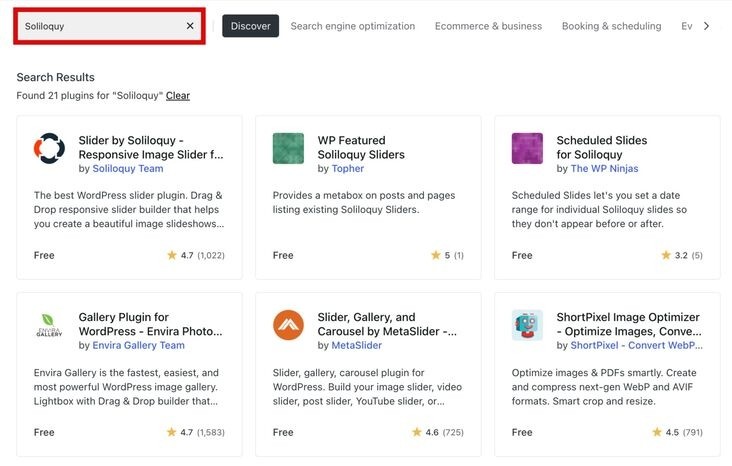
For example, if you install a free SEO plugin like Rank Math, you can manage Schema Markup, set up redirects, and handle many SEO tasks right from your dashboard.
If you’re new to website building and need to add a feature like a picture gallery or slider, you won’t have to hire a developer or learn to code yourself.
Simply search the main library for a slider tool, and you will certainly find a suitable solution. It’s safe to say that the core strength of WordPress.com truly lies in its powerful plugins.
Build Your Website Fast with Drag & Drop and Templates
When you install a premium WordPress theme like Astra, Kadence or GeneratePress, you unlock many design options to customize your site, including typography, layout, header, CSS, fonts, colors, and more.

But that’s just the beginning.
WordPress.com comes with a Drag & Drop Block Editor that lets you place and arrange elements on your pages without touching any code. For example, if you want a two-column layout with an image, you just drag the column block onto the page and drop it where you want.
You also get Pre-Made Page Layouts. These layouts help you build important pages like About Us, Services, Contact, Blog Posts, and Store Pages without starting from an empty screen.
In addition, WordPress.com editor offers Predefined Block Patterns, which are ready-to-go layouts for your posts and pages.
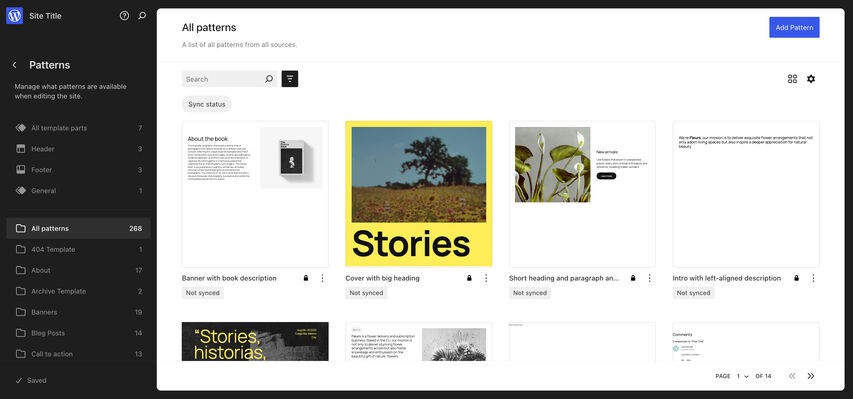
For example, selecting a pattern block for a Call-to-Action (CTA) button inserts the complete, styled button directly into your content. This feature lets new users create compelling page layouts themselves, without writing code.
WordPress.com features a “Paid Content Block” too. This lets you limit premium material to subscribers, so you earn income from exclusive material.
By the time you finish, you’ll have a high-quality, professional website that reflects your style — and you’ll have done it all yourself, without hiring a developer or spending a fortune.
#2. Powerful Built-in Plugins Included
Plugins are the fundamental features of the WordPress CMS; they expand a website’s functionality far beyond the basics.
WordPress.com hosting includes many premium plugins for free across all its plans, which explains its pricing. If you use other hosting providers and set up WordPress.org yourself, you must buy these plugins separately. This purchase can seriously raise your total expense.
When I purchased WordPress.com hosting, I got 9 pre-installed plugins at no extra charge. The best part? WordPress.com handles all its updates and maintenance for you.

One of the first plugins included is Jetpack, which handles both security and performance. Normally, Jetpack’s paid plans cost around $5–$10 per month, but here it’s free.
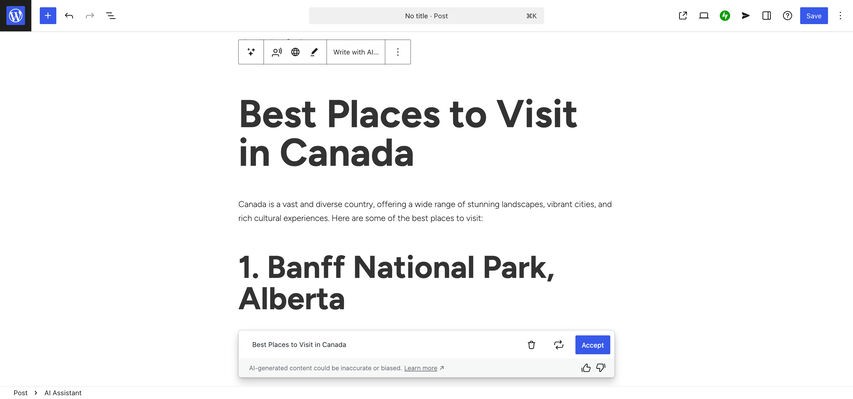
It also comes with an AI Assistant Block, a built-in content generator that can write new posts, improve existing ones, and even suggest titles or feature images. Having this tool inside WordPress.com is a nice bonus because it saves you from paying for another AI writing service.
Another useful plugin that comes free is Akismet. Once your site goes live, spam comments can become a problem fast. Akismet filters them automatically and protects your site from spam links and potential security risks.
#3. Security Is Stronger Than Most Hosting Services
No website is ever 100% secure on the internet. While entry-level web hosts usually offer less protection, the situation is different here. This service has made huge investments in security to keep your site safe.
Beyond the Jetpack daily automated backups and Akismet spam protection, WordPress.com hosting provides these additional security features:
- DDoS Protection
- Web Application Firewall (WAF) Protection
- Malware Scanning and Removal
- Built-in Two-Factor Authentication (2FA)
- Proactive Plugin Monitoring
- SSL Certificate
- Automated Backups
- One-Click Restore
- Real-time Security Scans
- Automatic Plugin Updates
- Plugin Maintenance
- Staging Site
These features cover almost everything you’d expect from a secure hosting platform. You even get notifications when vulnerabilities are found in WordPress core or plugins.

However, it’s worth mentioning that many of these advanced security options are available only in the Business and Commerce plans. This could be a drawback if you’re starting out with a lower-tier plan.
#4. Performance Features That Handle High Traffic
WordPress.com hosting servers offer automated burst scaling. This means when your site experiences a surge in traffic, the servers instantly increase your bandwidth limit and CPU power. This action guarantees your website’s performance never suffers, even under heavy loads.
Initially, I suspected WordPress.com listed this feature on its pricing page purely for marketing. However, after personally testing their servers, I confirmed their effectiveness. You can see the load handling capacity test for yourself.
Here are some other performance features WordPress.com includes:
- They don’t limit bandwidth or the number of visitors.
- They auto-optimize your site’s data center location, so your readers experience rapid loading speeds every time.
- All plans include global edge caching and Jetpack CDN, which helps your content reach users faster.
- Jetpack also compresses images, reducing page size and improving loading speed.
Because this is fully managed hosting, WordPress.com’s team continuously handle server optimization in the background. This is a major advantage over typical low-cost shared hosting services.

#5. Building Your Online Store with WordPress.com Hosting
WordPress.com hosting provides dedicated store features that let you handle even massive eCommerce websites. While I used to often suggest Hostinger for budget-conscious eCommerce hosting, WordPress.com hosting is now a powerful contender for both small and large online shops.
It offers WooCommerce-optimized hosting. WooCommerce is a very popular store creation plugin built specifically for WordPress users. Using it, you can sell physical goods, digital downloads, or memberships all from a single platform.
You’ll have access to store themes, design tools, inventory control, upselling options, user accounts, shopping carts, unlimited product pages, shipping tools, and many other features. The plugin also supports payments in over 135 currencies and allows you to sell in more than 60 countries.
If you’re starting with the Business plan, you can activate the free WooCommerce plugin. However, for a more advanced store, the dedicated Commerce plan unlocks WooCommerce’s premium tools and paid extensions.
Pro Tip: If you find Shopify’s pricing too high, you should definitely explore the store plans offered by WordPress.com hosting.
#6. Built-in SEO & Marketing Features
I’ve reviewed a lot of hosting services, and this provider is the first one I’ve encountered that includes built-in SEO tools.
Right after installing WordPress.com hosting, you can access tools that usually require plugins. For instance, you can create sitemaps, manage URLs, integrate Google Analytics, set SEO titles, enable AMP support, and more.
If you want complete control over on-page SEO, WordPress.com supports many free plugins such as Rank Math and Yoast SEO.
On the marketing side, WordPress.com hosting also offers helpful tools. It includes a newsletter feature that helps grow your subscriber list.
With the Form Block, you can create contact forms, appointment forms, event forms, and other types of forms to keep your audience engaged.
Are WordPress.com’s Hosting Plans Worth the Price?

WordPress.com lets you launch your website for as little as $2.75 per month, but before you commit, you should understand the conditions attached to that price.
The Cost Breakdown
WordPress.com has four managed hosting plans:
- Personal: Starts at $2.75/month
- Premium: Starts at $5.50/month
- Business: Starts at $17.50/month
- Commerce: Starts at $31.50/month
Like many hosting providers, WordPress.com offers the lowest prices for longer commitments. You’ll only get the $2.75 per month deal if you sign up for a three-year plan. If you go with a yearly plan instead, the price starts at around $4 per month.
The Personal and Premium plans come with limited storage, which can be a problem if you plan to upload lots of content. The Personal plan includes 6 GB, while the Premium plan offers 13 GB. In comparison, many other hosting providers offer more storage at similar prices.
If your website is important for your business, you’ll likely need more storage, which only comes with the Business or Commerce plans. This storage limitation makes the lower-tier plans less suitable for long-term growth.
The Personal and Premium plans may work well for beginners or simple personal blogs, but the Business plan provides a more comprehensive set of tools for advanced site management.
When making your choice, consider factors like storage capacity, available eCommerce features, and the number of themes and plugins you can use.
Fortunately, all WordPress.com hosting plans come with a free domain for the first year and a free Content Delivery Network (CDN).
Here’s a quick comparison of what each plan offers:
- The Personal Plan is ideal for small blogs and individual websites. It includes one website, 6 GB of storage, unlimited bandwidth, and a free domain. You also get access to limited premium themes, the Jetpack plugin, and support for custom themes and plugins. While it includes a free CDN and automatic WordPress updates, it doesn’t support real-time backups or automatic plugin updates.
- The Premium Plan offers everything in the Personal Plan but with more flexibility. You get 13 GB of storage, unlimited access to premium themes, and all the basic features like unlimited bandwidth, free CDN, and Jetpack integration. However, like the Personal Plan, it doesn’t include real-time backups or plugin auto-updates. It’s best suited for bloggers and small business owners who want more customization options.
- The Business Plan is a better choice for users who want full control over their WordPress.com site. It includes 50–150 GB of storage, unlimited premium themes, and support for custom themes and plugins. Unlike the lower plans, it supports plugin auto-updates and real-time backups. With unlimited bandwidth, free CDN, and full WordPress updates, it’s perfect for businesses and professionals looking for advanced functionality.
- Finally, the Commerce Plan is built specifically for online stores. It offers the same technical features as the Business Plan, 50 to 150 GB storage, real-time backups, plugin auto-updates, and free CDN, but also includes built-in eCommerce features to help you set up and manage your store easily. This plan is best for users who want to build and grow a fully functional online shop.
Renewal Costs
One nice thing about WordPress.com is that it doesn’t hike up prices at renewal. Many hosts double or even triple their renewal rates, but here, you’ll keep paying the same amount as long as the plan remains the same.
Money-Back Guarantee
WordPress.com also offers a 14-day refund on 1-year, 2-year, and 3-year plans, and a 7-day refund on monthly plans. So if you’re not happy, you can easily cancel and get your money back.
Special Offers
If you decide to go with WordPress.com Hosting, you can get up to a 69% discount on all plans as a new user, thanks to their recent promotional collaboration.
So, what’s your move? Would you go with the budget-friendly Personal plan, or invest in the Business plan for more freedom and storage?
My Experience with WordPress.com Support
You’d expect great support from an enterprise-level company like WordPress.com, and for the most part, they deliver.
The primary way to reach their team is through live chat. How fast they respond depends on your specific hosting plan.
When I started with WordPress.com hosting, I had lots of questions about things like CDN, performance settings, and data centers.
My first attempt to get answers was using their AI Support Assistant. I’ll be honest, this assistant is incredibly well-trained and solved nearly all my initial concerns. You find it right in the dashboard, and it’s genuinely useful.
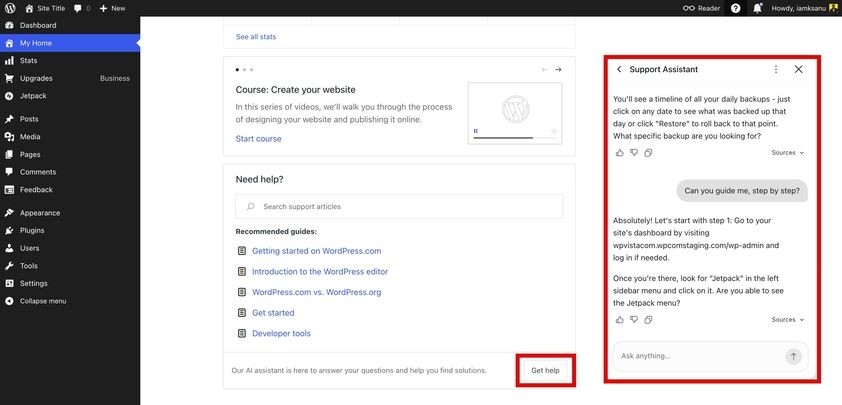
You can ask it anything, and it addresses your questions instantly. For instance, when I typed “Backups,” it immediately gave me a thorough explanation of how their backup works.
The interaction was so fluid it didn’t even feel like talking to an AI.
I also tested their human support via live chat. They replied to me in about 5 minutes, which is a solid, average response time. Their agents are highly technical.

Since WordPress.com offers fully managed hosting, they fix your technical problems for you instead of just instructing you on what to do—a welcome difference from what many budget WordPress hosts offer.
WordPress.com also maintains a huge library of tutorials, guides, and webinars. These resources are especially helpful if you are on the Free or Personal plan, where instant live chat access isn’t always available.
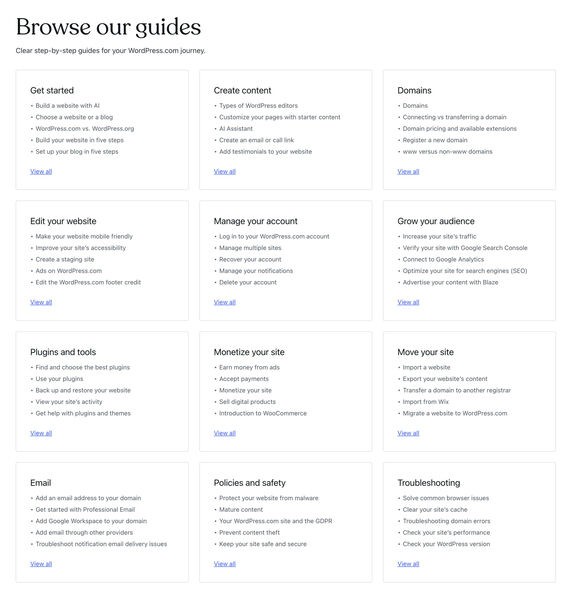
If your needs are substantial enough for an Enterprise plan, you’ll receive dedicated account managers and premium, hands-on support.
However, for most users, the support included in the Business and Commerce plans provides plenty of help whenever you require it.
How Simple is WordPress.com to Use?
When I first tried WordPress.com, I just wanted to see how simple it really was to set up a site — and honestly, it was much easier than I expected. I didn’t have to install anything or deal with hosting setups. As soon as I created my account, the site was ready to go.
(Initially, I found WordPress.com a little unusual because it doesn’t come with a cPanel. But after spending a few hours exploring the dashboard, I realized it’s actually simple to use and well-organized. It took me a bit of time to understand all the settings and options, but once I got familiar with them, everything felt straightforward.)
You can publish posts, add pages, and change your theme without writing a single line of code. It works nicely for anyone building a website for the first time.
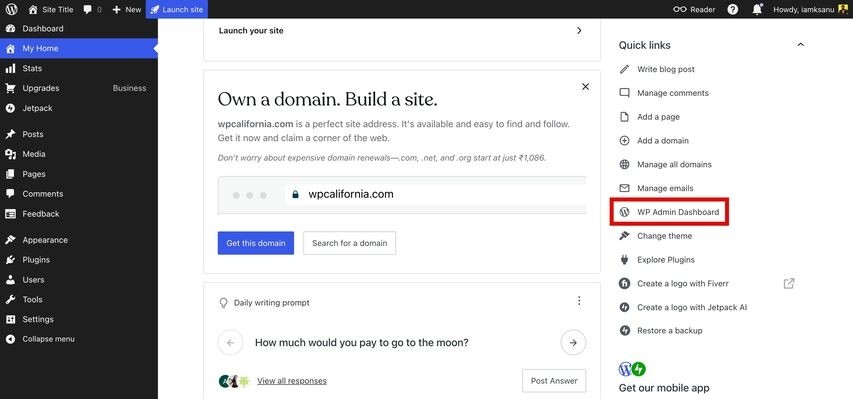
When I opened my admin area for the first time, I saw an option to “Activate hosting features.” During this step, I could also choose a data center location, which was a nice touch.
The overview dashboard displays useful details such as your hosting plan, backup status, and a direct link to the WordPress CMS dashboard. It’s simple to find what you need without hunting through menus.
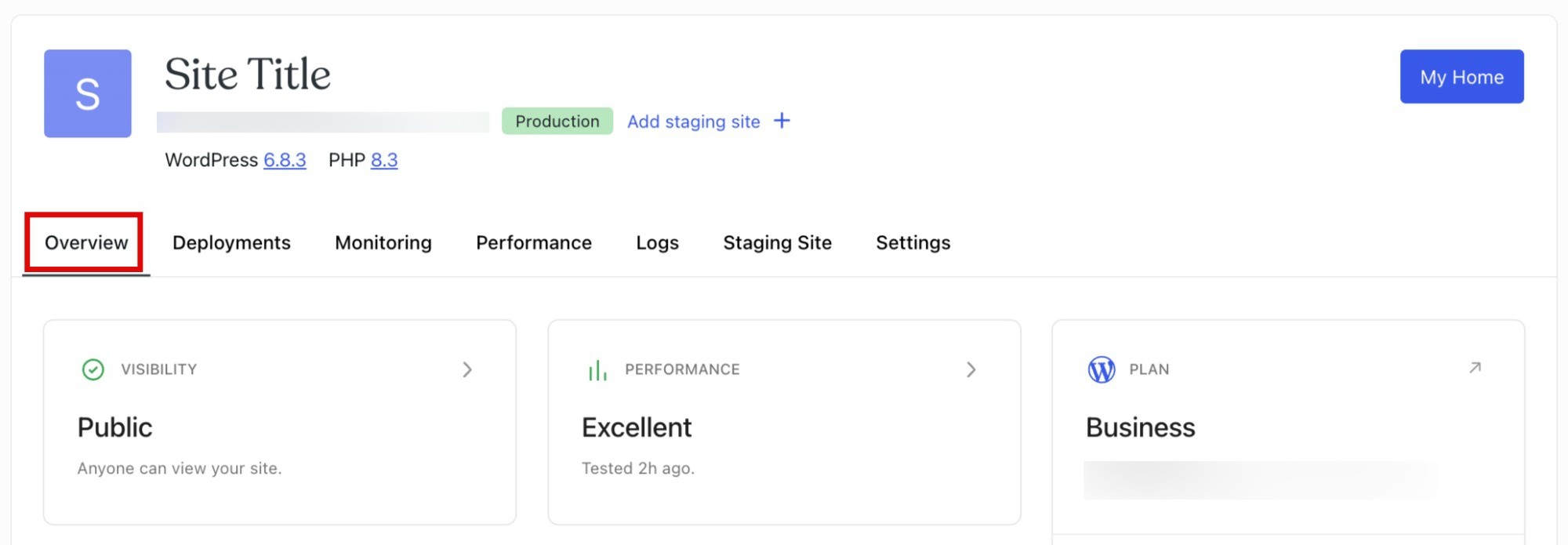
WordPress.com automatically creates daily backups, so there’s no need to worry about losing data. It also includes pre-installed plugins such as Jetpack and CoBlocks, which expand your block editor’s features right from the start.
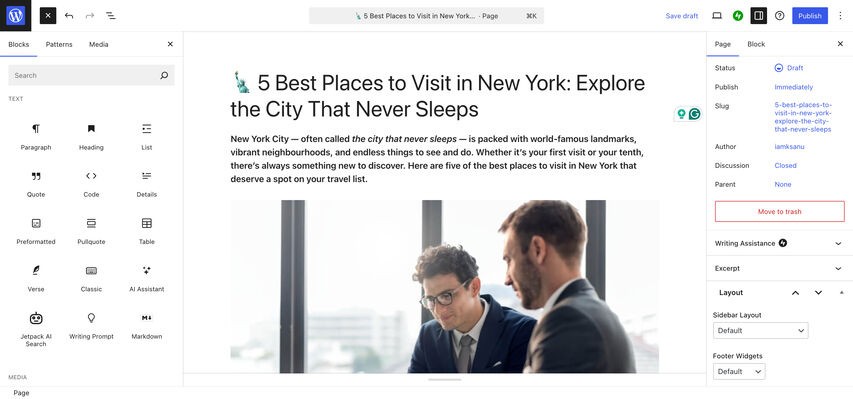
Under the Settings tab, you can access the database and restore any default plugins you might have deleted during setup. This feature saved me once when I accidentally removed an important plugin.

The hosting interface is minimal and focuses on the basics. I spend most of my time inside the main WordPress.com dashboard.
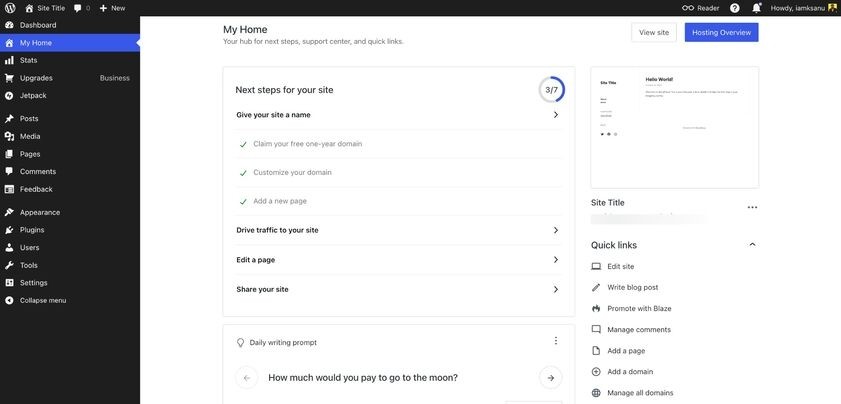
This dashboard looks almost similar to what you’d get if you installed WordPress.org manually. If you’re new to WordPress, it might take a little while to get comfortable because there are plenty of settings to explore.
If you’re on the Business plan or higher, you can also install third-party plugins and custom themes.

I tried this by adding several plugins of my own, and the setup worked just like it does on a standard WordPress.org site.
What I appreciate most is the option to switch to the Classic WordPress dashboard. If you’ve used the self-hosted version before, this view includes all the familiar tools and settings.
It also comes with a website builder, powered by AI, and ready-made templates that you can use for your site.

You can also book a 1:1 call with a WordPress.com expert to start your site and get expert guidance.
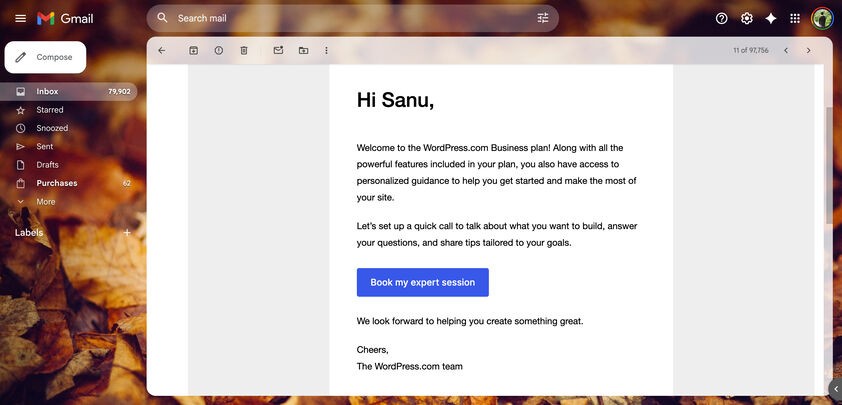
Overall, WordPress.com lets you create and manage a website without needing a technical background, and you can take more control as your site grows.
Starting with WordPress.com Hosting
After going through my review, are you ready to start your journey with WordPress.com?
If yes, here’s how you can set up your website in just four simple steps:
1. Establish Your Site
- Go to WordPress.com and sign up for an account.
- Choose a plan that you like (there’s a free plan to start, and various paid plans that unlock features like a custom domain, plugins, and more storage).
- Create your site: You will be prompted to choose a name for your site. You will initially get a free site address (sub-domain) like yoursite.wordpress.com.
- Choose a Domain (Optional but Recommended): If you sign up for a paid plan, you can register an available custom domain (e.g., yoursite.com) for free for the first year.
2. Design Your Website
- Choose a Theme: Select a design template (theme) that suits the look and function of your site. WordPress.com offers many free and premium themes.
- Customize Your Homepage: This is the first page visitors will see. You can customize the layout, colors, and content using the WordPress.com Editor (also known as the block editor). You can use “blocks” to add elements like images, text, videos, and more.
3. Create Content and Navigation
- Create Essential Pages: Set up important pages like an About page, Contact page, and any Product/Service pages. For a blog, you’ll also create your first Posts.
- Pages are for static content (like About Us, Contact).
- Posts are for dynamic, time-sensitive content (like blog articles) that typically appear in reverse chronological order.
- Set Up Your Menu: Configure the main navigation menu at the top of your site so visitors can easily find their way to your different pages and posts.
4. Finalize and Launch
- Add Functionality (Optional): If you are on a Business plan or higher, you can install plugins to add features like advanced SEO tools, e-commerce capabilities (WooCommerce), or custom forms.
- Add Social Media Links: Use the Social Icons block to link your website to your social media profiles.
- Launch Your Site: When you first create your site, it starts in “Coming Soon” mode. Once you are happy with the foundation, go to your dashboard and click the option to launch or publish your site to make it visible to the world.
I found that the entire setup process takes less than 15 minutes from signing up to publishing the first page. This makes it ideal for newcomers or anyone who wants a simple, hassle-free start.
They also offer video courses and extensive support documentation to guide you through the process.
Special Offers for New Users/Account: You can get up to 69% off all WordPress.com plans, and the discount will be applied automatically at checkout.
Final Takeaway: Should You Choose WordPress.com?
WordPress.com is a fantastic choice if you want the benefits of managed hosting without worrying about the technical tasks. They handle the updates, backups, and security for you.
It’s perfect for bloggers, small businesses, and online stores looking for an easy way to build and grow their WordPress website in 2026.
You can easily get started with the Free, Personal, and Premium plans, but remember, they have some limitations. For instance, you cannot install your own plugins or themes on these plans.
If you need more control, select the Business or Commerce plans. They include advanced tools like plugin support, custom themes, and eCommerce features to help you build a more powerful site.
So, are you ready to give WordPress.com a try? Click here to claim your 69% discount along with a free domain name (affiliate link).
What are your thoughts on this detailed review of WordPress.com? Did you find the information helpful? Do you have any questions? Tell us in the comments.