Rank Math Review
★★★★★ (4.9 out of 5)
Rank Math is a powerful and fast WordPress SEO plugin that helps improve your search engine rankings. It includes useful features such as 1-click import and export, on-page SEO suggestions, Content AI, 40+ AI tools, AI Visibility, an advanced Schema Generator, 404 monitoring, redirections, and much more.
Welcome to my Rank Math SEO setup guide article.
So, starting a new WordPress website?
You probably want Google to find your pages, but SEO settings can feel confusing when you’re just getting started.
The good news is that Rank Math makes many SEO tasks easier, even if you’re a complete beginner.
With the right setup, you can manage your page titles, meta descriptions, XML sitemaps, and other important SEO settings from your WordPress dashboard.
In this guide, you’ll learn how to set up Rank Math step by step in 2026, avoid common mistakes, and prepare your website for search engines.
Let’s start with the basics.
What Is Rank Math SEO and Why Should You Use It?
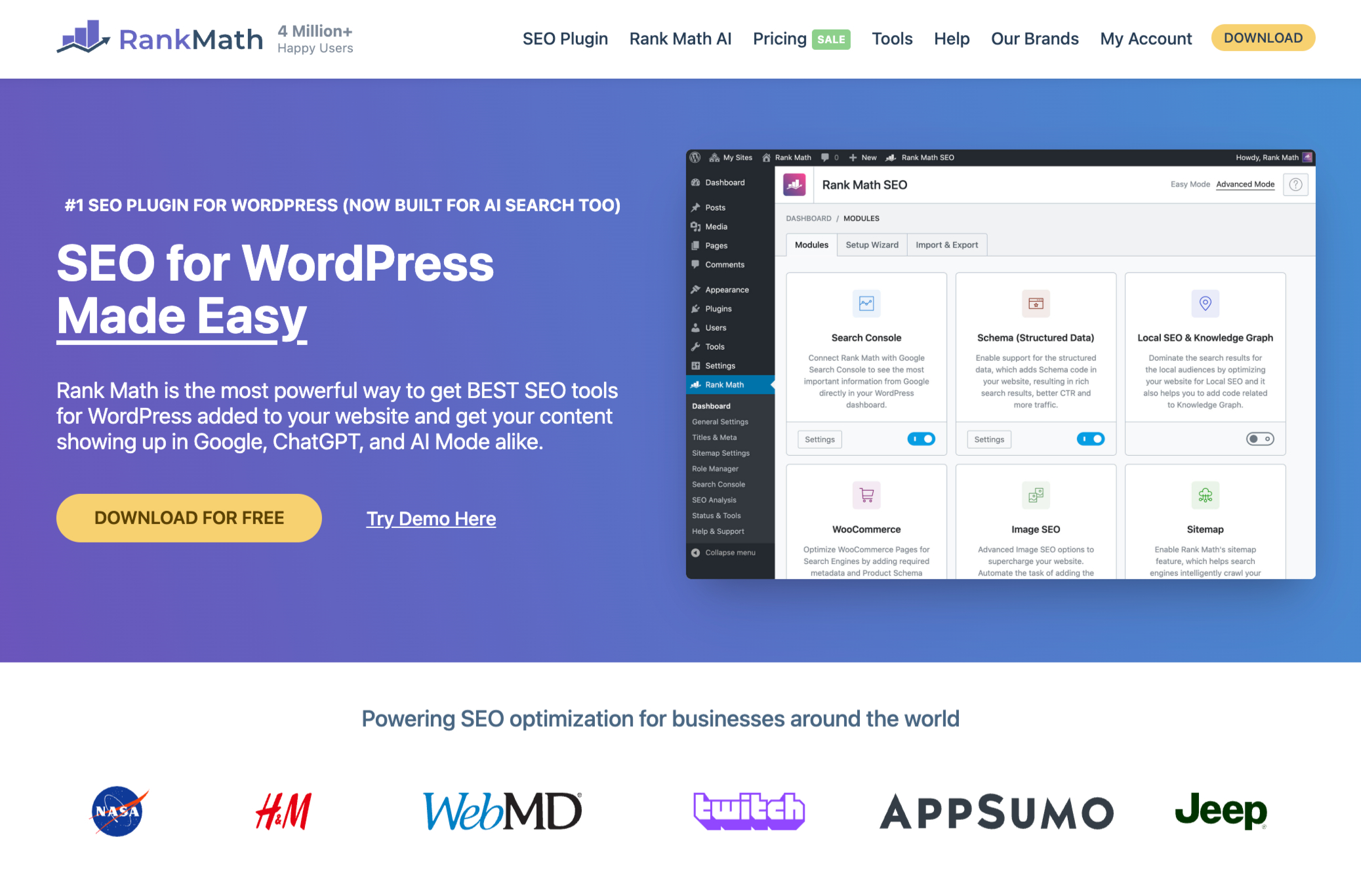
Rank Math SEO is a WordPress SEO plugin that helps you optimize your website for search engines without editing code. It lets you manage SEO titles, meta descriptions, XML sitemaps, schema markup, internal links, and other important SEO settings from your WordPress dashboard.
In 2026, Rank Math offers more than basic SEO tools. It also includes AI-powered features that help with content optimization, internal linking, and search visibility.
Rank Math was founded in 2018 by Bhanu Ahluwalia, Nimit Kashyap, and Suraj Vibhute. It is a good option for bloggers, affiliate marketers, content creators, agencies, and business owners who want to manage their WordPress SEO from a single dashboard.
If you’re launching a new website, Rank Math can help you establish a solid SEO foundation without requiring advanced technical knowledge. It offers a free version for beginners and paid plans for users who need more advanced features.
Why Should You Use Rank Math SEO in 2026?
Here are some key reasons to use Rank Math on your WordPress website:
- Optimize your blog posts: Rank Math checks your content and suggests ways to improve your SEO titles, meta descriptions, headings, and keyword usage.
- Handle technical SEO: You can manage XML sitemaps, redirects, robots meta tags, and other SEO settings without editing code.
- Add schema markup: Want search engines to understand your articles, products, or reviews better? Rank Math makes it easier to add the relevant structured data.
- Find internal linking opportunities: Its internal linking tools help you find relevant pages to link to. AI Link Genius also offers more advanced internal link management features.
- Use AI to save time: Rank Math offers AI-powered tools to help with content optimization and other SEO tasks. The features available depend on your plan.
- Monitor search visibility: You can connect supported services and use Rank Math’s tools to get insights into your website’s search performance.
Another advantage is that Rank Math combines many SEO features in one plugin. You may not need separate plugins for tasks such as redirects, schema markup, and XML sitemaps, depending on your website’s requirements.
Keep in mind that Rank Math cannot guarantee higher rankings or force Google to index your pages. It helps you manage your SEO settings, but your content quality, website performance, competition, and other factors also matter.
<- Upgrade to Rank Math PRO ->
Is Rank Math Free to Use?
Yes. Rank Math offers a free version that you can use to optimize your WordPress website without paying for a subscription.
It includes essential SEO features such as on-page SEO analysis, XML sitemaps, schema markup, SEO titles and meta descriptions, and basic content optimization tools.
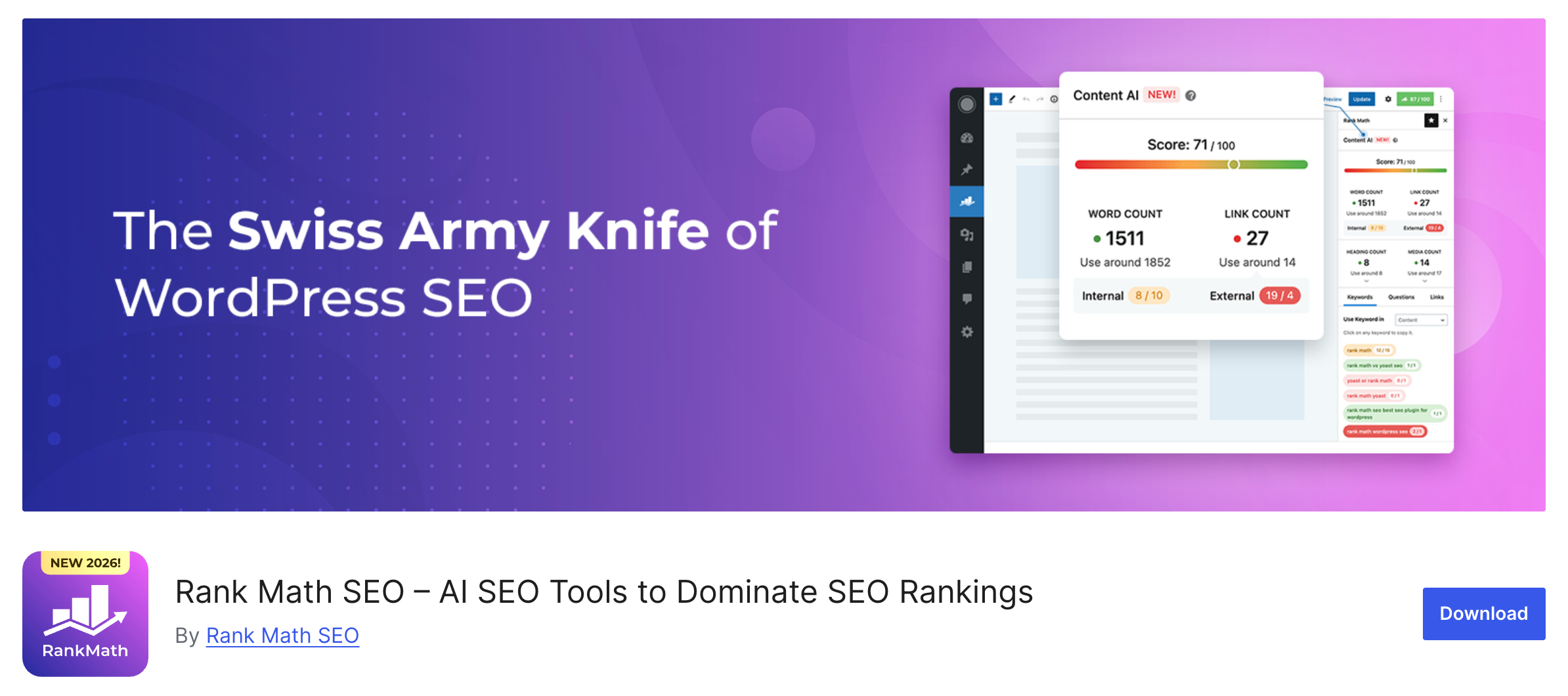
The free version is a good starting point for bloggers, beginners, and small website owners who want to improve their website’s SEO without spending money.
However, if you need advanced features such as more powerful keyword tracking, advanced schema options, AI-powered tools, or SEO management for multiple websites, you may want to consider one of Rank Math’s paid plans.
You can start with the free version and upgrade only when your website needs more advanced SEO features.
Rank Math also offers limited free access to some AI features, while additional usage may require a separate AI subscription.
Is Rank Math Suitable for Beginners?
Yes, Rank Math is a good choice for beginners, even if you have little or no SEO experience.
When you install Rank Math, its setup wizard guides you through the basic settings for your website. You can configure your website information, indexing settings, XML sitemap, and SEO titles without feeling overwhelmed. You don’t need to know how to code to get started.
Once the setup is complete, Rank Math helps you optimize your blog posts and pages.
For example, it checks your content for your target keyword and suggests improvements to your SEO title, meta description, headings, and other on-page SEO elements.
You also get helpful features such as schema markup, XML sitemaps, and internal linking tools, so you can manage many SEO tasks from your WordPress dashboard.
However, some advanced settings can feel confusing when you’re just starting out. You don’t need to configure everything at once. Start with the basic settings and learn the advanced features as your website grows.
The most important thing is to understand what each setting does before changing it. A simple, correctly configured website is better than one filled with settings you don’t understand.
If you’re new to WordPress SEO, start with Rank Math’s free version. It includes many essential tools to help you manage your website’s SEO without paying for a premium plan.
Next, let’s prepare your WordPress website before installing the plugin.
Before You Install Rank Math: Prepare Your WordPress Site
Before installing Rank Math, take a few minutes to check your WordPress settings. This small step can save you from common SEO problems later.
You don’t need any technical knowledge to get started. Just follow these simple checks.
1. Make Sure WordPress Is Up to Date
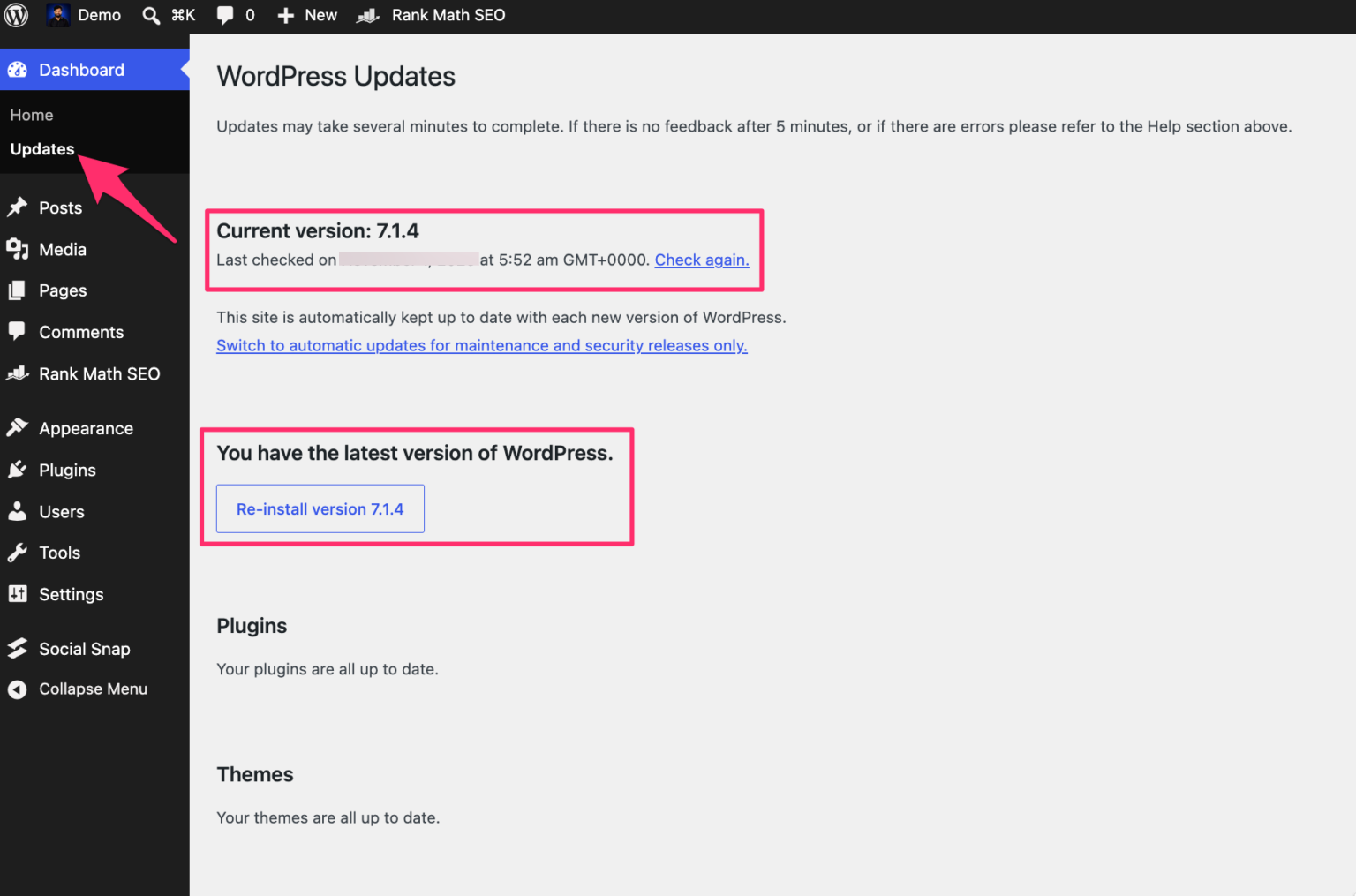
Log in to your WordPress dashboard and go to Dashboard » Updates to check your current version.
Before updating, back up your website and confirm that your theme and other plugins are compatible. Keeping WordPress updated helps maintain security, stability, and plugin compatibility.
2. Check That Your Website Uses HTTPS
Open your website in a browser and check the address bar. Your site should load using an HTTPS address, such as https://example.com.
HTTPS helps protect information exchanged between your website and its visitors. Google also uses HTTPS as a ranking signal.
If your website still uses HTTP, check whether your hosting provider offers an SSL certificate. Once HTTPS is working, verify that your WordPress Address and Site Address under Settings » General use the correct URLs.
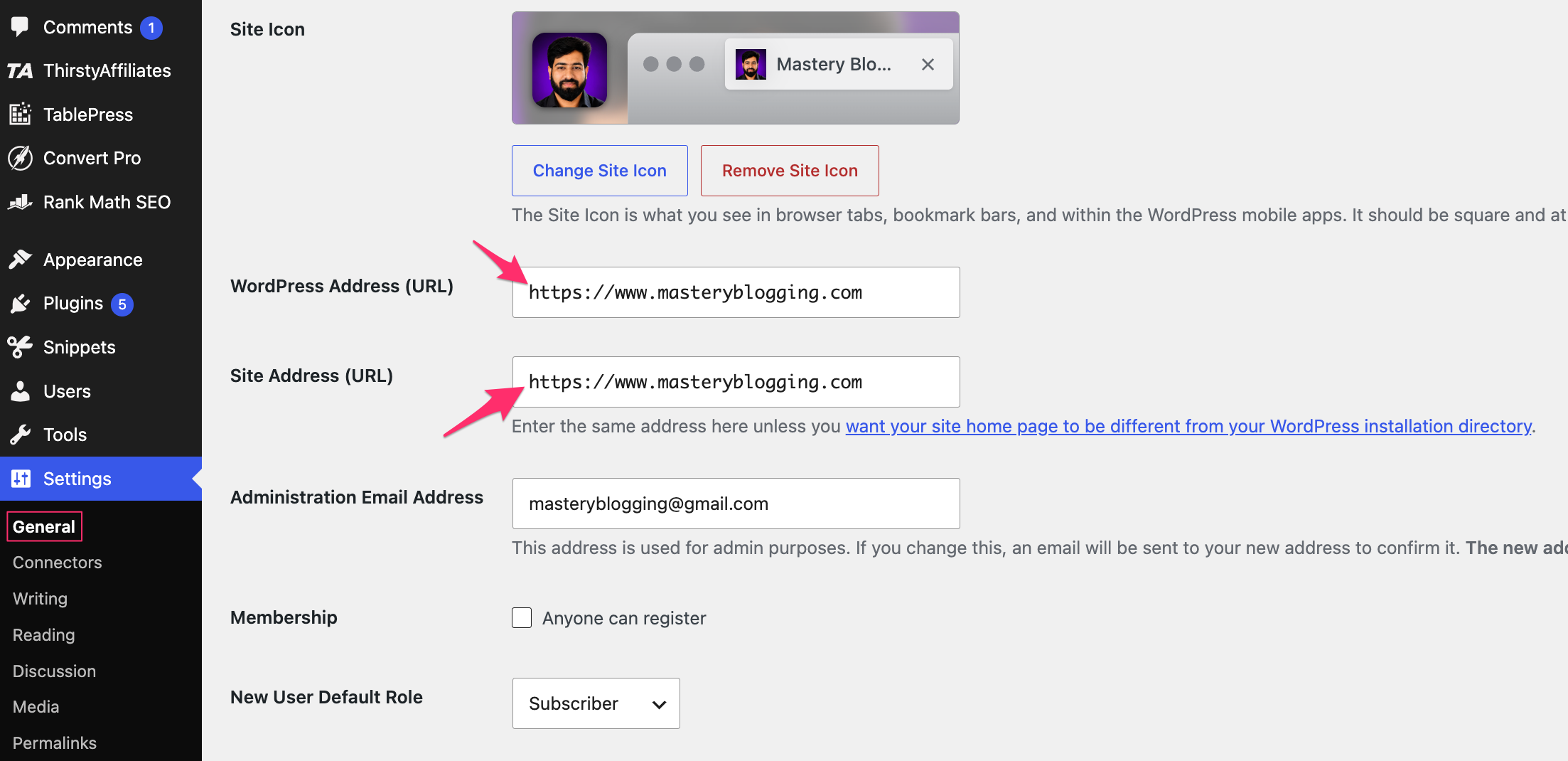
Don’t change your site’s URL settings without checking your SSL certificate and redirects first, especially if your website already has published content.
3. Choose the Right Permalink Structure
Permalinks are the permanent URLs used for your WordPress posts and pages.
For most blogs, the Post name structure is a simple choice. Go to Settings » Permalinks and select it.
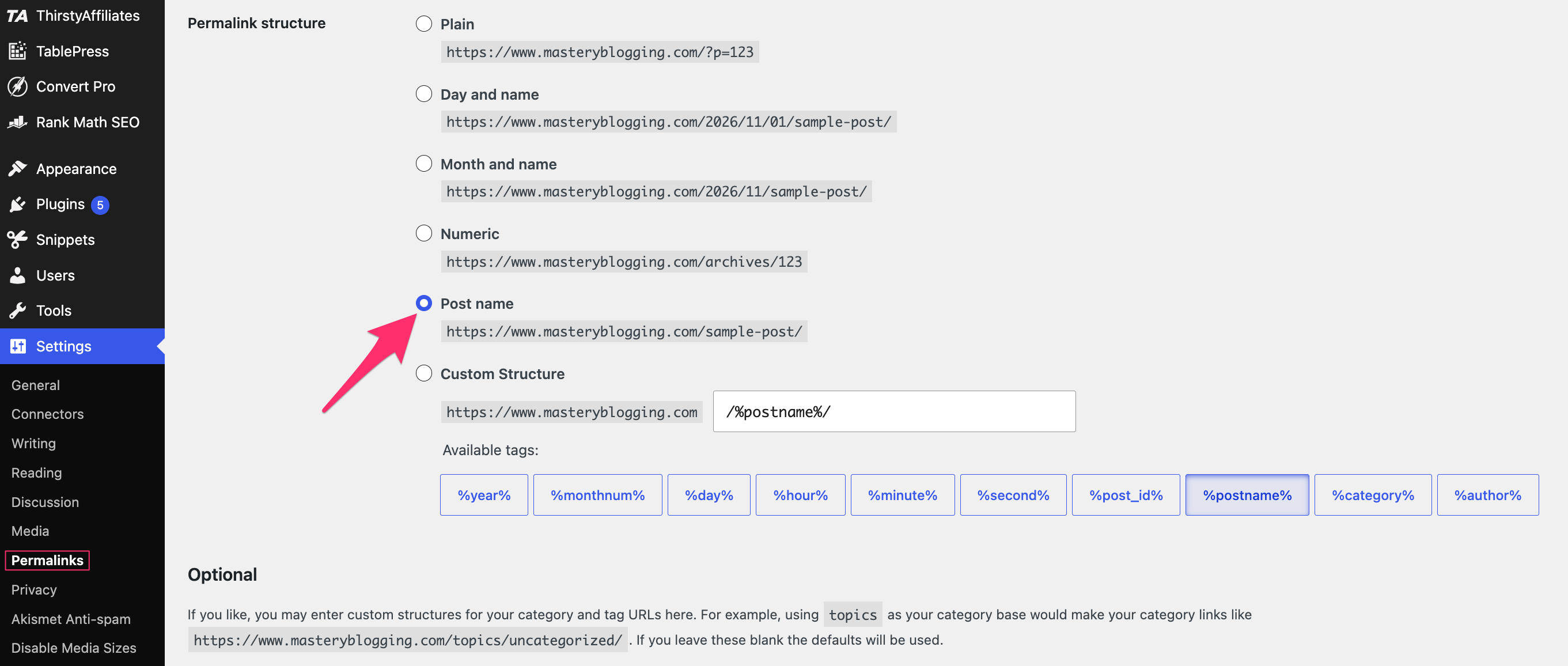
For example: https://example.com/how-to-set-up-rank-math
This URL is short, descriptive, and easy for readers to understand.
If your website is brand new, choosing this structure early is a good idea. If your site already has indexed pages, changing existing URLs can break links and affect search traffic unless you handle redirects correctly.
4. Check Your Search Engine Visibility Setting
This is one of the most important checks for a new WordPress website.
Go to Settings » Reading and find the option labelled Discourage search engines from indexing this site.
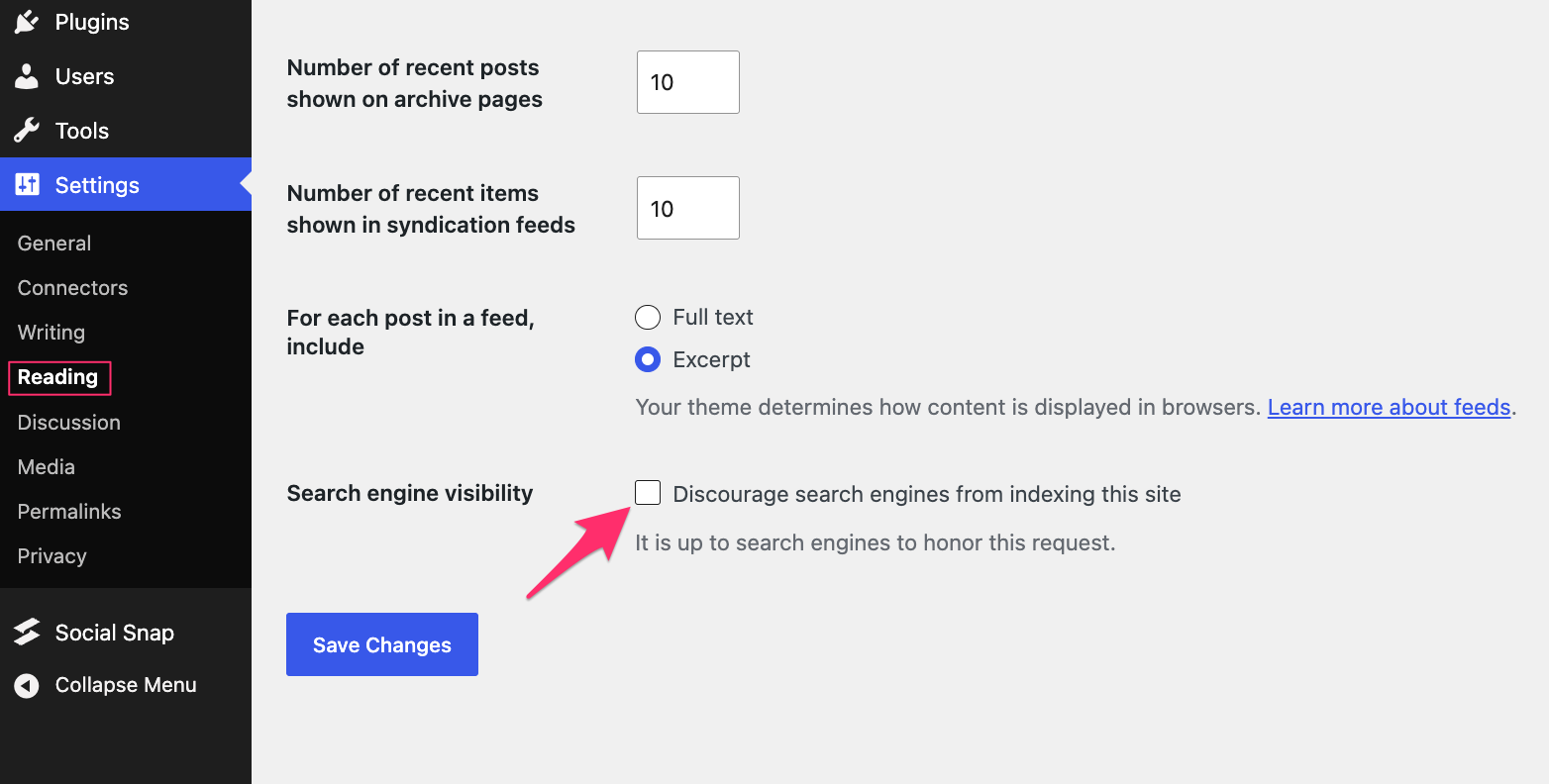
Make sure the box is unchecked when you’re ready for search engines to access your public website.
If this option remains enabled, WordPress asks search engines not to index your site. It doesn’t guarantee that they will obey the request, but leaving it enabled can prevent your pages from appearing in search results.
During development, you may intentionally keep this option enabled. Just remember to review it before launching your website.
5. Back Up Your Website and Check for Other SEO Plugins
Before installing or configuring Rank Math, create a backup if you’ve already added content or customized your website. You can usually do this through your hosting provider or a trusted backup plugin, like Duplicator.
Next, check whether another SEO plugin, such as Yoast SEO or All in One SEO, is already active.
Using multiple SEO plugins that control the same settings can cause duplicate metadata, conflicting schema markup, or other problems.
If you’re switching from another SEO plugin, follow Rank Math’s migration process and review your settings afterwards. Don’t delete your old plugin’s data until you’ve confirmed that the migration worked correctly.
Once these checks are complete, you’re ready to install Rank Math and begin configuring your site’s SEO settings.
Step 1: Install and Activate the Rank Math SEO Plugin
Now that your WordPress site is ready, it’s time to install Rank Math. The process is simple, and you can do everything from your WordPress dashboard.
1. Open the WordPress Plugin Directory
Log in to your WordPress admin dashboard.
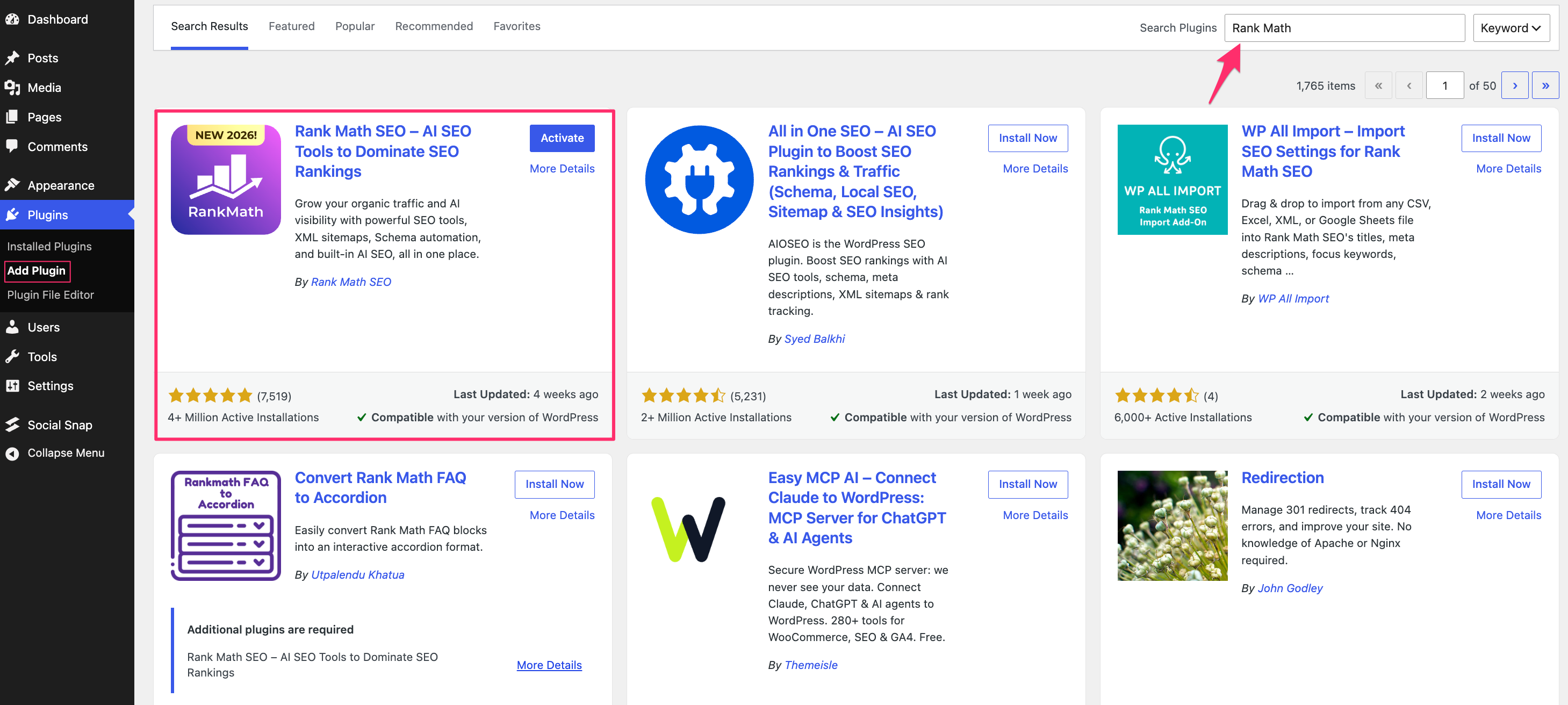
From the left-hand menu, go to Plugins » Add New Plugin. In the search box, type Rank Math SEO.
Look for the official Rank Math SEO plugin. Check the plugin name and developer information to avoid installing an unrelated plugin.
2. Install and Activate the Plugin
Once you’ve found the correct plugin, follow these steps:
- Click Install Now.
- Wait for the installation to finish.
- Click Activate.
That’s it. Rank Math is now installed on your website.
After activation, you should see a Rank Math menu in your WordPress dashboard. Depending on your WordPress version and the plugin interface, you may also see a prompt to start the setup wizard.
3. Connect Your Rank Math Account
Rank Math may ask you to connect an account during setup.
Follow the on-screen instructions to sign in or create an account if you want to use the connected features offered by your plan. Review the permissions requested before approving them.
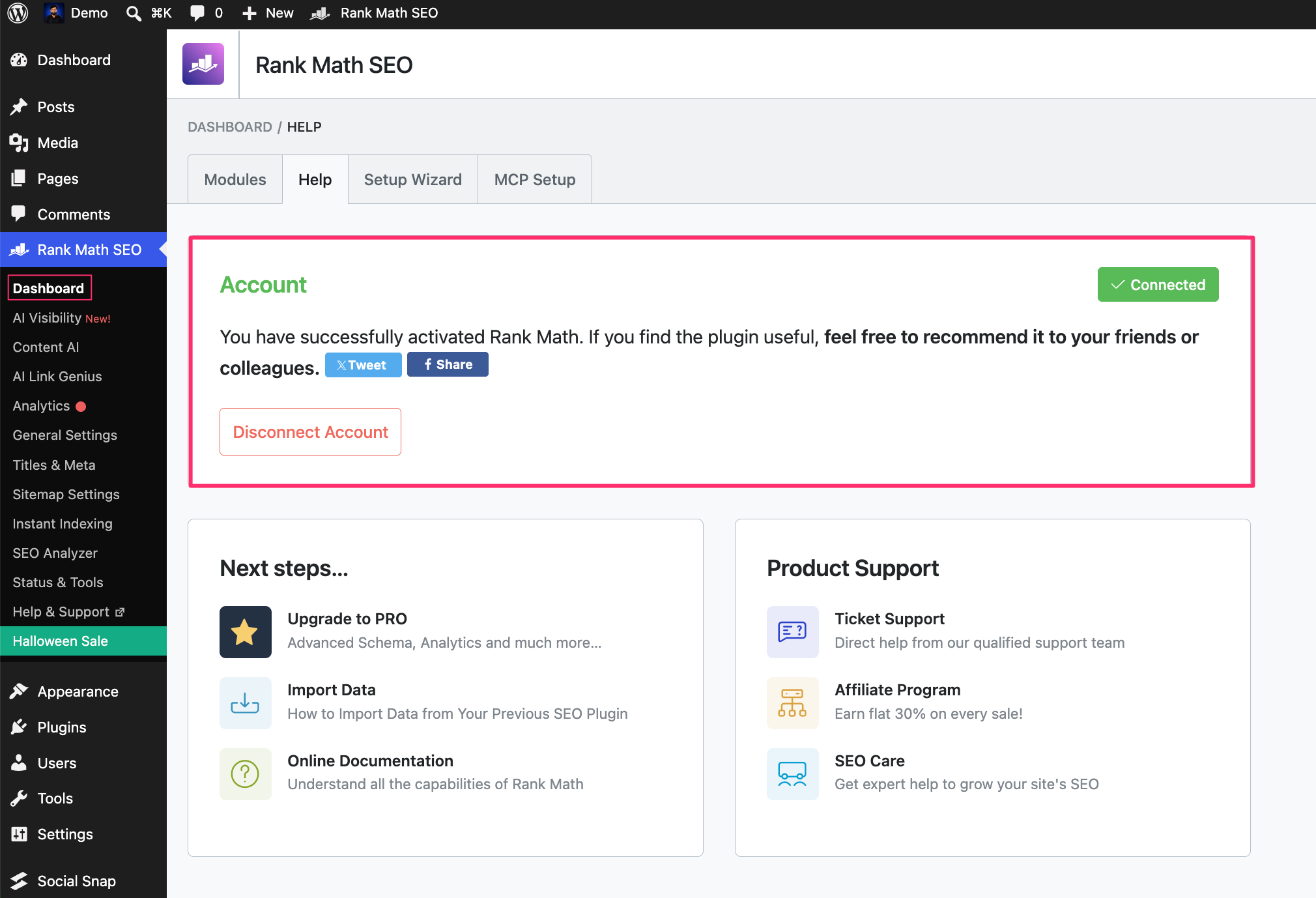
You don’t need to rush through this step. Read each prompt carefully, especially if you are connecting external services or granting access to additional features.
4. What If the Setup Wizard Doesn’t Appear?
Don’t worry if the setup wizard doesn’t open automatically.
You can usually find it through the Rank Math SEO menu in your WordPress dashboard. Look for the dashboard, setup wizard, or general settings area; the exact labels may vary by plugin version.
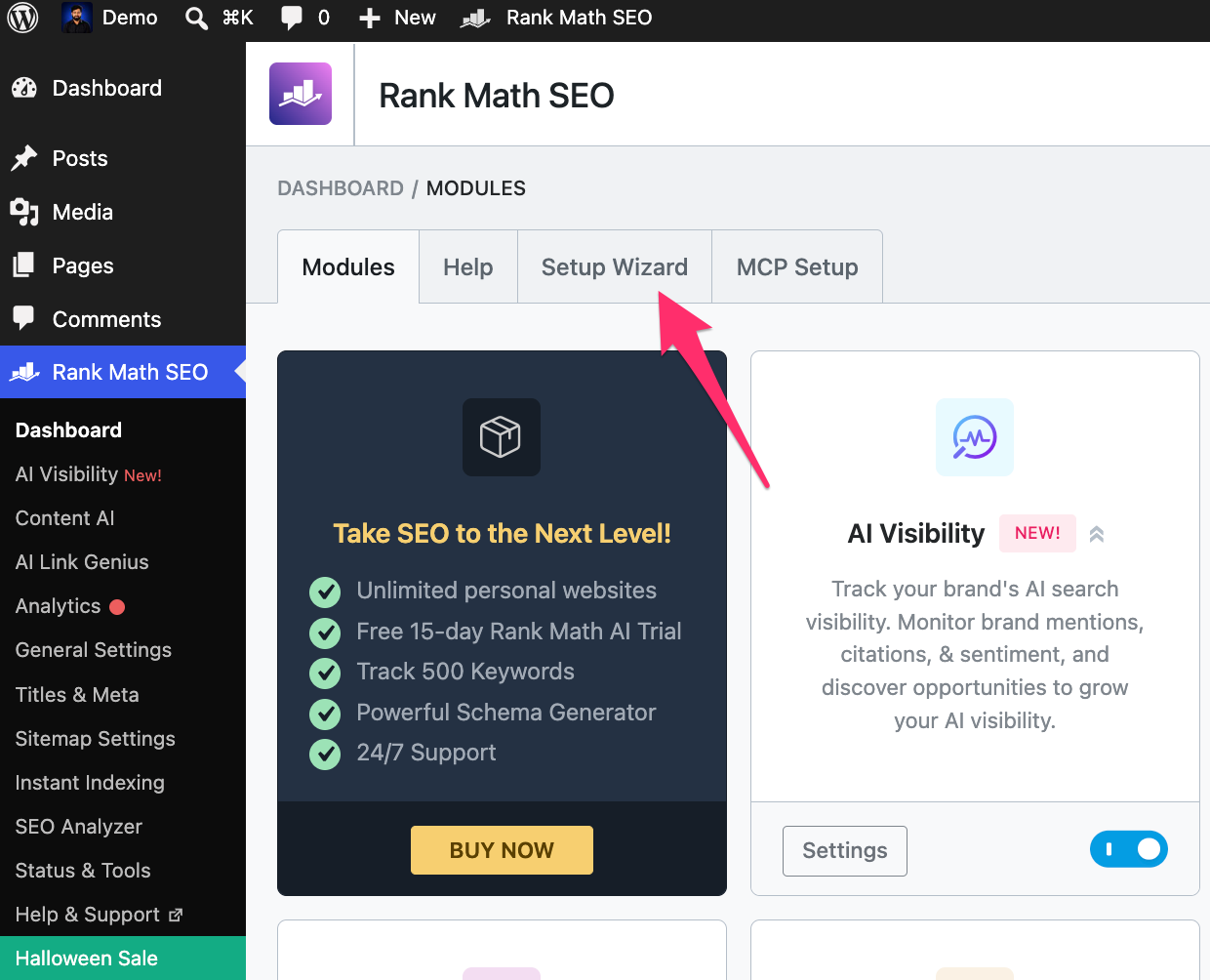
If you still can’t find it, try these checks:
- Confirm that Rank Math is activated.
- Refresh your WordPress dashboard.
- Check for conflicts with another SEO plugin.
- Consult Rank Math’s official documentation if the problem continues.
If you need to troubleshoot plugin conflicts, consider using a staging site before temporarily disabling other plugins.
You don’t need to install another SEO plugin just because the setup wizard isn’t visible.
Once Rank Math is active and you’re ready to configure it, the next step is choosing the setup mode that best fits your experience level.
Step 2: Choose Easy Mode or Advanced Mode
After installing Rank Math, the next step is choosing how you want to configure the plugin. Rank Math offers setup modes built for different experience levels.
If you’re new to WordPress SEO, don’t overthink this choice. You can start with the simpler option and adjust your settings as your website grows.
Easy Mode: Best for Beginners
Easy Mode is a good starting point if you’re setting up your first WordPress website.
It keeps the setup process simpler and helps you configure the essential settings without overwhelming you with too many technical options.
Choose Easy Mode if you want to:
- Get your basic SEO settings ready quickly.
- Configure essential features without handling advanced options.
- Learn how Rank Math works before changing more detailed settings.
For a new blog or small business website, Easy Mode is often enough to get started.

Advanced Mode: More Control Over SEO Settings
Advanced Mode provides access to more detailed configuration options.
It may be useful if you want greater control over features such as redirects, indexing settings, schema markup, and other SEO tools.
Consider this mode if you’re comfortable managing WordPress settings or have specific technical SEO requirements.
Keep in mind that Advanced Mode doesn’t automatically improve your rankings. Its value comes from using the additional controls correctly.

Which Mode Should You Choose?
For most beginners, Easy Mode is the sensible place to start. You can focus on getting your website’s core settings right instead of worrying about features you may not need yet.
If you’re already familiar with technical SEO, Advanced Mode may suit your needs better.
You can also change your setup approach later. Check the Rank Math dashboard for the available mode settings if you want to switch.
Quick tip: Don’t enable every SEO feature just because it’s available. A clean setup with the right settings is more useful than a complicated configuration you don’t understand.
Once you’ve chosen your mode, you’re ready to configure the setup wizard and provide Rank Math with the basic information about your website.
Step 3: Configure the Rank Math Setup Wizard
Once you’ve chosen your setup mode, it’s time to configure Rank Math for your website. The setup wizard helps you enter important details about your site and configure several basic SEO settings.
Take your time with this step. The information you provide helps Rank Math generate settings that better match your website.
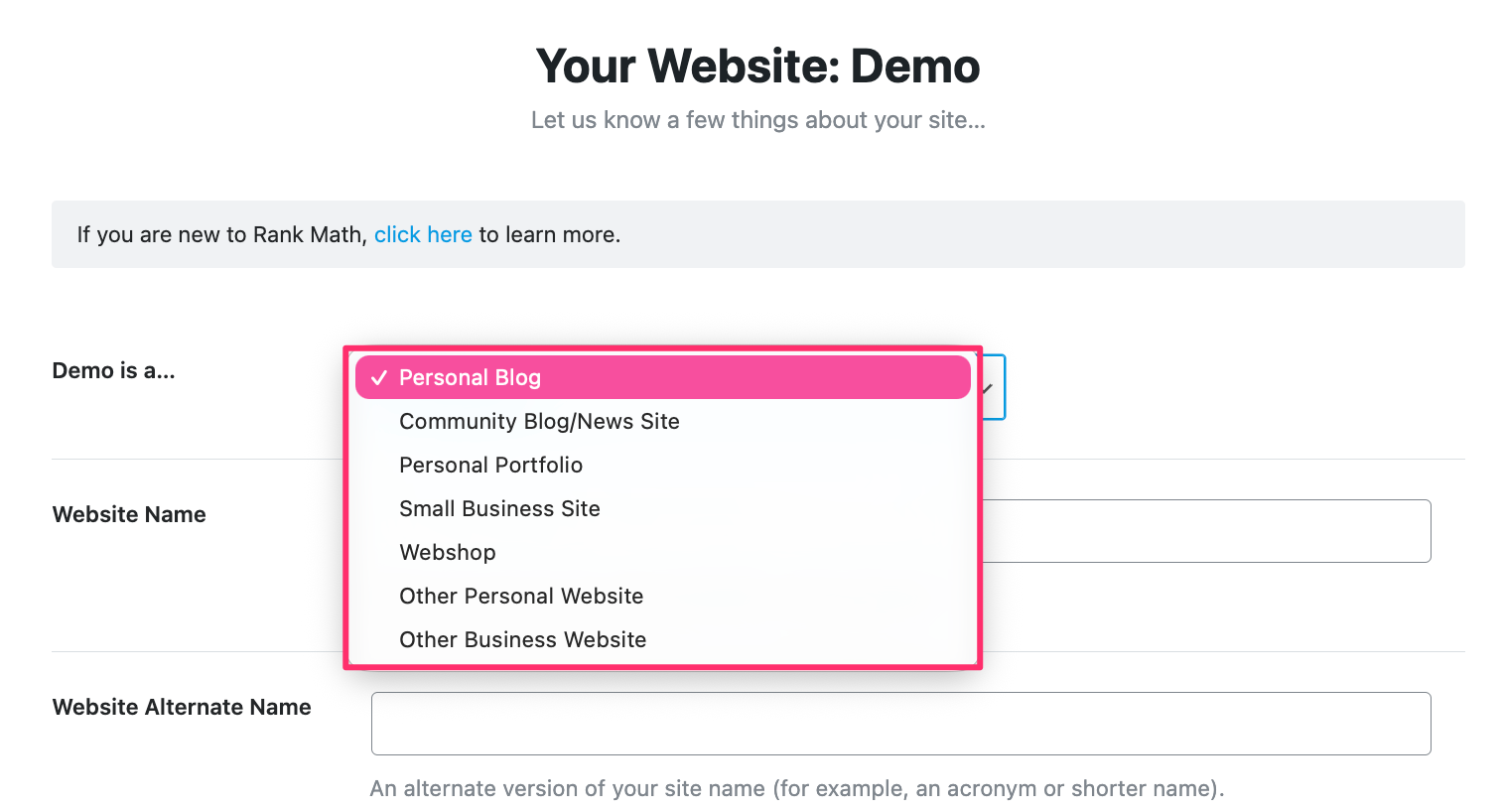
1. Select Your Website Type
Rank Math will ask what kind of website you’re setting up. Depending on the available options, you may see choices such as a personal blog, online store, small business website, or another type of website.
Choose the option that best describes your site.
For example, if you’re starting a blog where you publish tutorials, guides, and personal insights, choose the blog-related option. If you’re creating a website to promote your local business, choose the appropriate business option.
Selecting the correct website type helps Rank Math configure relevant settings and structured data.
2. Enter Your Website Name
Next, enter your website’s name.
Use the name visitors recognize from your branding. For example, if your website is called Tech Guide Hub, enter that name rather than a long list of keywords.
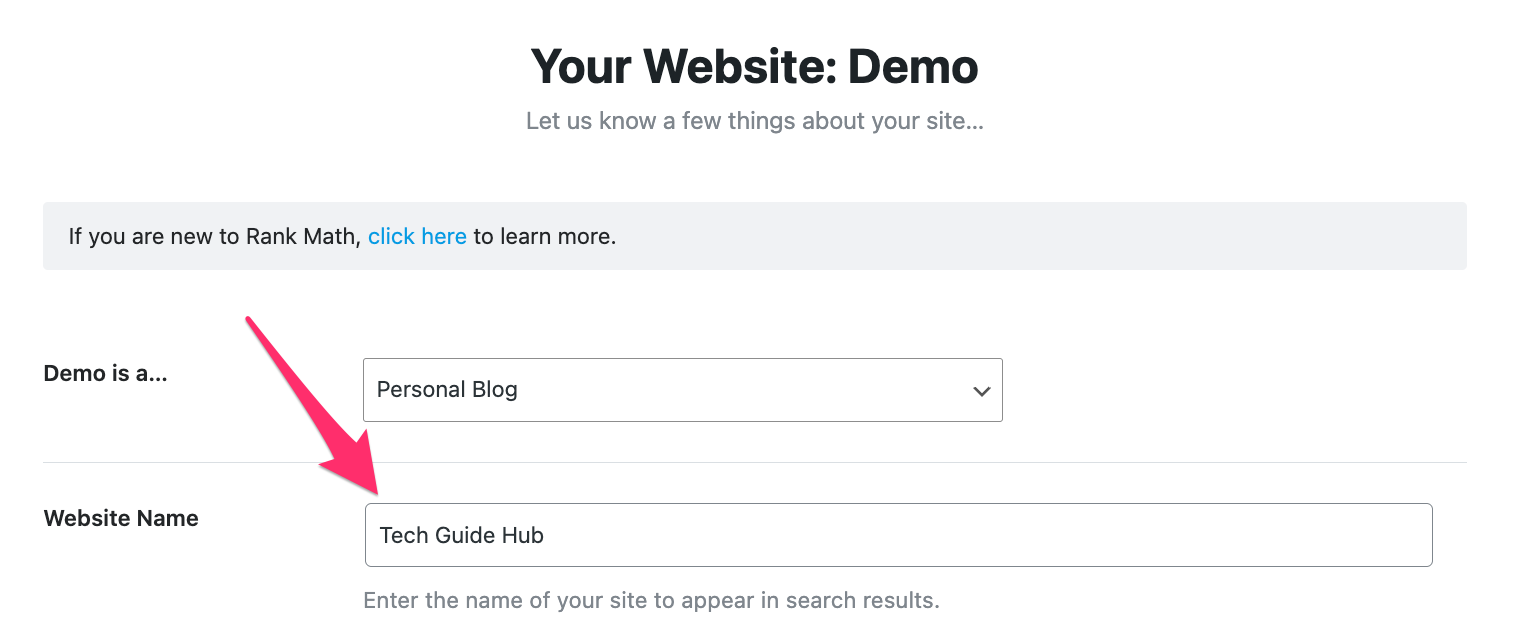
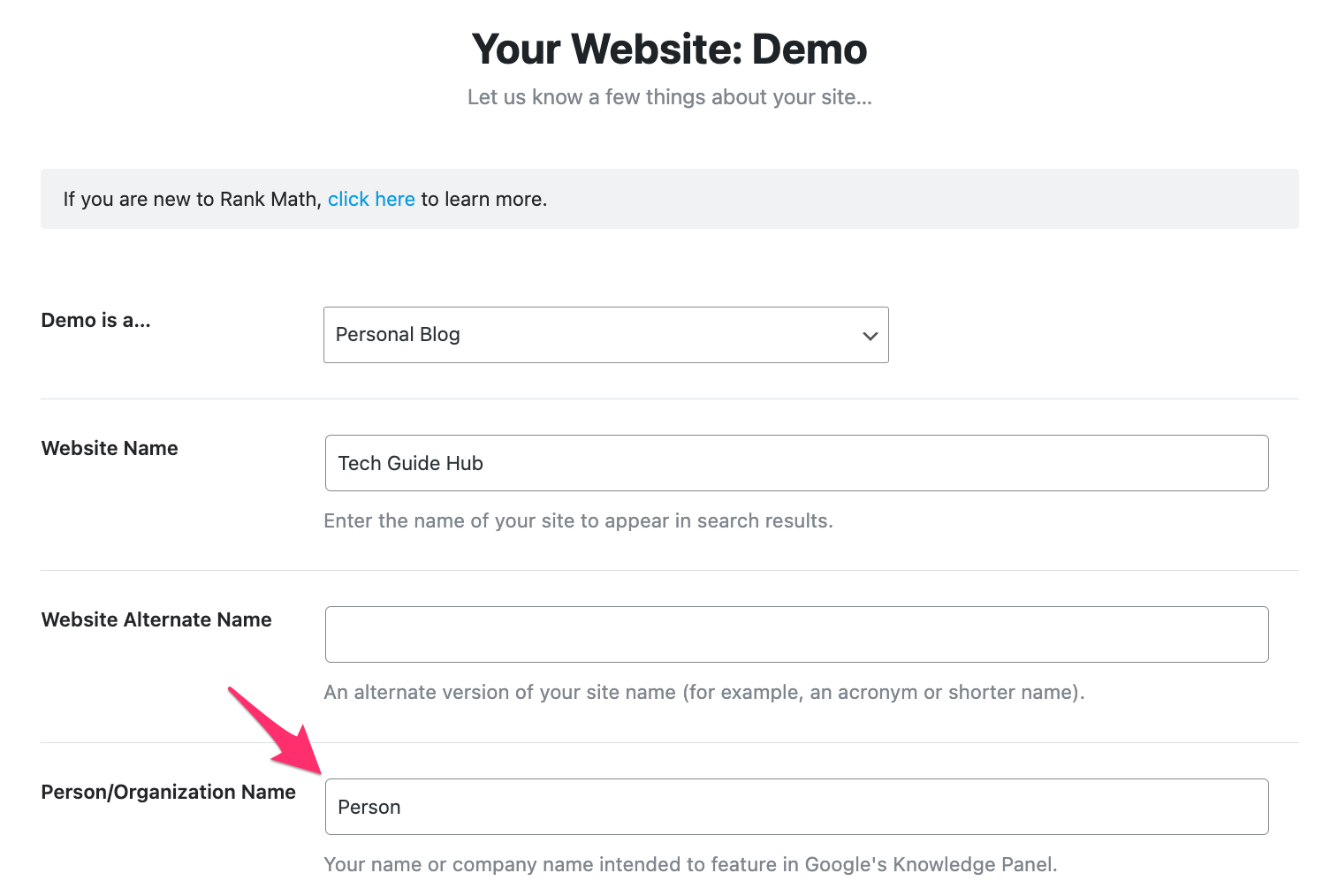
Rank Math may also ask for an alternate website name. You can use a commonly recognized short name or leave the field empty if you don’t have one.
Keep your naming consistent across your website, logo, and other public profiles.
3. Choose Person or Organization
Rank Math may ask whether your website represents a person or an organization.
Choose Person if the website represents an individual creator or blogger. Choose Organization if it represents a company, business, nonprofit, or other organization.
For example, a personal blog run under your own name will usually fit the Person option. A company website will generally fit Organization.
Enter accurate details. Don’t select a business identity simply because it sounds more professional. Your structured data should reflect who actually runs the website.
4. Add Your Logo and Default Social Sharing Image
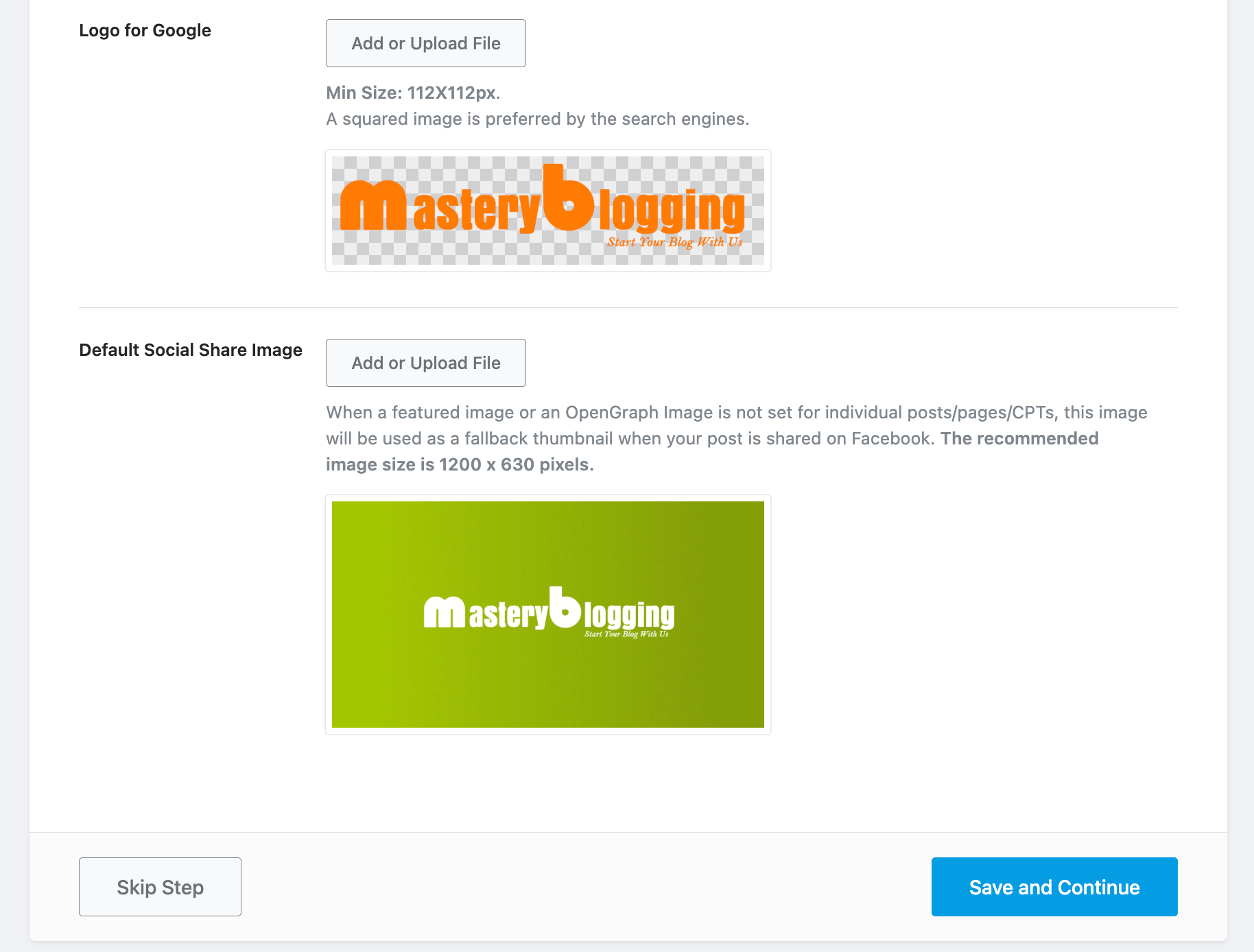
The setup wizard may ask you to upload a logo and choose a default image for social sharing.
Your logo should be clear, recognizable, and suitable for your website’s branding. Use a high-quality image that looks good at smaller sizes.
A default social sharing image can appear when someone shares a page that doesn’t have its own suitable image configured.
Choose an image that represents your website and looks good when displayed in a link preview. You can still set different featured images for individual blog posts later.
5. Configure Your Sitemap Settings
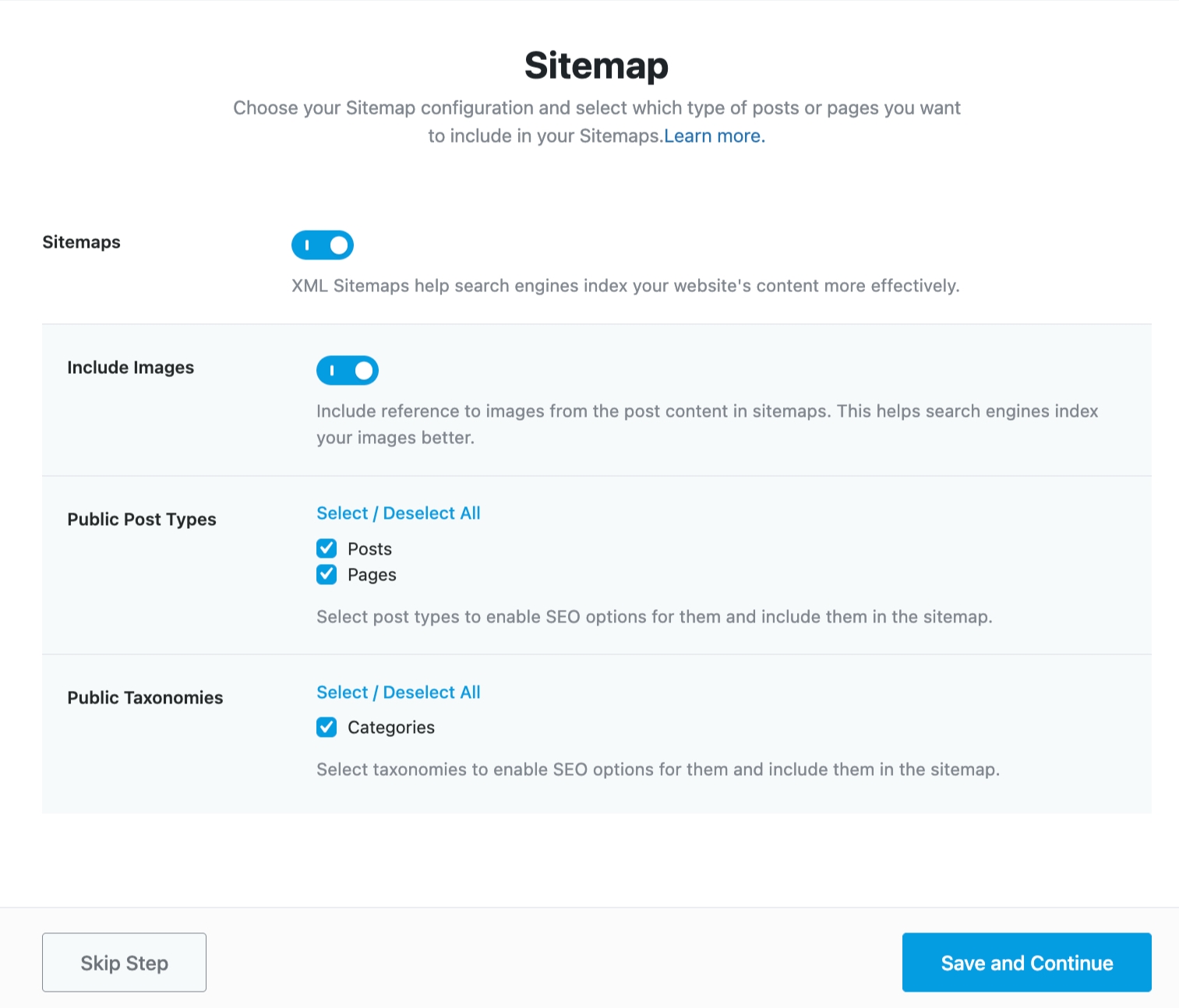
Rank Math can generate an XML sitemap to help search engines discover important pages on your website.
During setup, review the sitemap options and make sure the feature is enabled if you want Rank Math to manage your sitemap.
Depending on the available settings, you may be able to choose which public content types are included, such as posts and pages.
For a typical blog, you generally want important, indexable posts and pages included. You don’t need to include every URL on your website.
6. Connect Google Services If Available
Rank Math may offer options to connect Google Search Console or other supported services during setup.
If you’re ready, follow the instructions to connect the correct Google account and website property. Review the requested permissions before granting access.
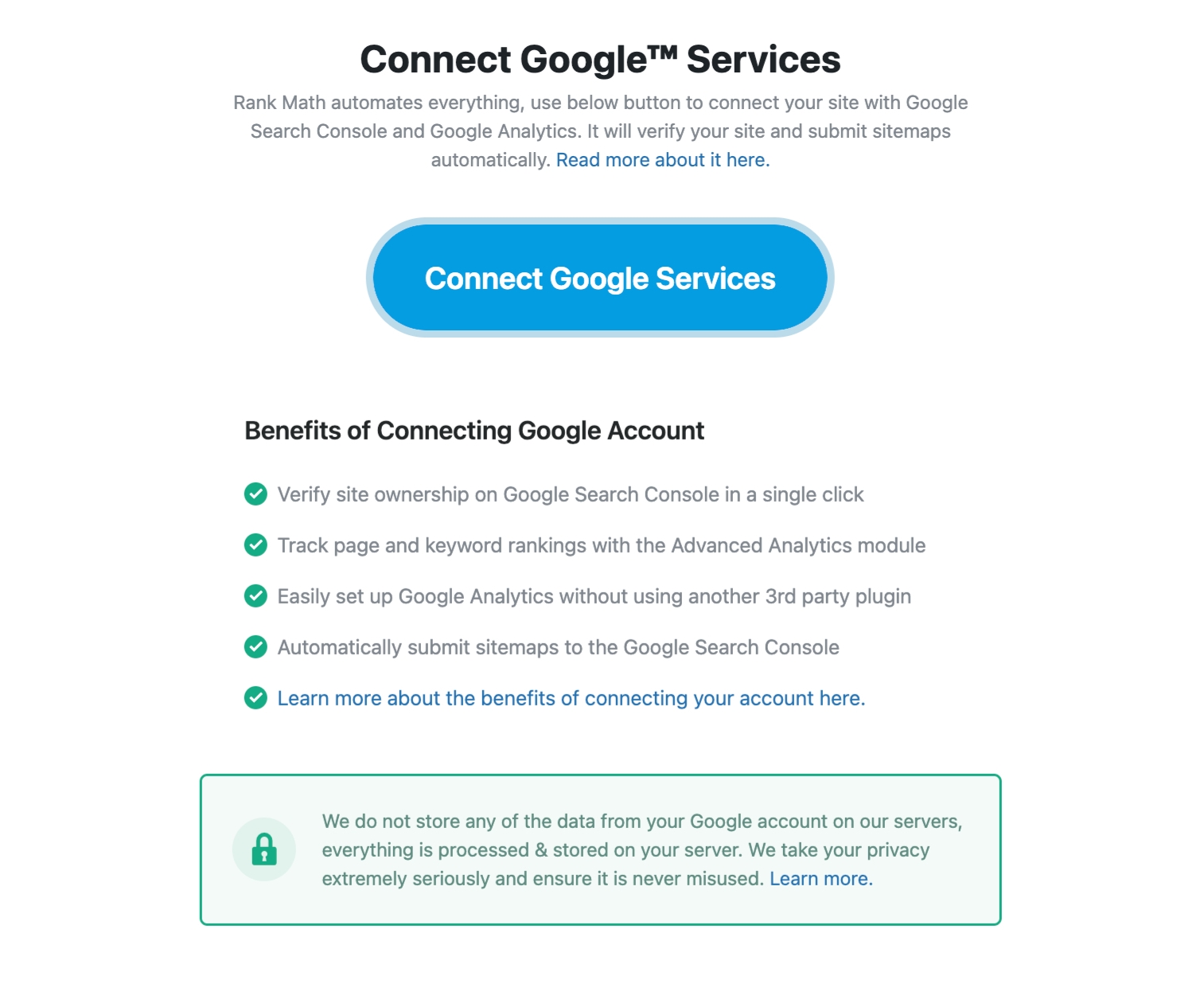
If you haven’t set up Google Search Console yet, you can skip this step and connect it later. You don’t need to finish every optional integration before configuring your basic SEO settings.
7. Review and Save Your Settings
Before finishing the wizard, review the information you’ve entered.
Check that your website name is correct, the right site type is selected, and your logo and sitemap settings make sense for your website.
Save or complete the setup using the wizard’s final button. The exact button labels and available options can vary between Rank Math versions.
Important: Completing the setup wizard doesn’t mean your website is automatically indexed by Google. It configures key settings, but Google still needs to crawl and evaluate your pages.
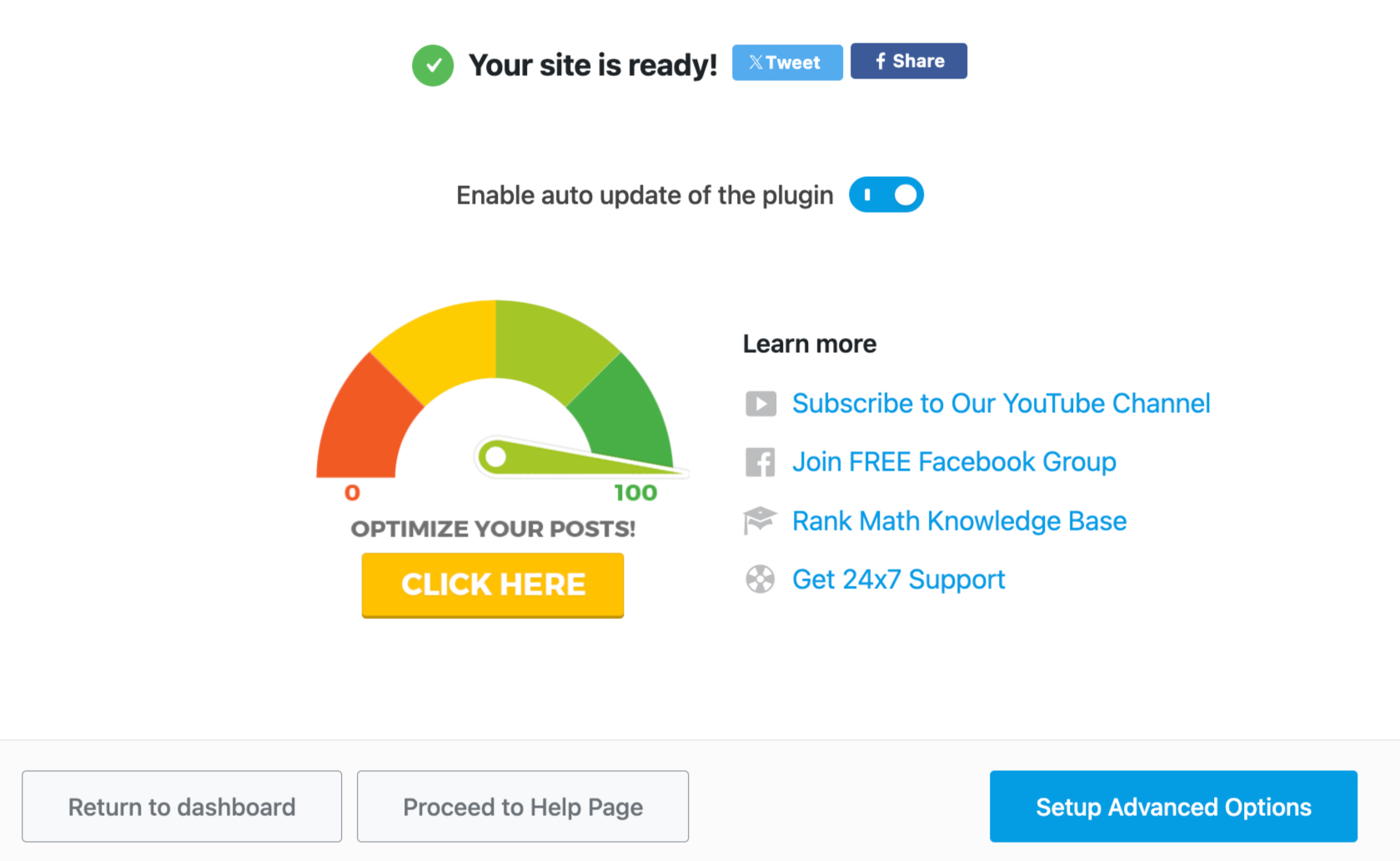
With the wizard complete, you’re ready to review the general SEO settings that control how your website’s pages are presented to search engines.
Step 4: Configure General SEO Settings in Rank Math
After completing the setup wizard, take a closer look at your general SEO settings. These settings help control how your website’s pages appear in search results and how search engines interpret your content.
You don’t need to change every option. Focus on the settings that matter most for a new WordPress website.
1. Set Up Your SEO Title and Meta Description Templates
Your SEO title is the headline that may appear in Google search results. Your meta description is the short summary that may appear below it.
Rank Math lets you create default templates so you don’t have to write every title from scratch.
For example, a blog post title might look like this:
How to Set Up Rank Math for WordPress in 2026
A suitable meta description could be:
Learn how to configure Rank Math on a new WordPress website, including sitemaps, SEO settings, schema markup, and Google Search Console.
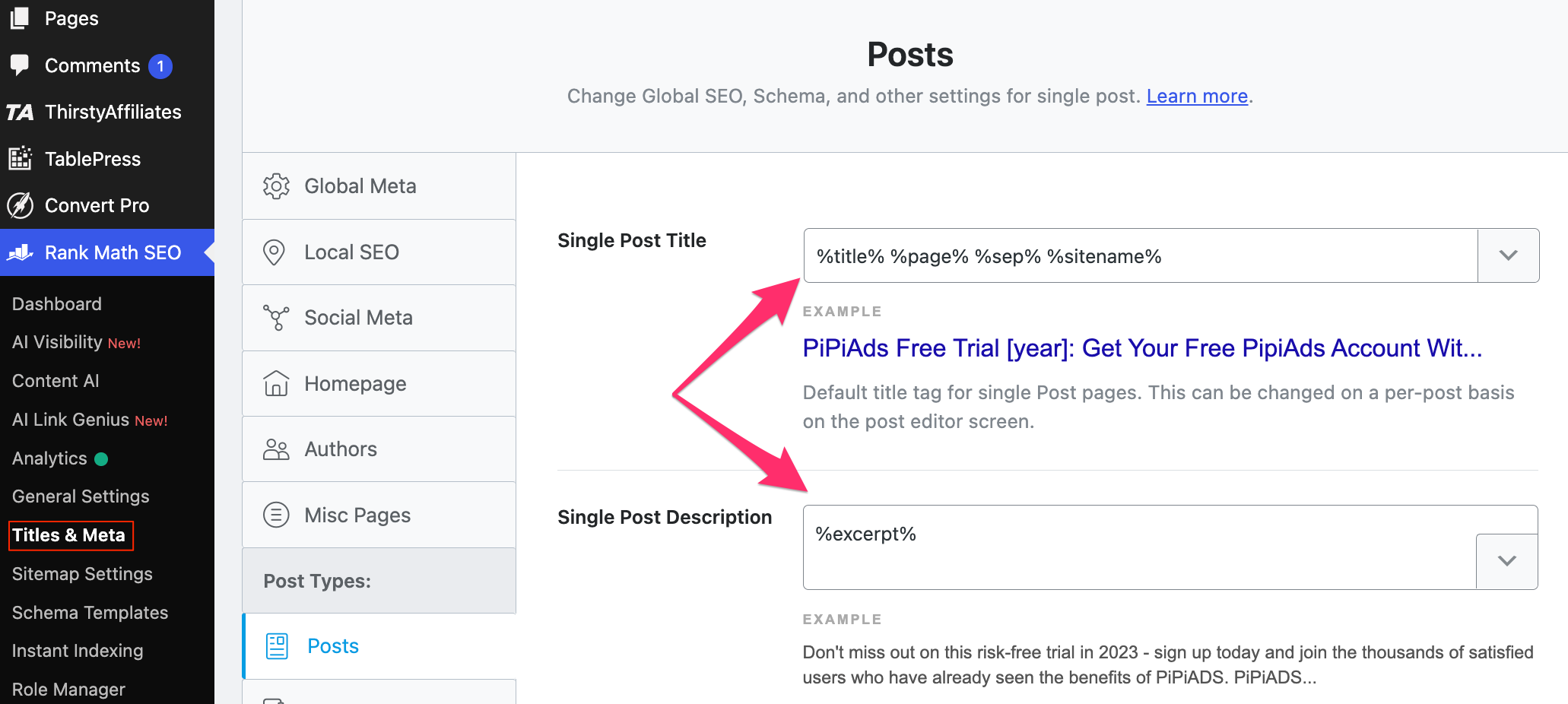
In your WordPress dashboard, open the Rank Math settings for titles and meta information. Review the available templates for posts, pages, and other content types.
Use descriptive titles and natural language. Avoid repeating the same keyword unnecessarily, and remember that Google may generate a different title or snippet based on the page and search query.
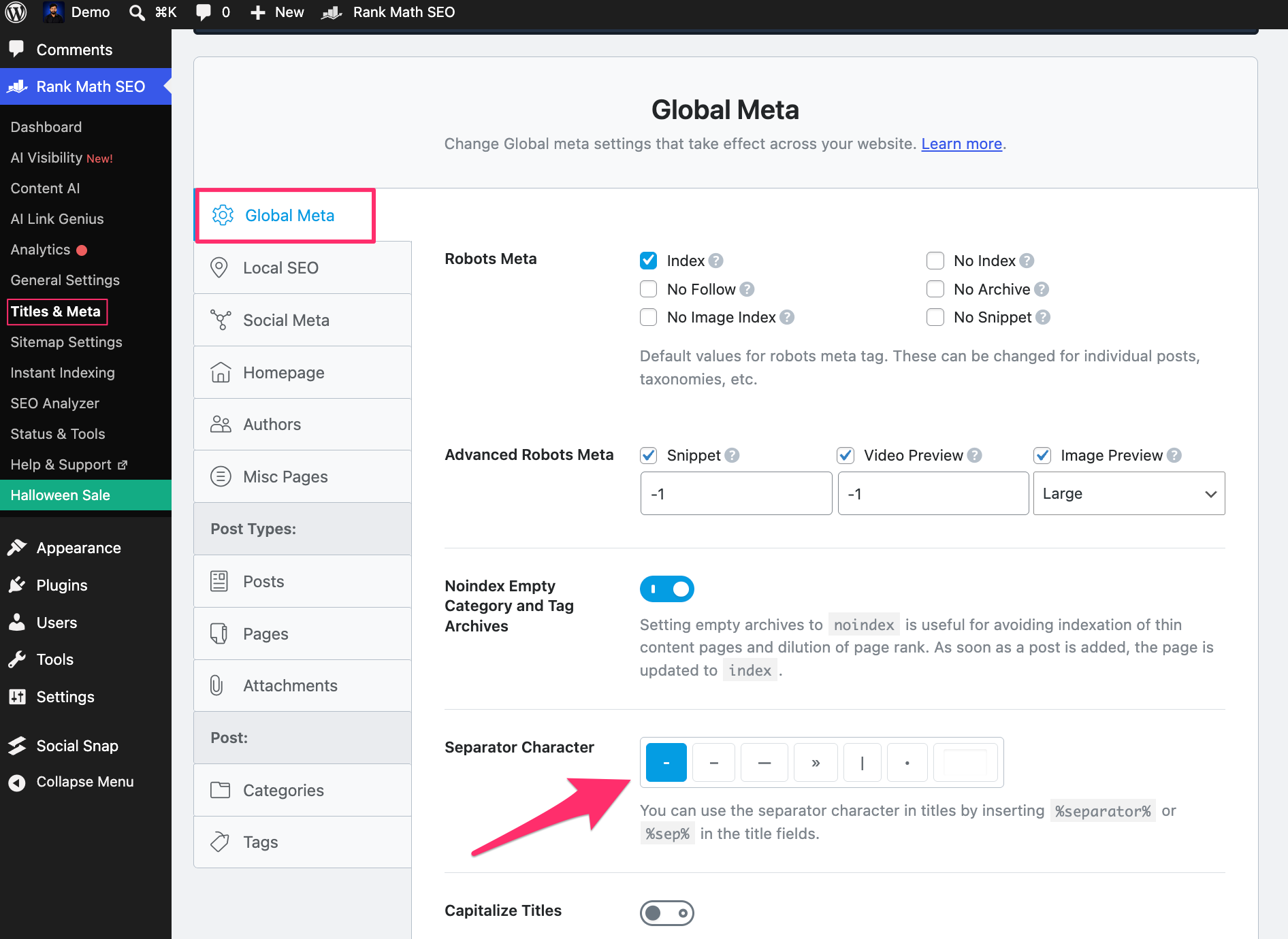
2. Choose a Consistent Title Separator
Rank Math lets you choose a separator to display between your page title and website name.
Common choices include a vertical bar (|), hyphen (-), or dash (–).
For example:
How to Set Up Rank Math | Tech Guide Hub
There is no special ranking advantage to one separator over another. Choose one that looks clean and fits your branding, then use it consistently across your site.
3. Configure Your Homepage SEO Settings
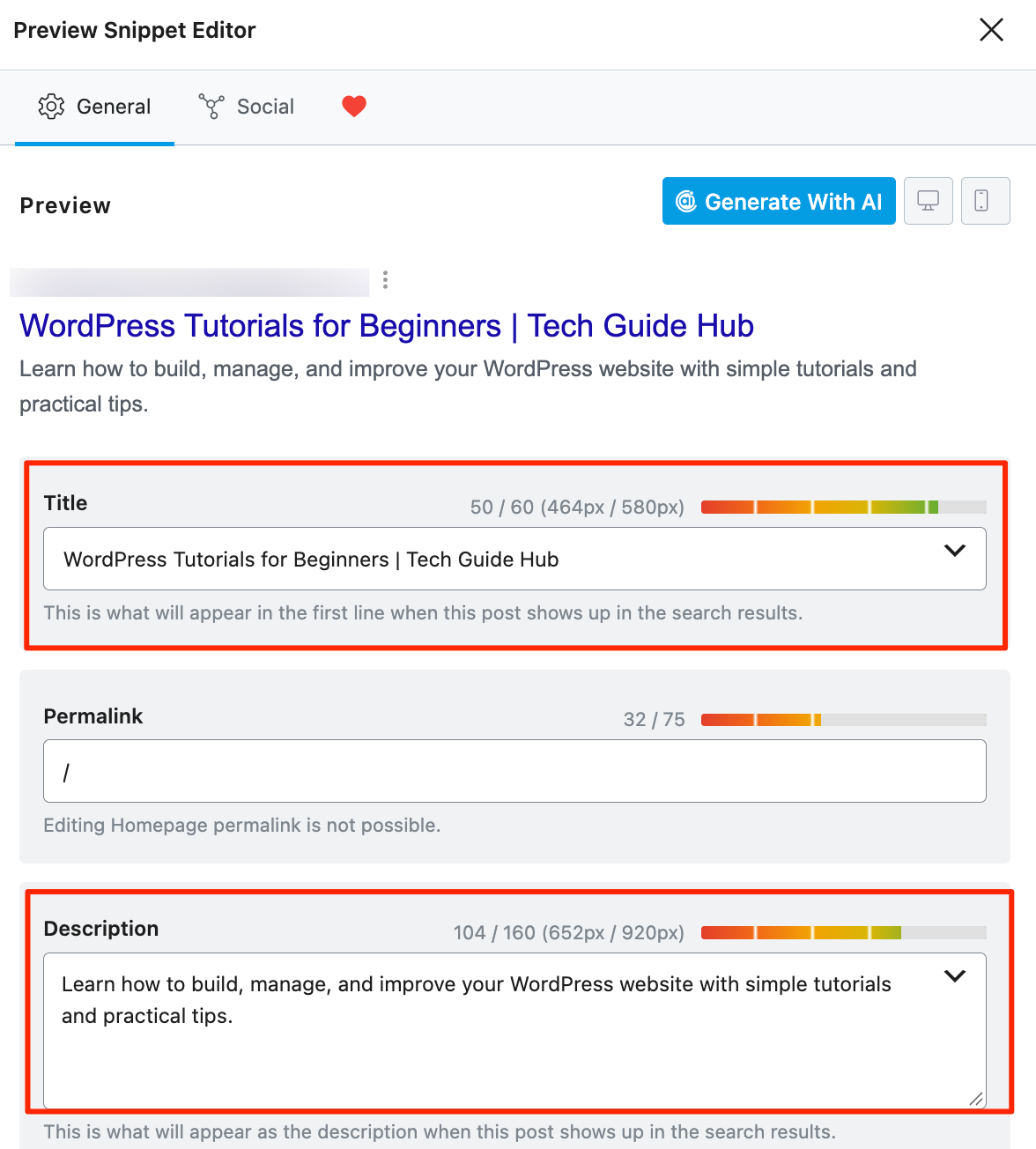
Your homepage is often one of the most important pages on your website, so give it a clear title and description.
For a tutorial blog, an example might be:
SEO title: WordPress Tutorials for Beginners | Tech Guide Hub
Meta description: Learn how to build, manage, and improve your WordPress website with simple tutorials and practical tips.
Make sure the description accurately reflects what visitors will find on your homepage. If your theme uses a static homepage, review its SEO fields in the page editor as well.
Avoid creating a title that promises information your homepage doesn’t provide.
4. Check Your Canonical URLs
A canonical URL tells search engines which URL you consider the preferred version of a page when similar or duplicate URLs exist.
For example, you might want this URL treated as the main version:
https://example.com/wordpress-seo-guide
If the same content is accessible through multiple URLs, canonical settings can help communicate which version should be preferred.
For a new website, Rank Math will commonly generate self-referencing canonical URLs automatically. In most cases, you can leave the default settings alone unless you have a specific reason to change them.
Be careful when editing canonical URLs manually. Pointing a page to the wrong URL can send confusing signals to search engines.
5. Review Your Robots Meta Settings
Robots meta settings help control whether search engines should index a page and whether they should follow its links.
For example, an indexable blog post should generally be available for search engines to index. A private utility page may have different requirements.
Check your default settings for posts and pages. Make sure important content isn’t accidentally marked noindex.
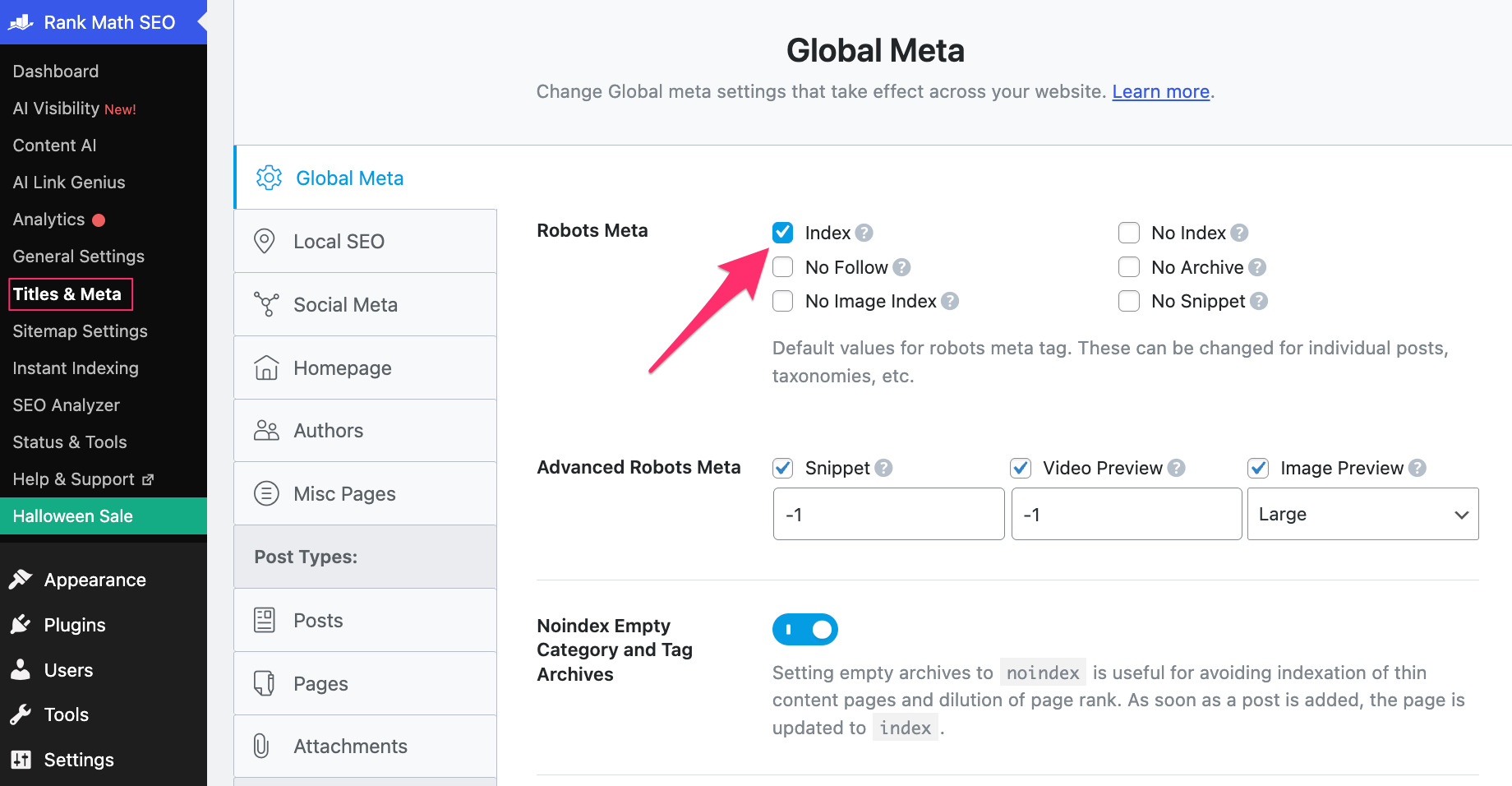
You should also review the site’s overall search visibility setting in WordPress. Rank Math’s page-level settings and WordPress’s site-wide visibility setting serve different purposes, so check both.
6. Decide Whether Categories and Tags Should Be Indexed
WordPress can create archive pages for categories and tags. These pages group related content, but not every archive needs to appear in search results.
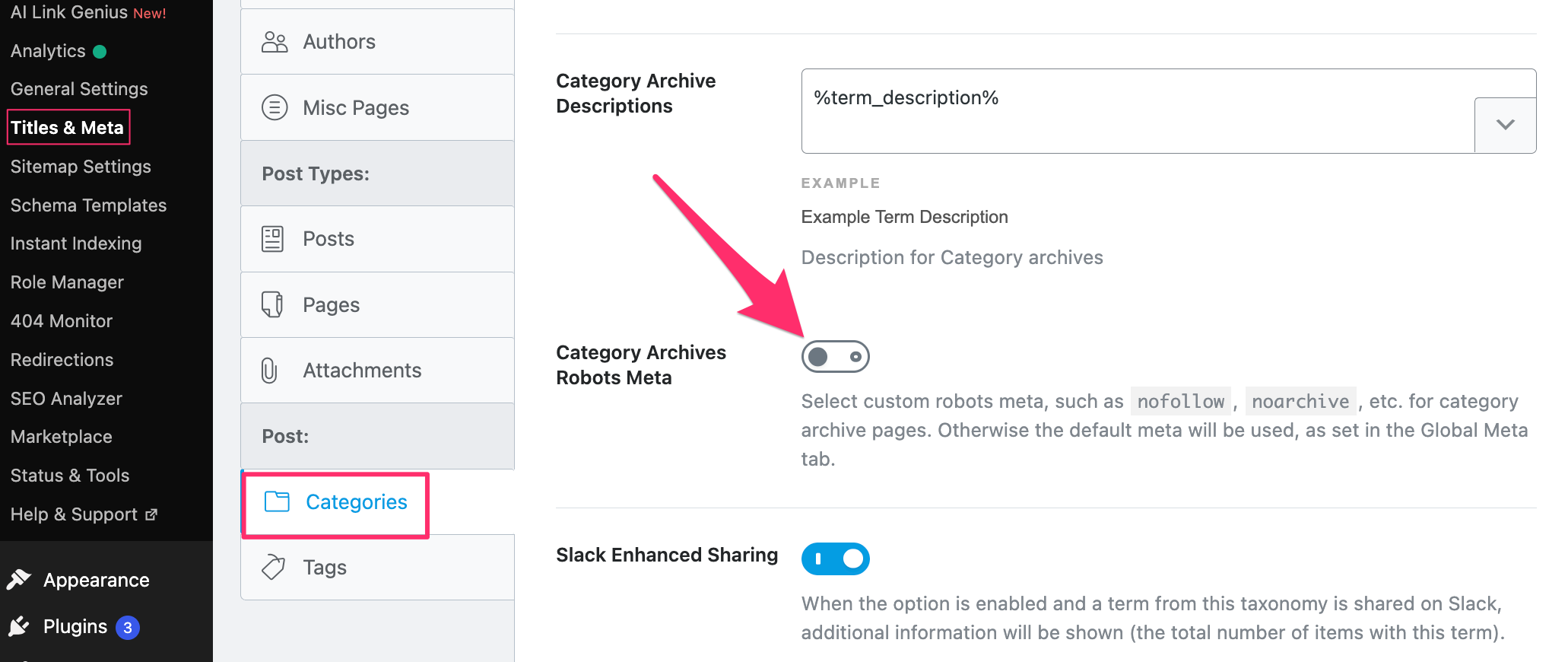
For example, a well-maintained category page containing useful descriptions and links to relevant articles may be valuable to visitors. A tag archive containing only one or two loosely related posts may offer little additional value.
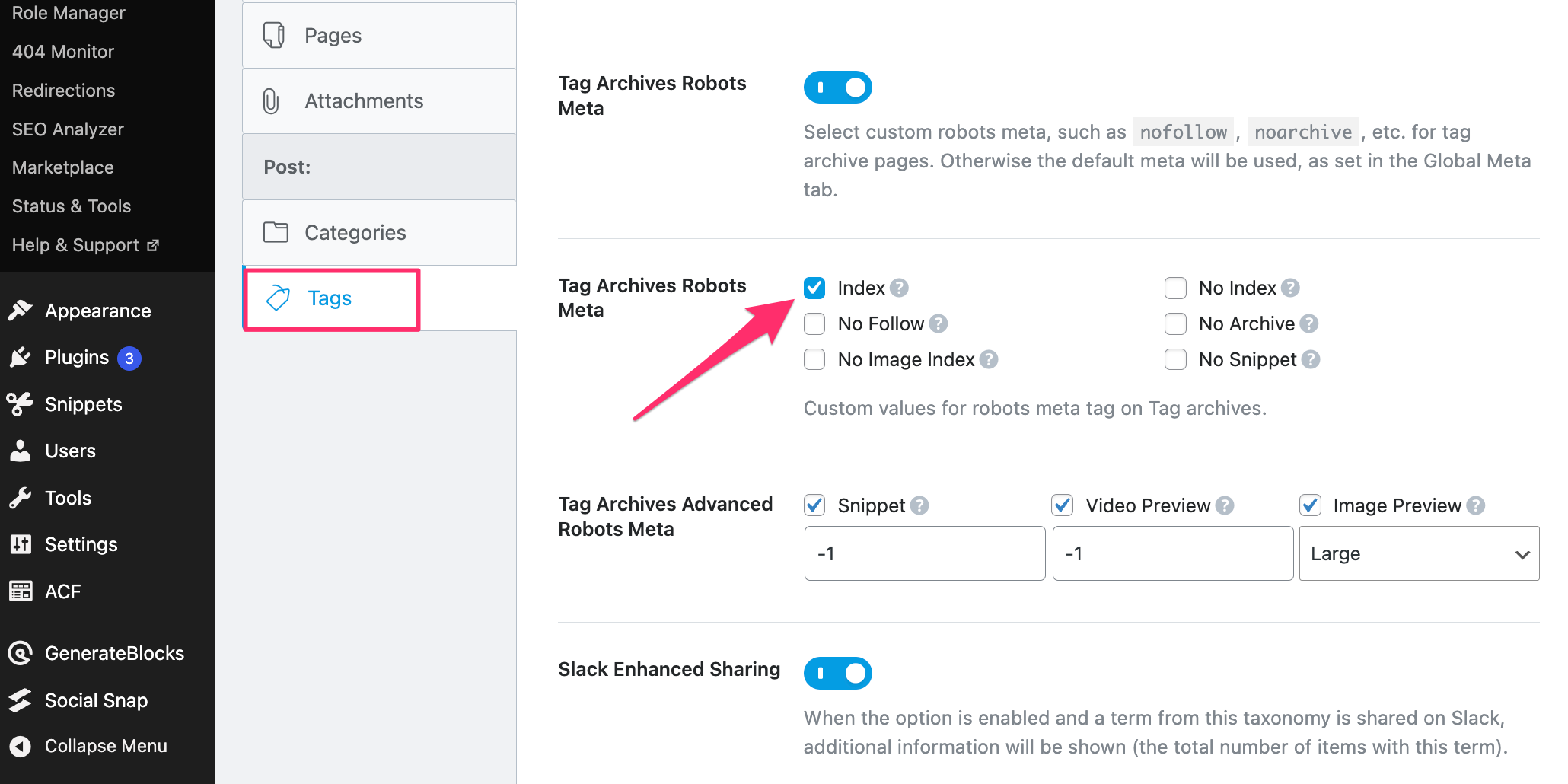
Review the archive settings in Rank Math and decide which pages deserve to be indexed.
Don’t automatically set every category and tag to noindex. Instead, consider whether each type of page provides useful information and a clear purpose for visitors.
A quick rule to remember: Keep important, useful pages available for indexing, and avoid creating large numbers of thin or duplicate pages.
Once these general SEO settings are in place, the next step is checking your XML sitemap to help search engines discover your important content.
Step 5: Set Up XML Sitemaps in Rank Math
An XML sitemap is a file that helps search engines discover important URLs on your website. Let’s say this is a list that points search engines toward the pages you want them to find.
If you’re launching a new WordPress website, setting up your sitemap is an important part of your SEO checklist. The good news? Rank Math can generate and update it automatically as you publish content.
1. Enable the XML Sitemap Feature
First, log in to your WordPress dashboard.
Go to Rank Math SEO » Sitemap Settings.
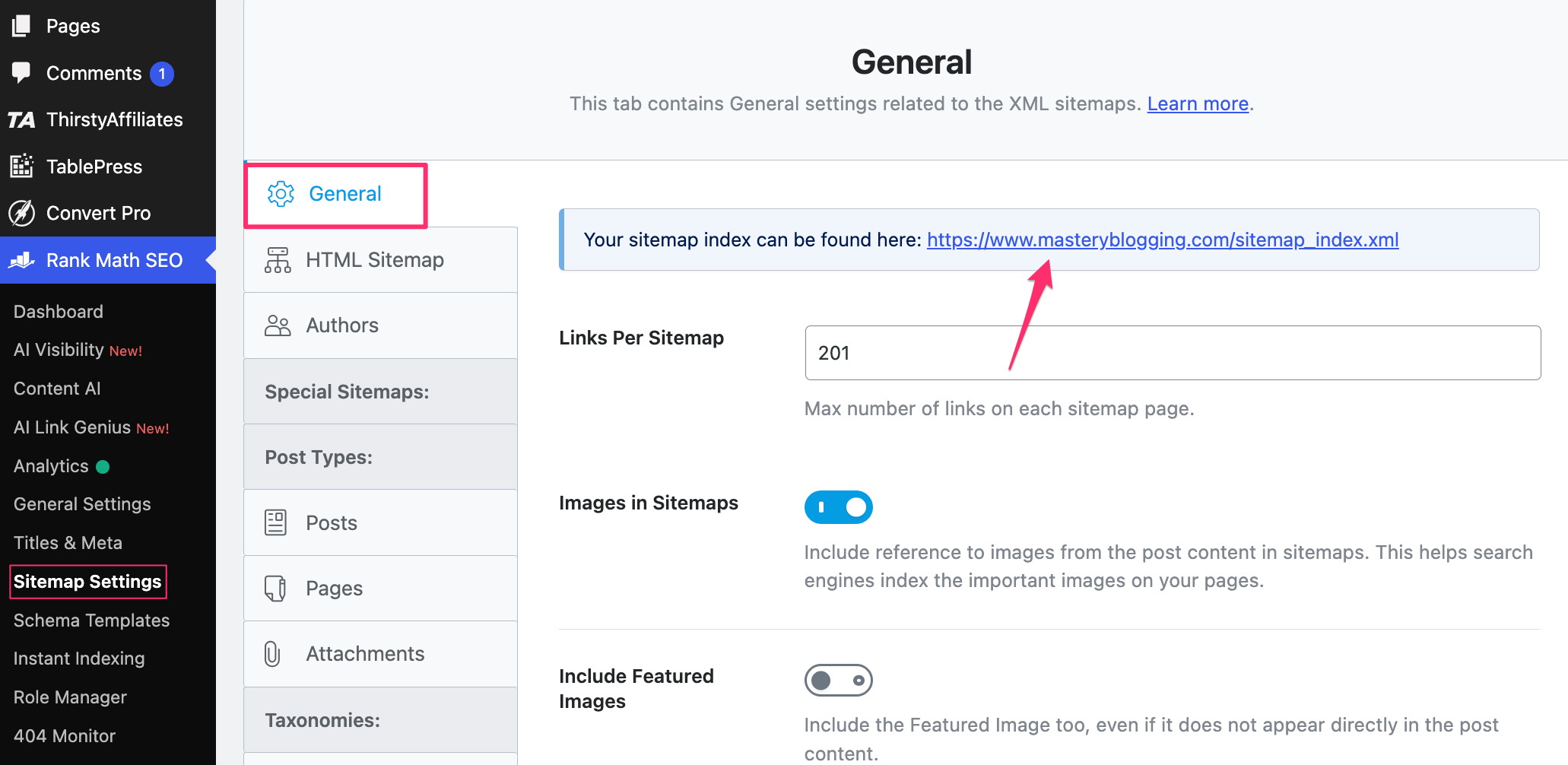
Depending on your version, you may need to open the Rank Math dashboard and enable the Sitemap module first.
Make sure the sitemap feature is enabled.
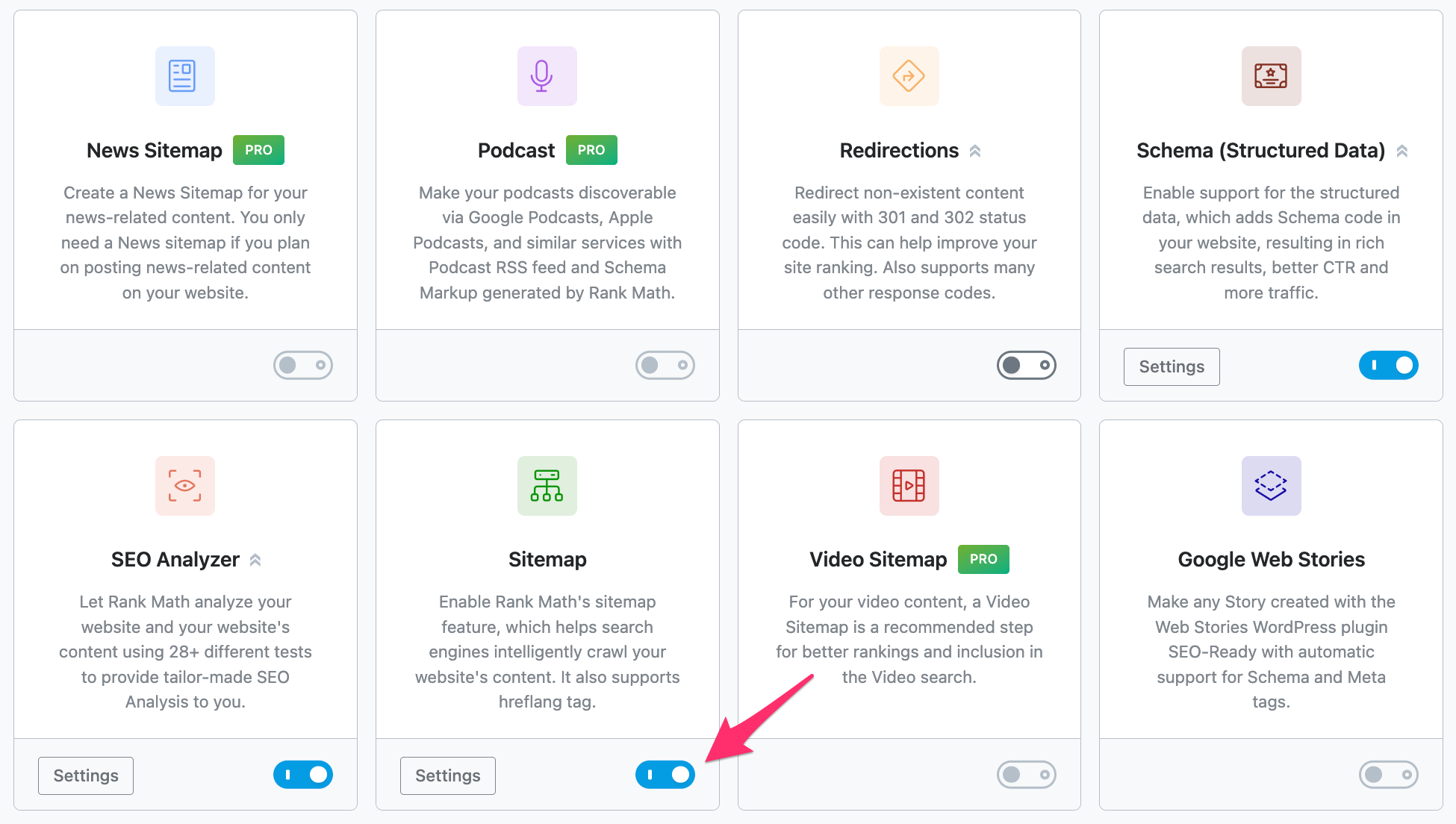
Once it’s active, Rank Math can generate a sitemap containing the URLs of your selected content types. You generally won’t need to create or update the file manually.
2. Choose Which Content Types to Include
Next, review the sitemap settings for your posts, pages, and other public content types.
For a typical blog, you’ll usually want your important blog posts and pages included.
For example, you might include:
- Blog posts containing useful, original content.
- Important pages such as About, Contact, and Services.
- Public custom post types that provide value to visitors.
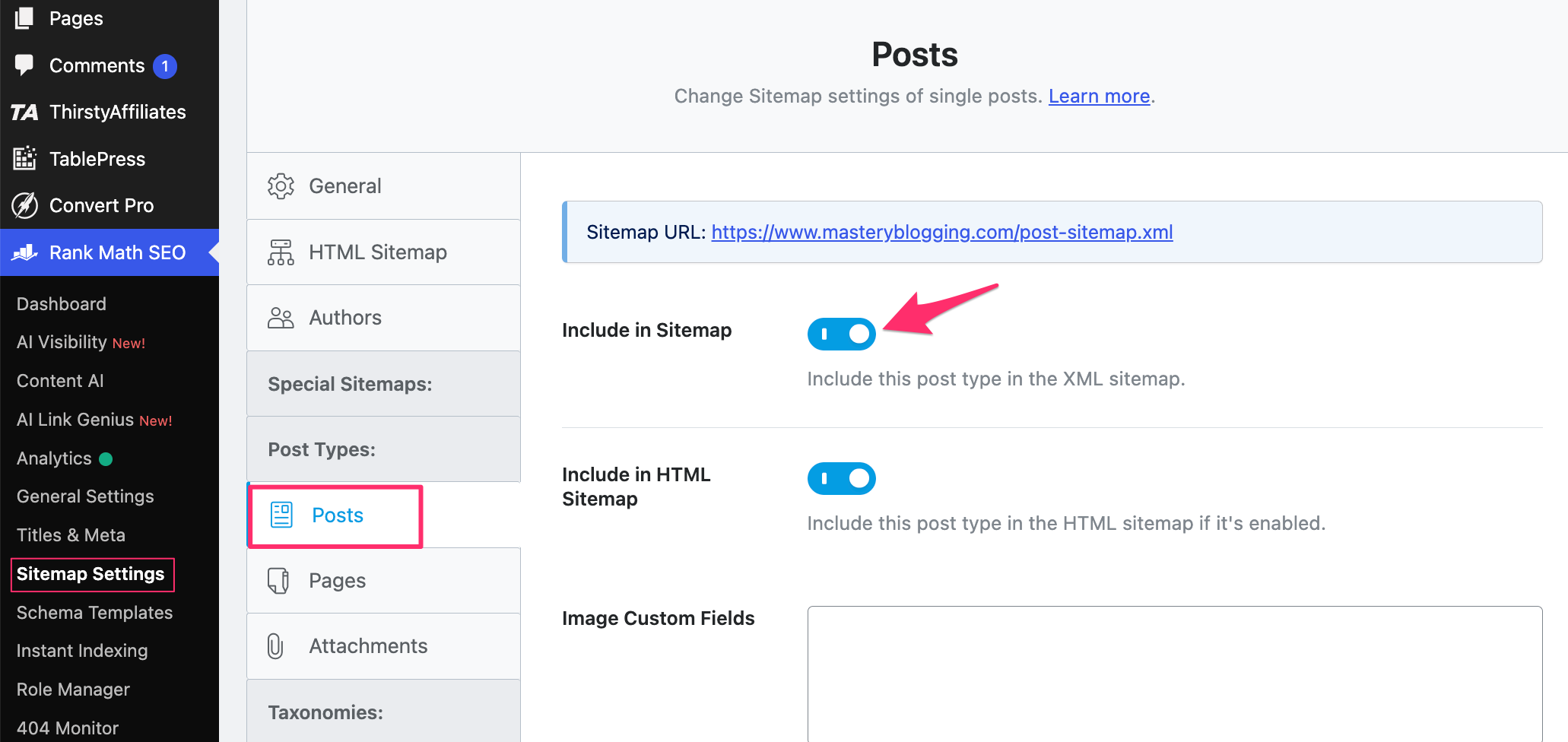
You may want to exclude internal utility pages, duplicate content, or pages that shouldn’t appear in search results.
The important thing is to keep your sitemap focused on useful URLs that you want search engines to discover. A sitemap doesn’t need to list every URL your website can generate.
3. Decide Whether to Include Categories and Tags
Rank Math may offer separate settings for category and tag archives.
Before enabling them, consider whether these pages help visitors find relevant content.
For example, a category page titled “WordPress Tutorials” that groups several useful guides may be worth including. A tag page with only one unrelated post may not offer much value.
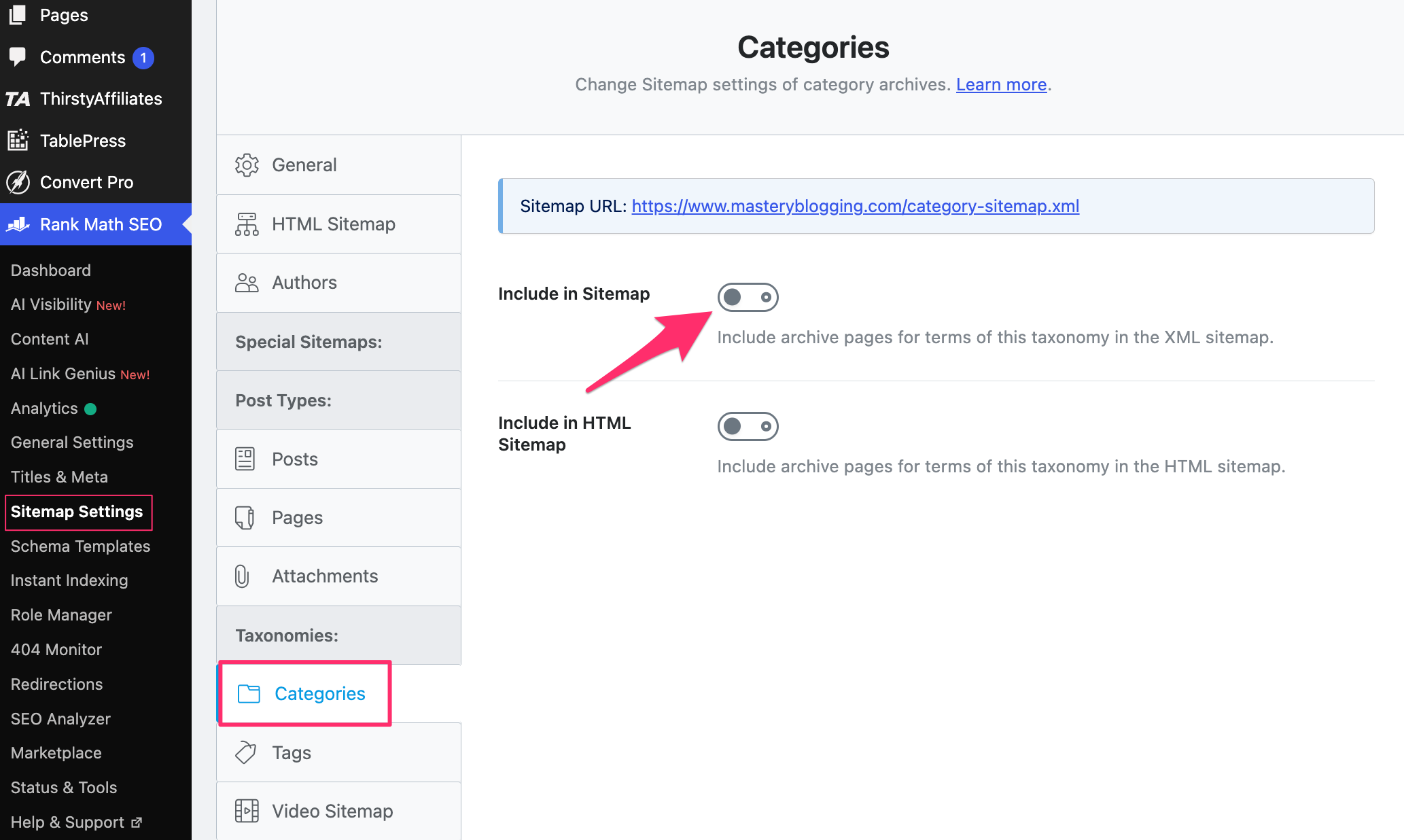
If you decide to exclude an archive from your sitemap, check its indexing settings too. Sitemap inclusion and indexing are separate controls, so make sure your settings are consistent.
4. Find and Test Your Sitemap URL
After enabling the sitemap, open your website in a browser and visit:
https://example.com/sitemap_index.xml
Replace example.com with your actual domain.
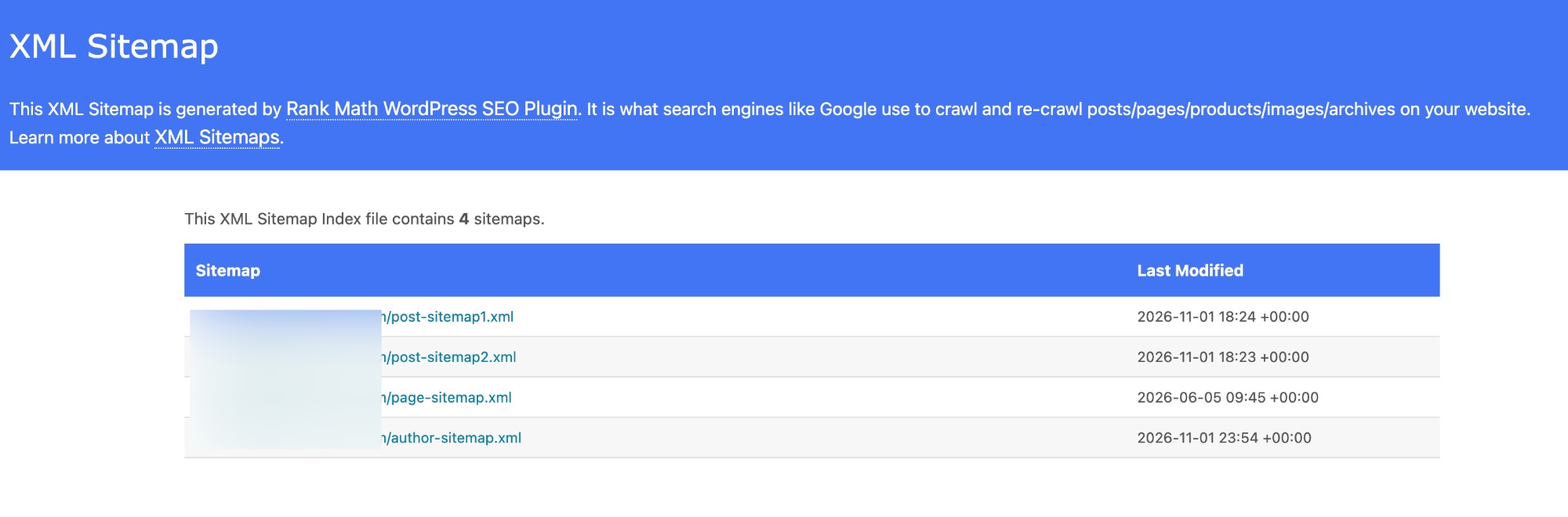
If Rank Math is generating the sitemap correctly, you should see an XML sitemap index listing the relevant sitemap files.
For example, your sitemap index might link to separate files for posts and pages.
If the URL doesn’t load, check that the Sitemap module is enabled and that your website’s permalink settings are working. You can also clear your caching plugin’s cache and try again.
Don’t assume the sitemap is broken just because your browser displays XML instead of a normal webpage. XML is the expected format.
5. Submit Your Sitemap to Google Search Console
Once you’ve confirmed that your sitemap works, you can submit it through Google Search Console.
Open Search Console and select the correct website property. Then go to Sitemaps, enter your sitemap path, and submit it.
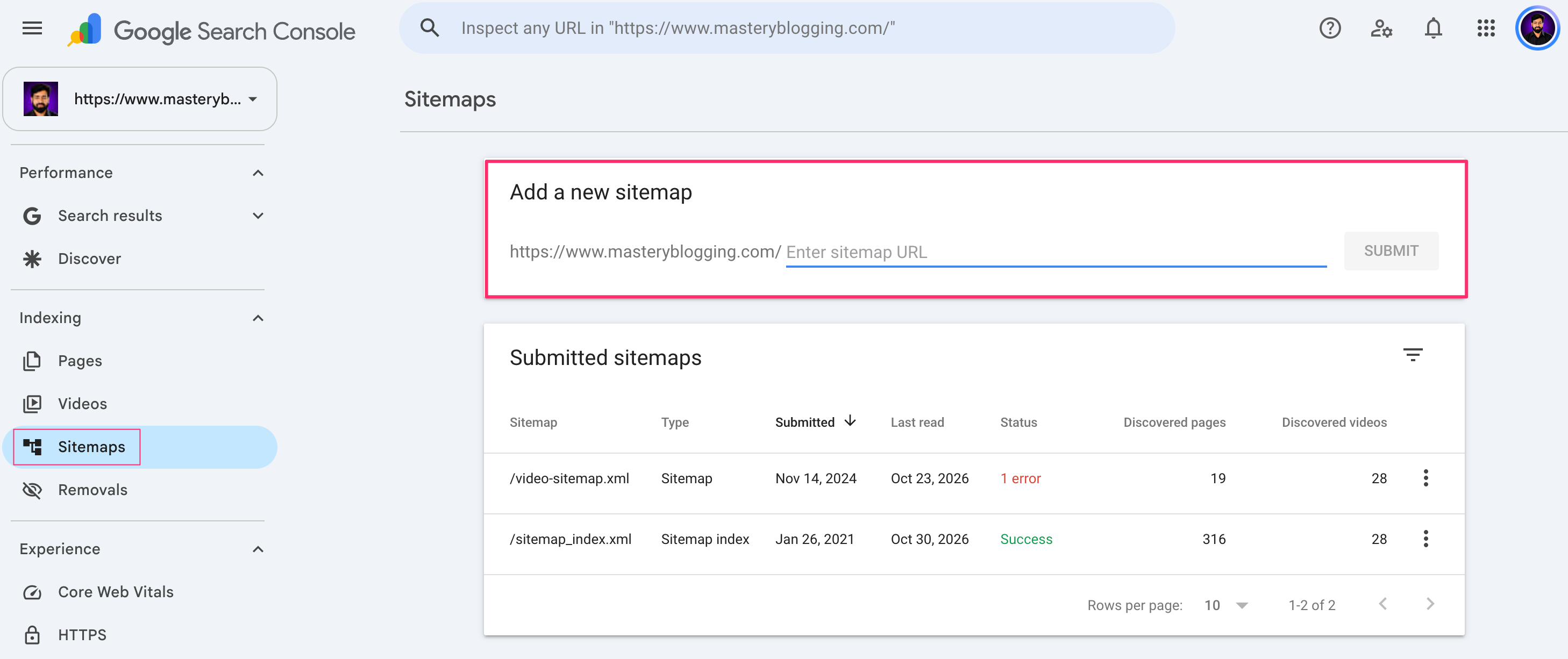
For example, you would usually enter:
sitemap_index.xml
Search Console will report whether Google could fetch the sitemap and may display any errors it finds.
Submitting a sitemap helps Google discover your URLs, but it doesn’t guarantee that every page will be crawled or indexed.
Before you do, see Step 6.1 first.
6. Fix Common Sitemap Problems
If your sitemap isn’t working as expected, start with these checks:
The sitemap returns an error: Confirm that the Sitemap module is enabled, then clear your cache and test again.
Important pages are missing: Review the sitemap settings for the relevant content type and check whether those pages are marked noindex.
Google reports a fetch error: Open the sitemap directly in your browser, confirm that it loads, and check that the Search Console property matches your website.
The sitemap contains unwanted URLs: Review your post, page, taxonomy, and indexing settings. Remove URLs that shouldn’t be included through the appropriate Rank Math settings rather than editing the generated XML file manually.
For a new website, you don’t need a complicated sitemap strategy. Start with your important, indexable content and check Search Console periodically as your site grows.
Step 6: Connect Google Search Console and Google Analytics
Now that your sitemap is ready, it’s time to connect the tools that help you understand how your website performs.
Google Search Console helps you monitor your website’s presence in Google Search. Google Analytics helps you understand how people interact with your website after they arrive.
You don’t need to be an SEO expert to use either tool. Start by connecting them correctly, then learn how to read the basic reports.
1. Set Up Google Search Console
Google Search Console is a free tool that helps you monitor your website’s performance in Google Search.
You can use it to check which search queries bring people to your website, see impressions and clicks, inspect individual URLs, and identify certain indexing problems.
To get started:
- Visit Google Search Console and sign in with your Google account.
- Add a property for your website.
- Verify ownership using one of the available methods.
- Open the property and check that your website data and indexing reports are available.
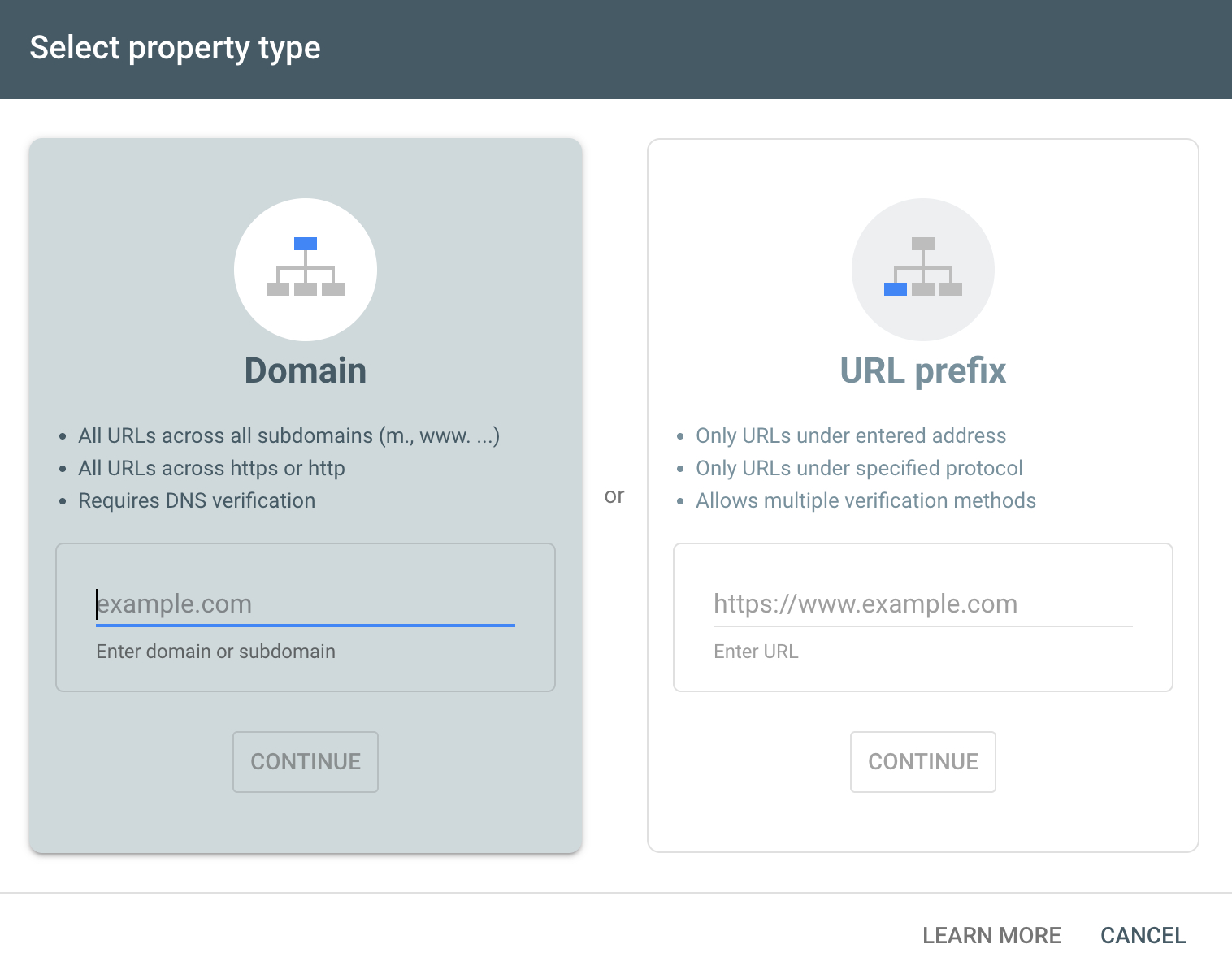
A domain property is useful because it can cover different protocols and subdomains.
Verification often requires adding a DNS record through your domain provider. If that sounds too technical, Search Console also offers other verification methods for eligible property types.
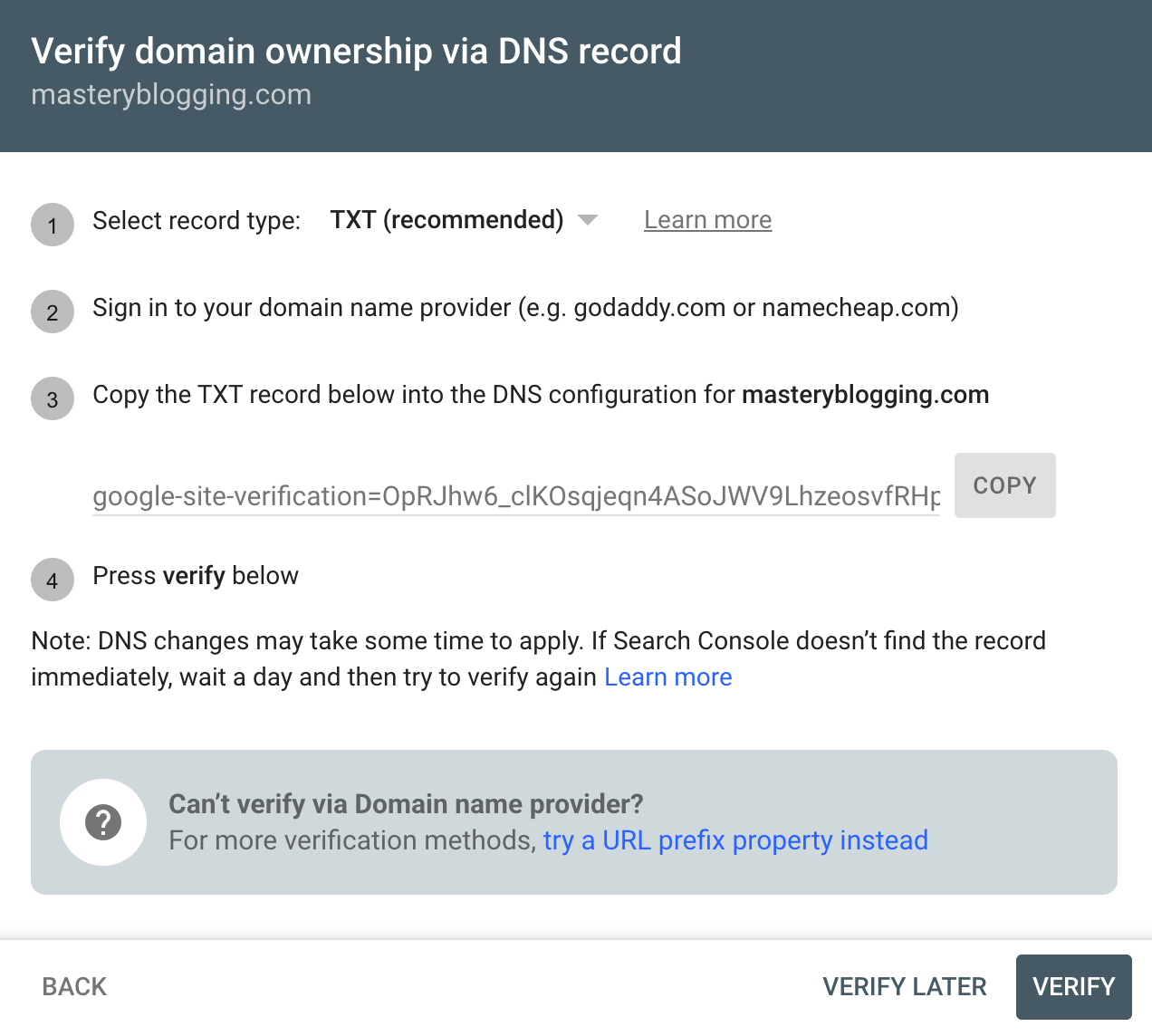
Once your property is verified, you can use the URL Inspection tool to check individual pages and request indexing when appropriate.
2. Connect Search Console to Rank Math
Rank Math offers an integration with Google services that can help you access supported Search Console information from your WordPress dashboard.
To connect it, open the Rank Math settings or Analytics area and look for the Google account connection option. Sign in with the account that has access to your Search Console property, review the permissions, and follow the prompts.
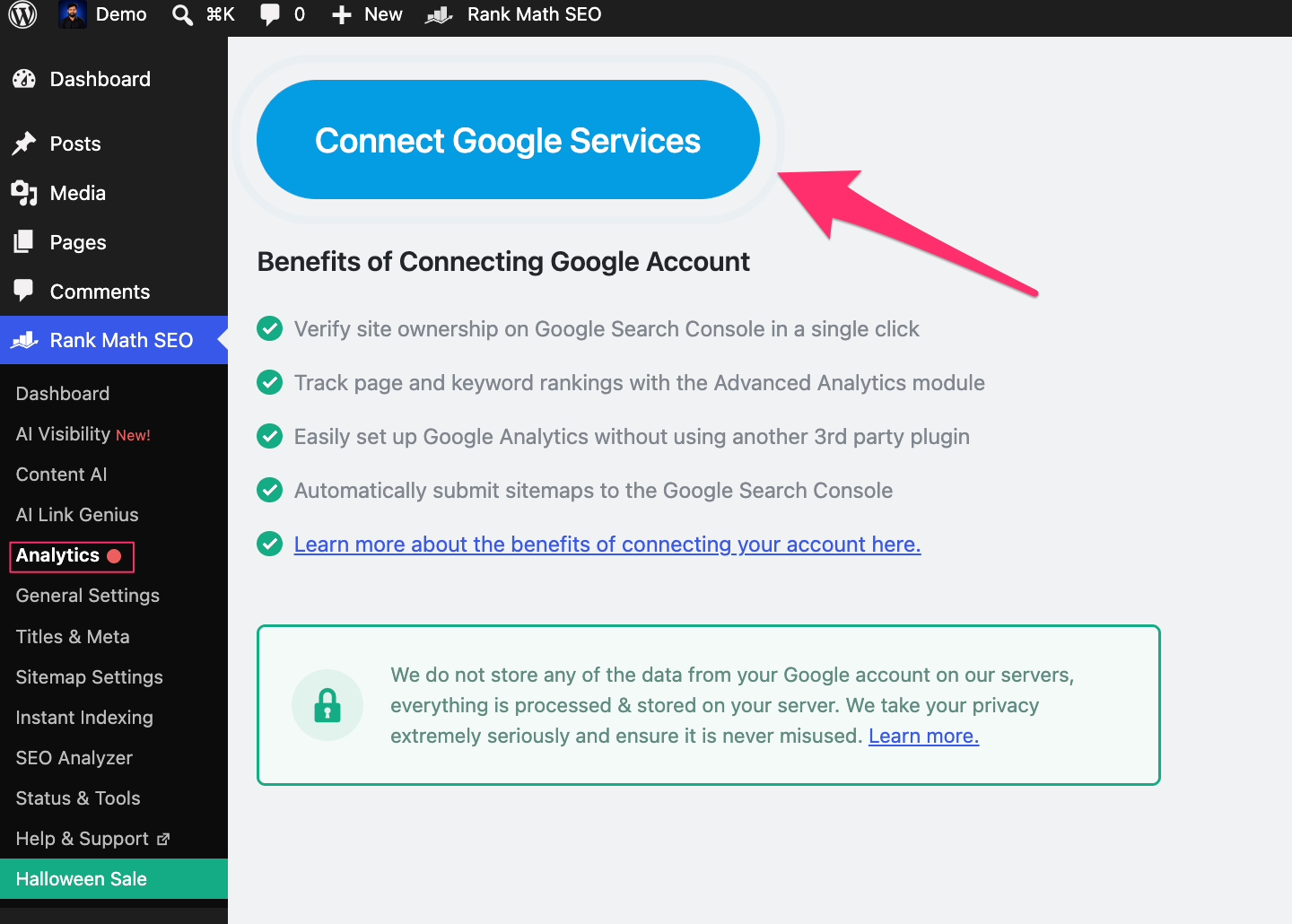
You can also use Google Search Console directly without connecting it to Rank Math. The connection is convenient, but it isn’t required for Google to crawl or index your website.
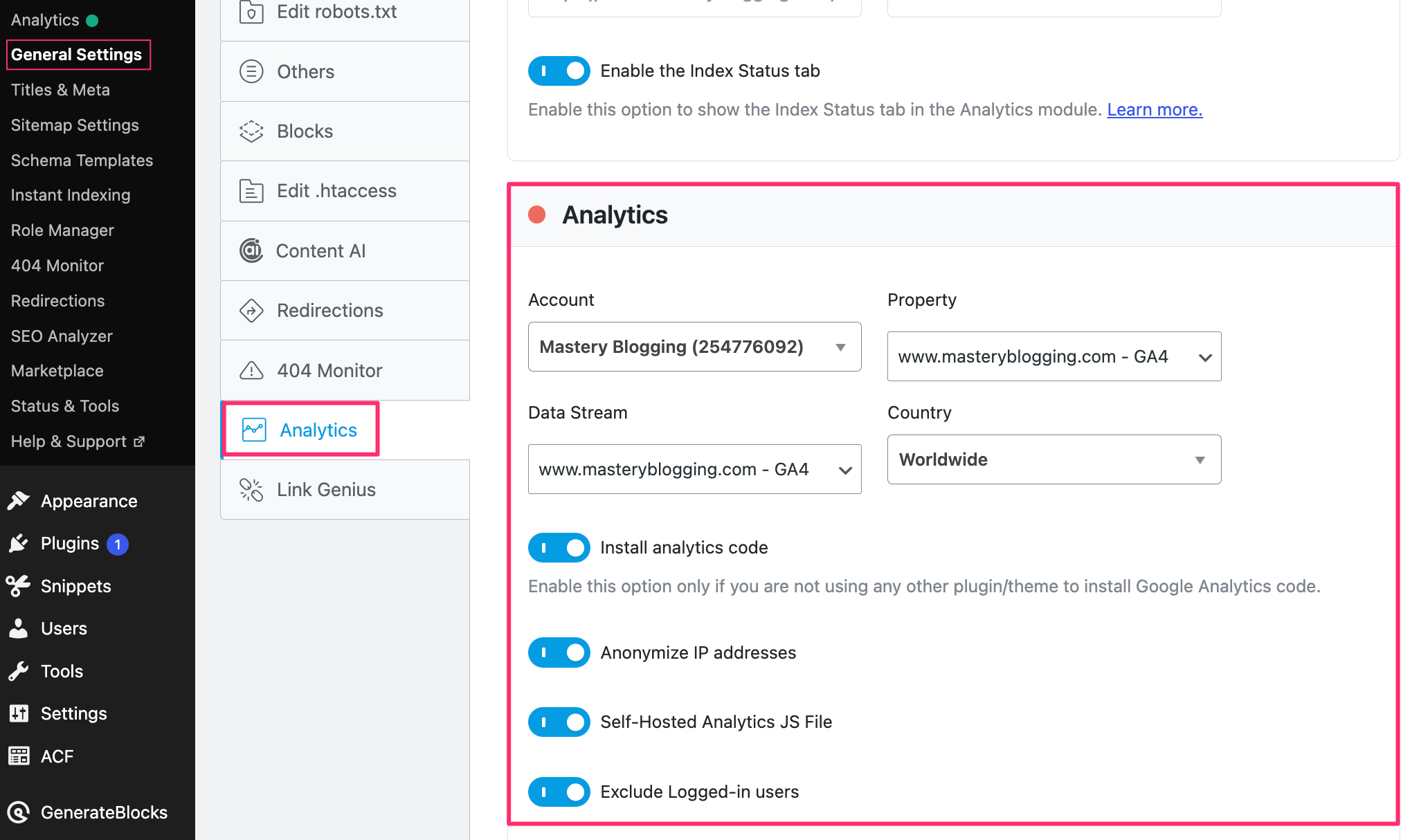
3. Set Up Google Analytics 4
Google Analytics 4, commonly called GA4, helps you understand what visitors do on your website.
For example, it can help you learn which pages receive traffic, how visitors arrive, and which content gets engagement.
To get started:
- Open Google Analytics and create an account if you don’t already have one.
- Create a property for your website.
- Set up a web data stream using your website’s URL.
- Follow Google’s instructions to install the measurement tag.
- Check that data collection is working.
You can install the tag through a supported WordPress integration, Google Tag Manager, or another suitable method.
If you’re using a plugin or theme that already installs the Google tag, avoid adding the same tag a second time. Duplicate tracking can lead to inaccurate data.
Also, make sure your analytics setup follows the privacy and consent requirements that apply to your visitors.
4. Submit Your XML Sitemap to Google
If you haven’t already done so, submit your Rank Math sitemap through Search Console.
Open your property, select Sitemaps, enter your sitemap URL, and submit it.
For many Rank Math installations, the sitemap index is available at:
sitemap_index.xml
Search Console will show whether Google could read the submitted sitemap. If an error appears, check that the URL loads correctly and that you’re using the right property.
Remember that sitemap submission helps Google discover URLs; it doesn’t guarantee that they will appear in search results.
(I have already covered this part in Step 5.5.)
5. Check Whether Google Can Find Your Pages
After setup, use the URL Inspection tool in Search Console to check important URLs.
Enter the URL of your homepage or a published blog post. Google will show information about its known indexing status and whether any issues have been detected.
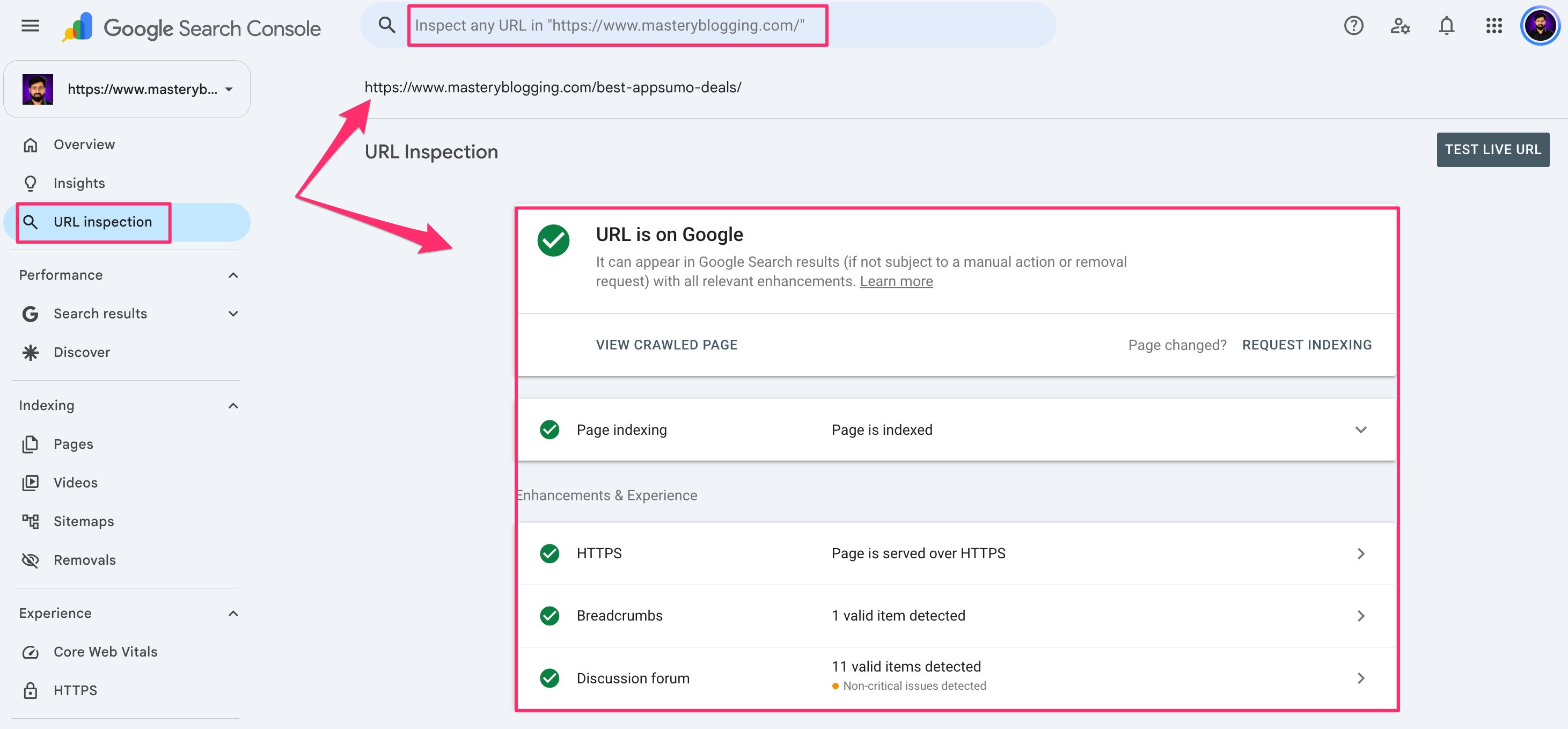
If a page is eligible for indexing but hasn’t been indexed yet, you may be able to request indexing.
Don’t panic if your new website doesn’t appear in Google immediately. Search engines need time to discover and process new pages, and requesting indexing doesn’t guarantee inclusion.
6. Understand the Basic Reports
Once data becomes available, focus on a few useful reports instead of trying to understand everything at once.
In Google Search Console: Look at clicks, impressions, search queries, and indexing issues.
In Google Analytics: Review users, traffic sources, landing pages, and engagement.
These tools answer different questions. Search Console helps you understand how people find your website through Google Search, while Analytics helps you understand what happens after visitors arrive.
Checking these reports periodically can help you spot technical problems and learn which pages deserve more attention.
Next, let’s look at schema markup and how Rank Math can help search engines better understand the content on your pages.
Step 7: Configure Schema Markup for Rich Search Results
Have you ever seen Google search results that display extra details, such as a product’s price, a recipe’s cooking time, or an event’s date?
Those enhanced listings may use structured data, often called schema markup. It helps search engines understand what a page contains and what its information means.
Rank Math can add structured data to many types of WordPress content. You don’t need to write code for every page, but you do need to choose the right schema type and provide accurate details.
1. Understand How Schema Markup Works
Schema markup uses a standardized vocabulary to describe information on a webpage. Search engines may use eligible structured data to understand the content and display enhanced search results.
For example, a recipe page may provide information about ingredients, preparation time, and cooking instructions. A product page may include details such as price and availability.
However, adding schema markup doesn’t guarantee rich results. Google has specific eligibility requirements, and the structured data must accurately reflect the content visitors can see.
2. Set Up the Default Schema for Blog Posts
If you’re running a blog, setting a suitable default schema for posts is a sensible starting point.
Go to Rank Math » Titles & Meta » Posts » Schema Type.
For a typical informational blog post, Article or a suitable subtype such as Blog Post may be appropriate.
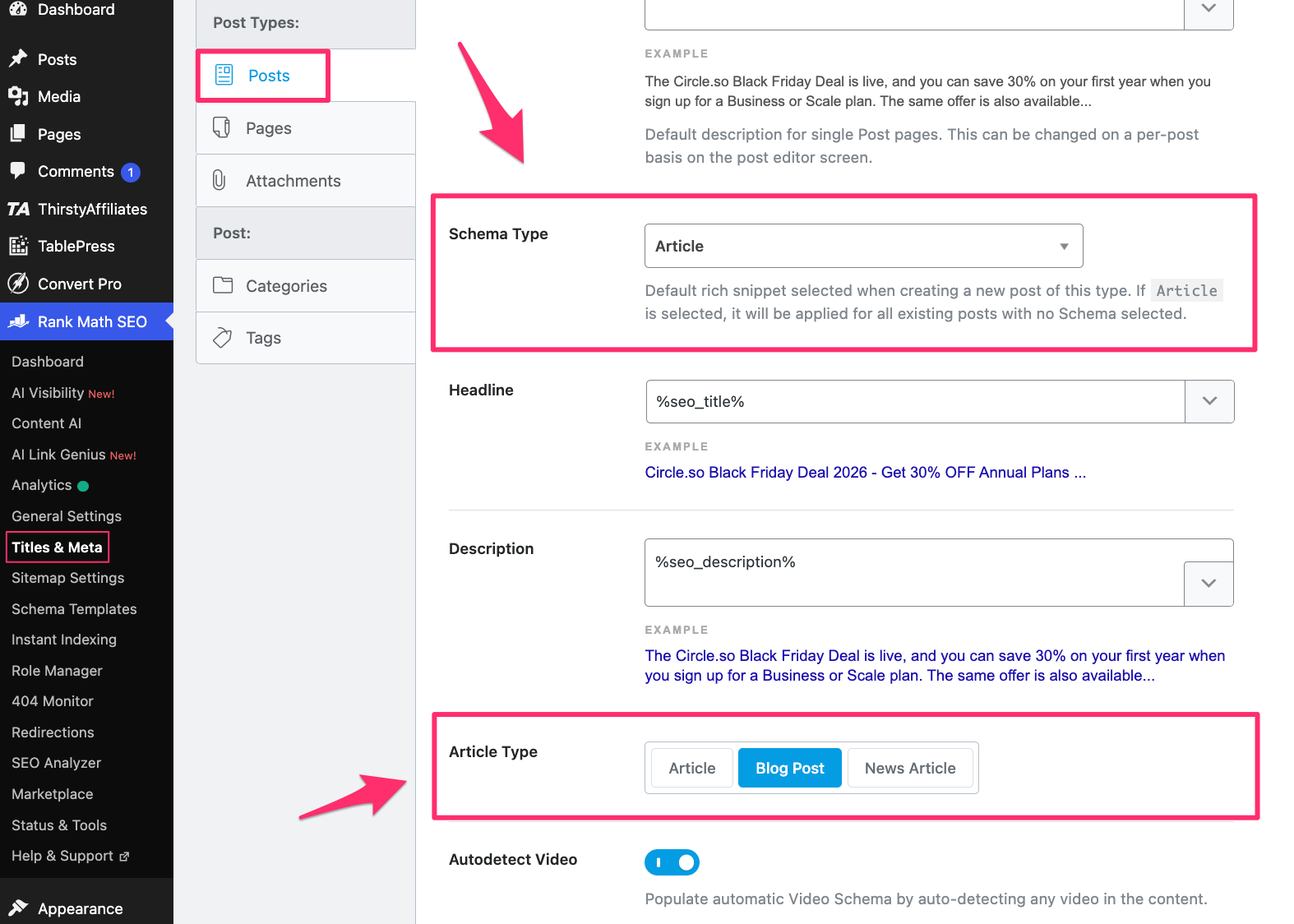
A suitable default can save time when publishing future articles. Still, review individual posts whenever their content requires a different schema type.
To do this, open a post in the WordPress editor and find the Rank Math SEO panel. Look for the Schema or Schema Generator option.
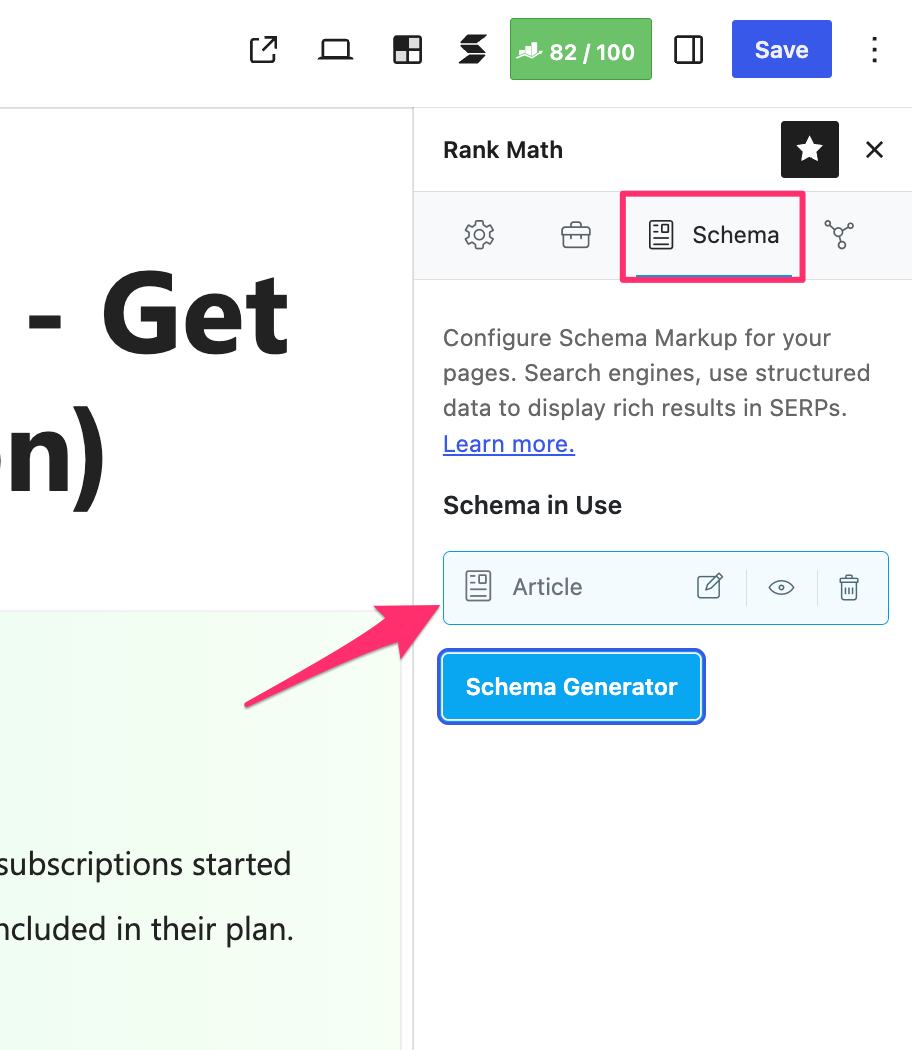
3. Choose the Right Schema for Your Pages
Different pages serve different purposes, so they shouldn’t all use the same structured data.
For example:
- Blog posts: Article schema may be appropriate.
- Product pages: Product schema may be suitable when the page meets the relevant requirements.
- Recipe pages: Recipe schema can describe genuine recipes.
- Local business pages: Local Business schema may fit a page that accurately represents a real business.
- FAQ content: FAQ-related structured data should only be used when appropriate for the content and current search engine eligibility rules.
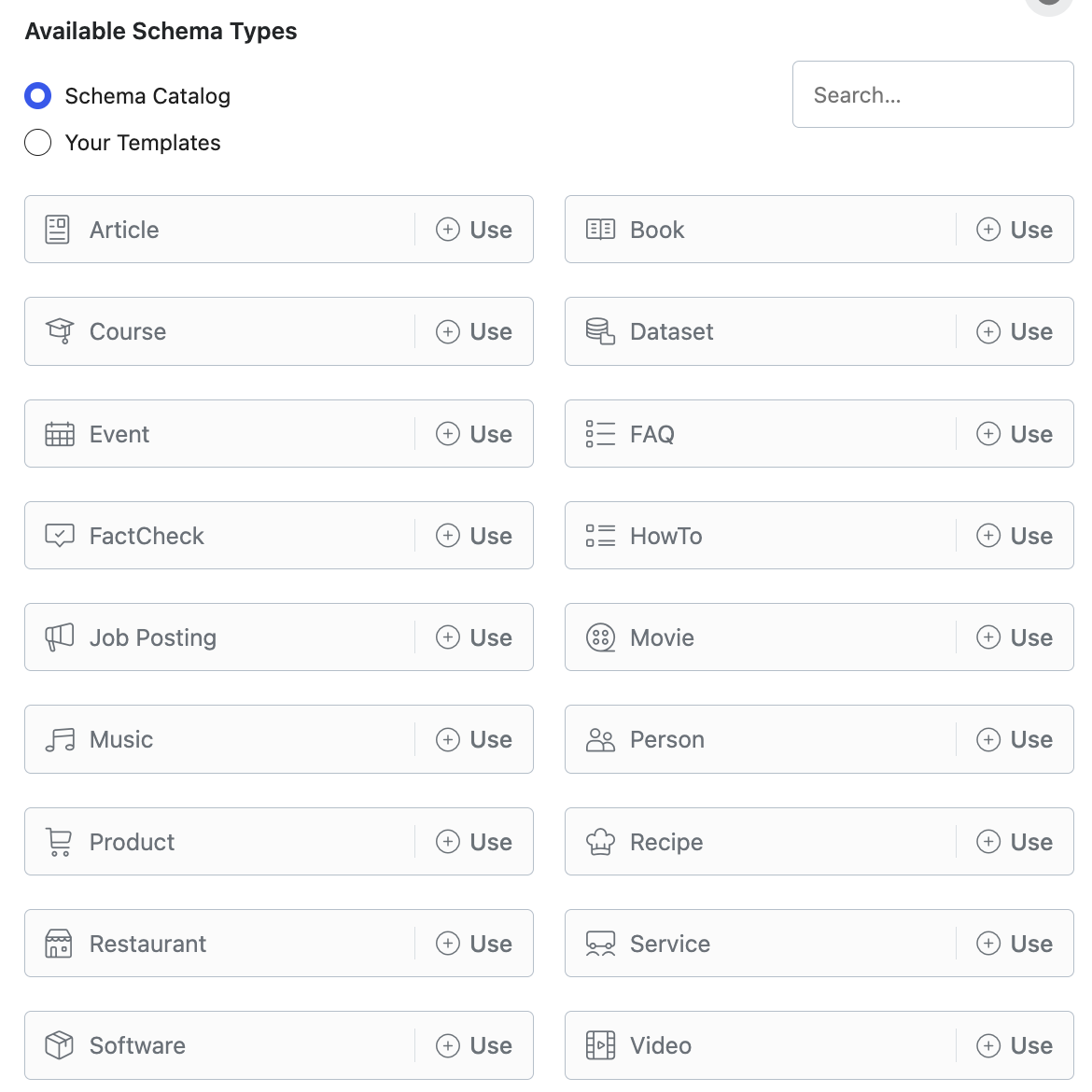
Don’t choose a schema type just because it sounds useful for SEO. The markup should accurately describe the page.
4. Configure Your Website’s Person or Organization Details (Local SEO)
Your website’s identity settings help describe who publishes or operates the site.
If you’re running a personal blog, use accurate information about the person behind it. For a company website, provide the correct organization name and relevant branding details.
You may have configured some of these details during the Rank Math setup wizard. Review them if your website information has changed or you skipped any fields. Navigate to Titles & Meta, then Local SEO.
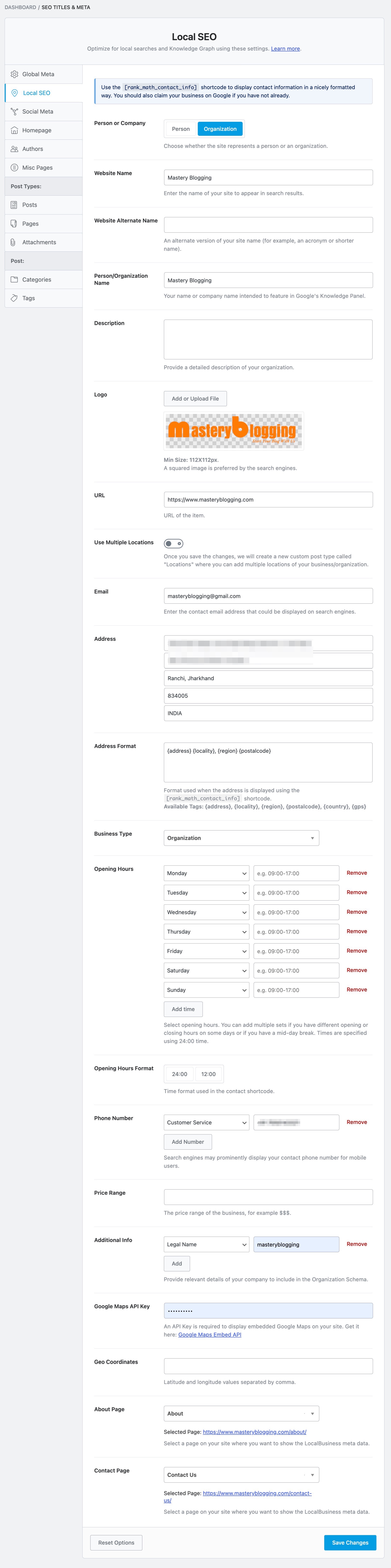
Make sure your logo and other details are consistent with your actual website identity. Avoid adding information that cannot be verified or that misrepresents your business.
5. Test Your Structured Data
After configuring schema markup, test an important page using Google’s Rich Results Test where the schema type is supported.
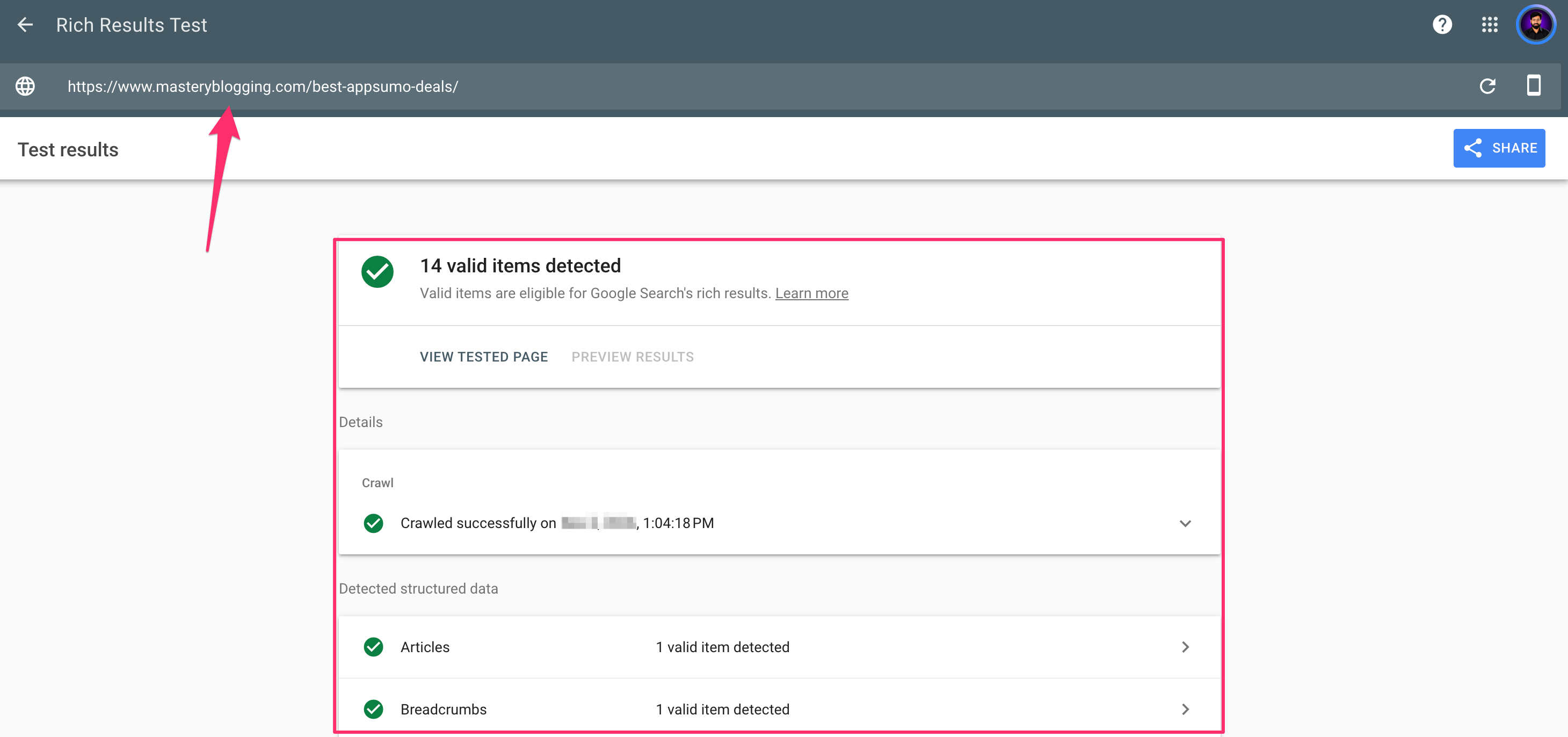
The tool can help identify structured data that qualifies for supported rich result features and flag certain errors.
You can also use Schema.org’s validator to inspect structured data more broadly.
If you find an error, return to the relevant page in WordPress and review its Rank Math schema settings. Correct missing or inaccurate fields rather than filling them with made-up information.
One important thing to remember: Valid schema markup does not guarantee a rich result or higher rankings. It simply helps search engines interpret supported information about your page.
Step 8: Configure Breadcrumbs and Internal SEO Settings
Now that you’ve configured schema markup, it’s time to look at breadcrumbs and a few other settings that help visitors and search engines understand your website’s structure.
These settings are easy to overlook when launching a new WordPress site. However, getting them right can make your website easier to navigate and maintain as you publish more content.
1. Enable Breadcrumbs in Rank Math
Breadcrumbs are navigation links that show visitors where they are within your website.
For example, a breadcrumb trail might look like this:
Home » WordPress » SEO Tutorials » Rank Math Setup
This helps visitors understand how a page fits into your site’s structure and gives them an easy way to return to a broader category.
To configure breadcrumbs, open your WordPress dashboard and go to Rank Math SEO » General Settings » Breadcrumbs.
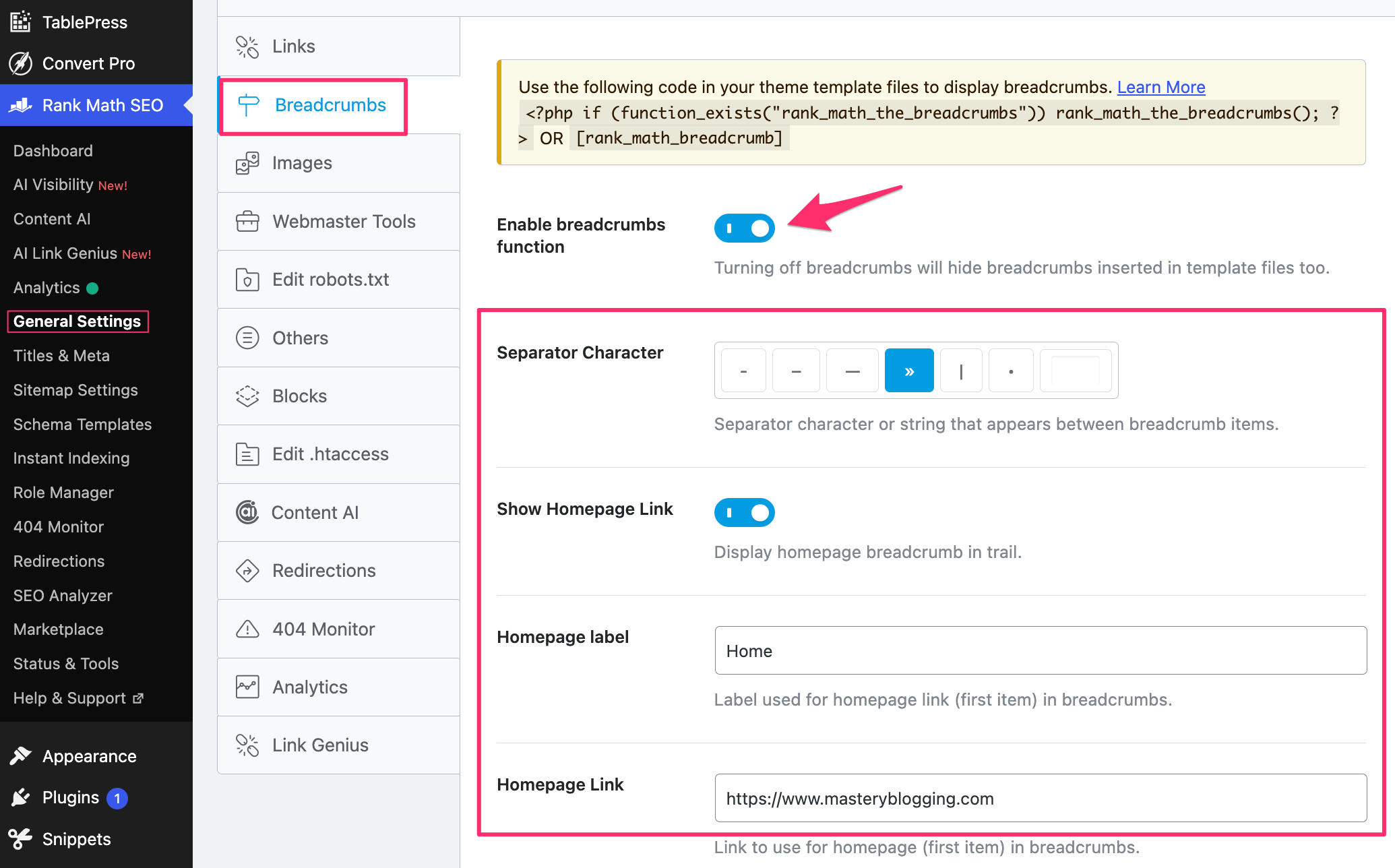
Enable breadcrumbs if they suit your website’s design and structure, then review the available settings.
2. Display Breadcrumbs on Your Website
Enabling breadcrumbs in Rank Math may not automatically display them on your website. Your theme needs to support them, or you may need to add them through the appropriate integration.
Depending on your setup, you can use a theme integration, a supported block, or the breadcrumb function provided by Rank Math.
If you’re using a custom theme, check its documentation before adding code. Avoid pasting PHP snippets into your theme’s files unless you understand how to maintain them safely.
After adding breadcrumbs, visit a few pages and make sure the links work correctly and the navigation looks good on mobile devices.
3. Review Image SEO Settings
Images can make your blog posts more useful, but search engines need context to understand them.
Start by giving important images descriptive file names and useful alternative text.
For example, instead of naming an image IMG1234.jpg, you might use rank-math-sitemap-settings.jpg.
For the image’s alt text, describe what the image actually shows, such as:
Rank Math sitemap settings in the WordPress dashboard.
Rank Math offers image-related SEO features. Review these options if you want help managing missing image attributes.
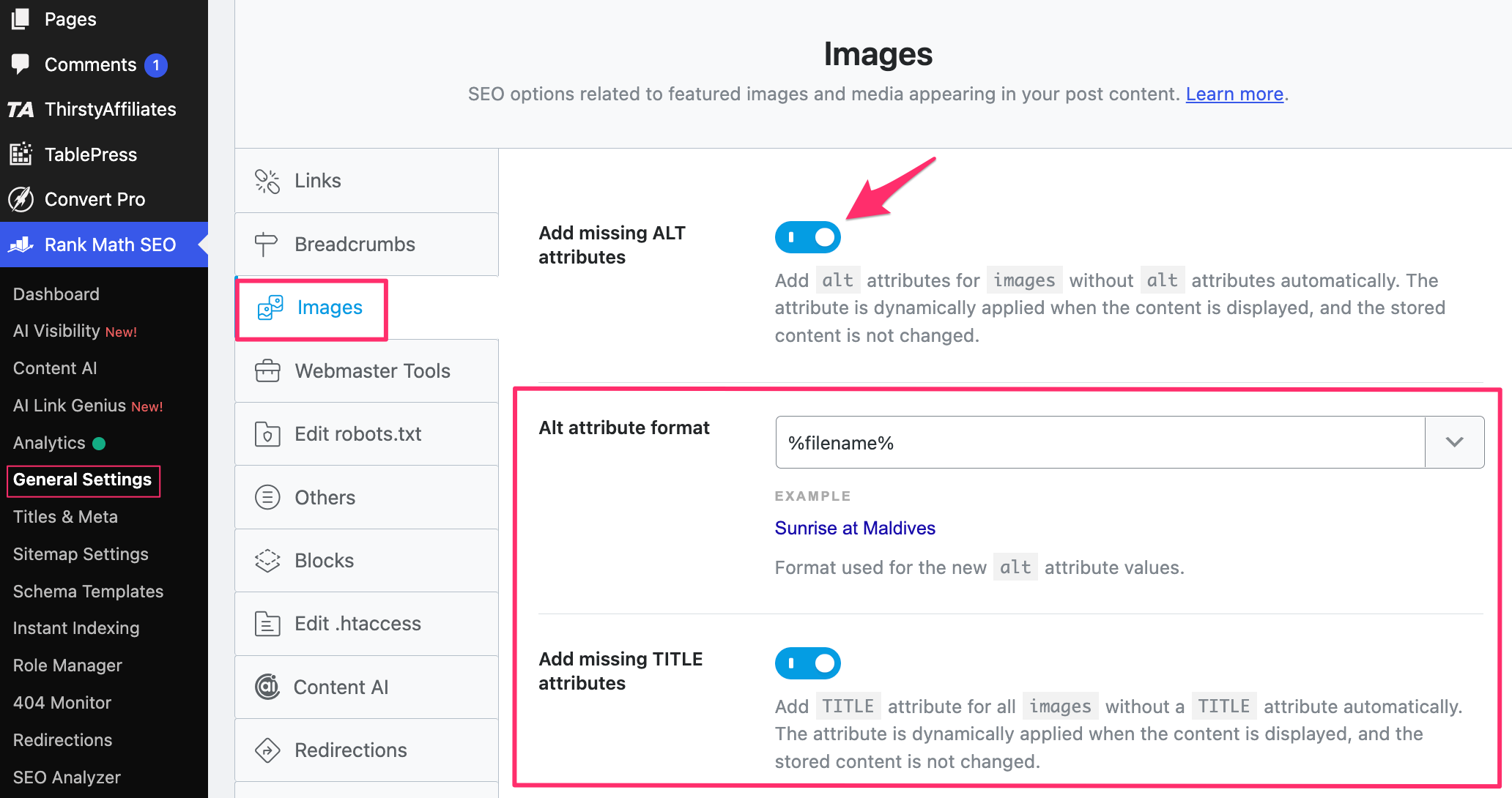
However, automatic alt text generation isn’t a replacement for meaningful descriptions. Avoid stuffing keywords into image descriptions or adding alt text to decorative images that don’t need it.
4. Configure External Link Settings Carefully
You may come across Rank Math settings for external links, including options related to opening links in a new tab or adding link attributes.
You don’t need to change these settings just to improve SEO.
Use external links when they help readers find trustworthy sources, useful tools, or additional information. When a link opens in a new tab, make sure that choice makes sense for your readers.
Attributes such as nofollow and sponsored have specific purposes.
For example, paid or sponsored links should use the appropriate link attributes. Don’t automatically mark every external link as nofollow.
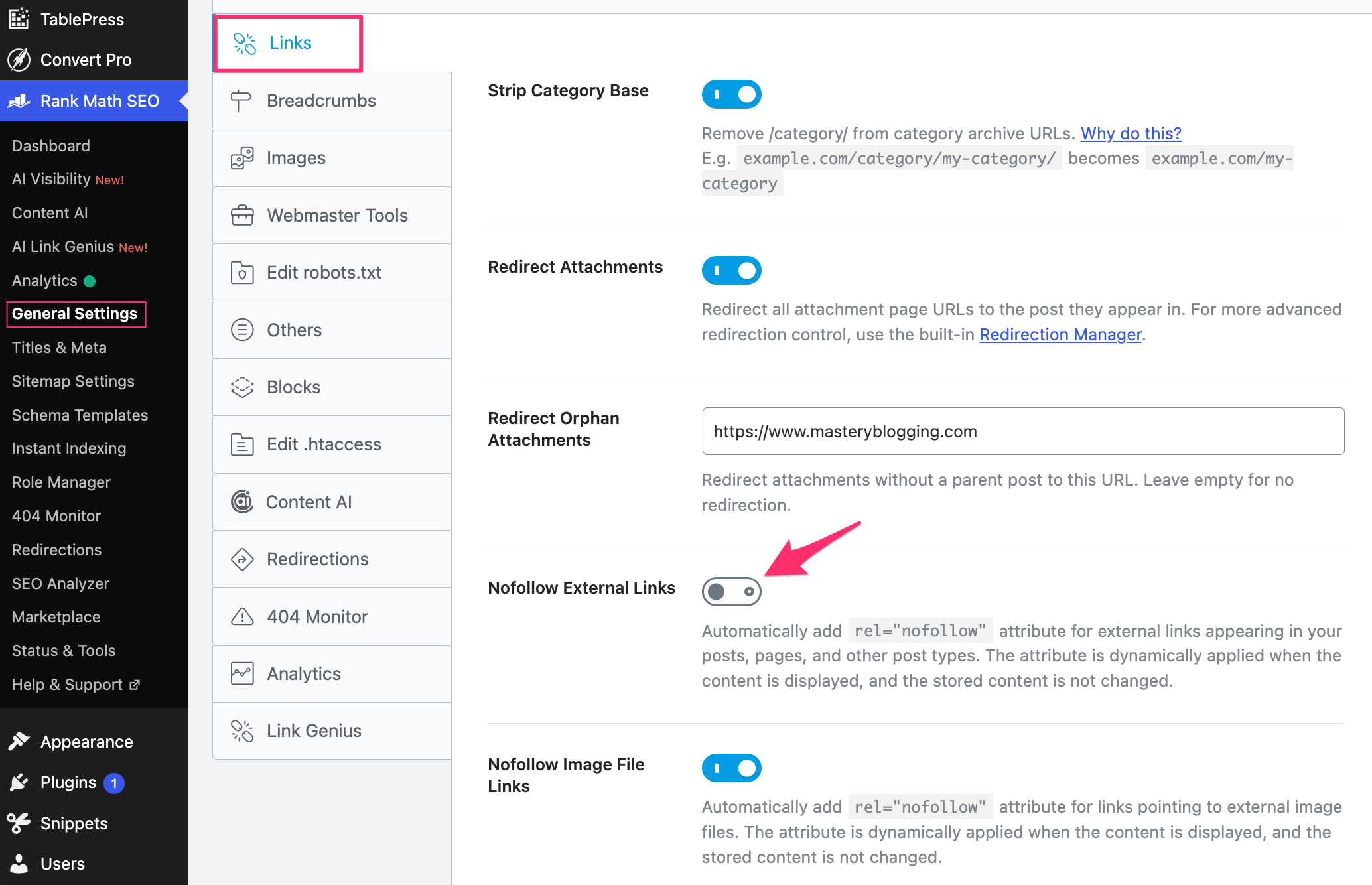
Focus on creating helpful links rather than trying to manipulate search rankings through link settings.
5. Build a Clear Internal Linking Structure
Internal links connect one page on your website to another.
For example, a post about Rank Math setup might link to a related guide about WordPress permalinks or submitting a sitemap to Google Search Console.
These links help readers find related information and help search engines discover other pages on your site.
When publishing new content, link to relevant existing pages where it makes sense. Use descriptive anchor text so readers know what to expect when they click.
Avoid adding links simply to increase their number. A few useful links are better than a long list of unrelated ones.
Quick tip: If your website is brand new, keep the structure simple. Organize content into clear categories, use breadcrumbs when appropriate, and add internal links as you publish related articles.
With these settings reviewed, you’re ready to configure the Rank Math modules that support additional SEO tasks.
Next, let’s look at Rank Math’s modules and decide which ones your new website actually needs.
Step 9: Enable Only the Rank Math Modules You Need
Rank Math offers different modules that add SEO features to your WordPress website, including analytics, redirects, schema markup, local SEO, image SEO, and more.
It’s tempting to switch everything on when you’re getting started. But that’s rarely necessary.
A better approach is to enable the features that support your website’s actual needs and learn the others as you go.
1. Understand the Rank Math Module Dashboard
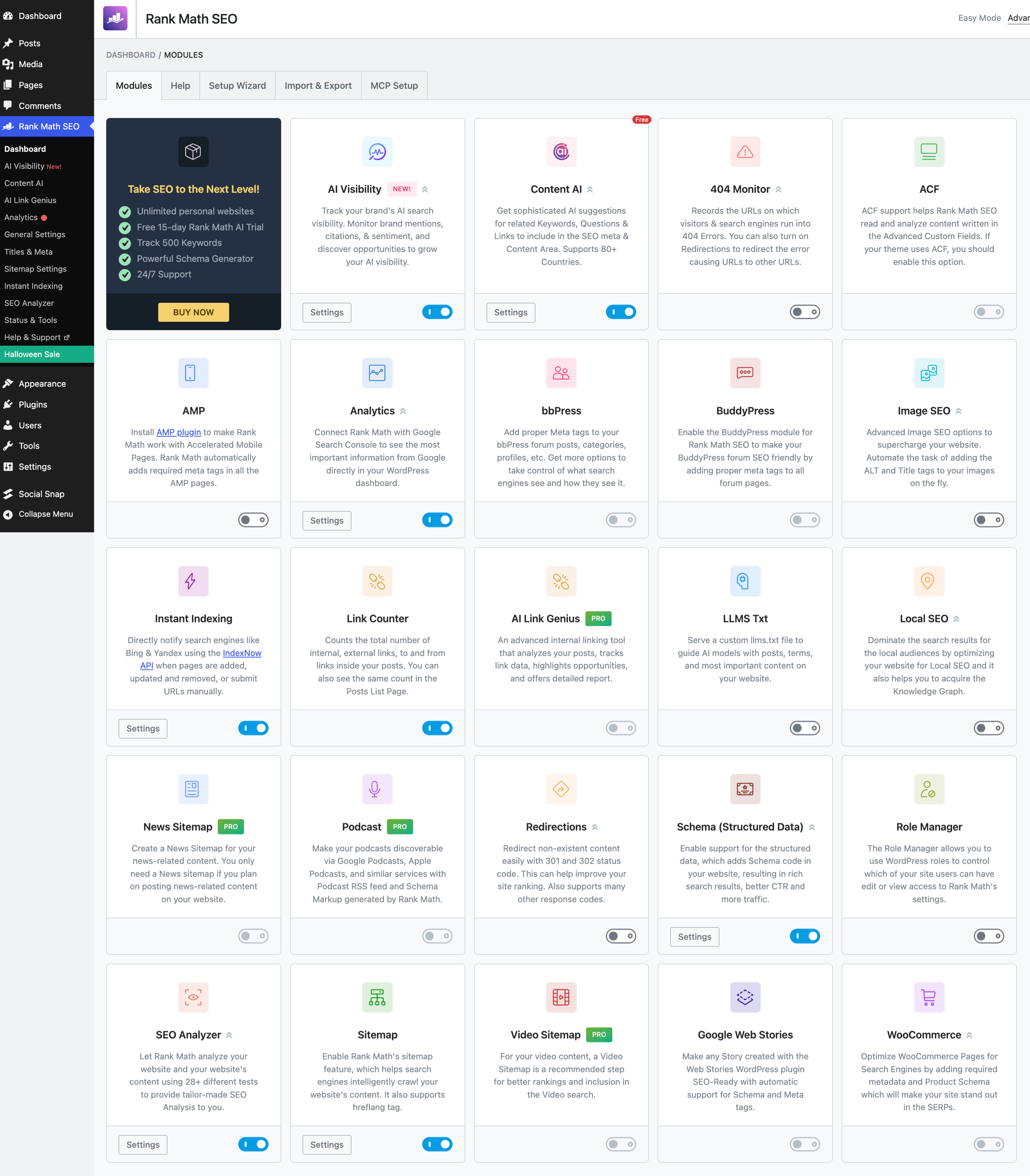
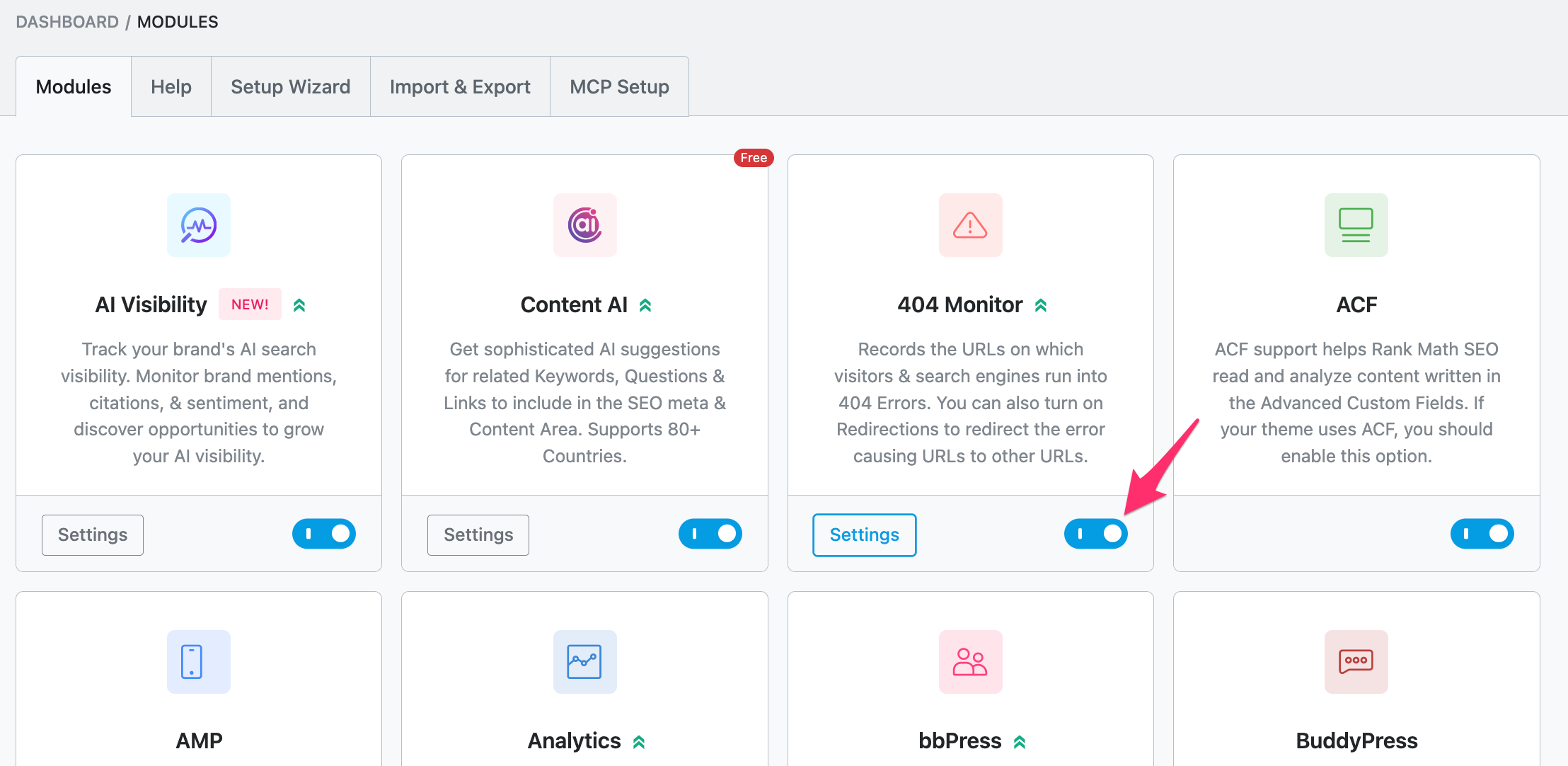
To get started, open your WordPress dashboard and go to Rank Math SEO » Dashboard.
You’ll see the available modules and their current status. Depending on your Rank Math version, account, and plan, the options may differ.
Some modules help with analytics, redirects, or monitoring website errors. Others provide features for more specialized website types.
Before enabling a module, take a moment to understand what it does and whether your site needs it.
2. Configure the 404 Monitor
A 404 error occurs when someone tries to open a URL that can’t be found on your website.
For example, a visitor might click an old link to a blog post that has been deleted or moved.
Rank Math’s 404 Monitor can help you identify URLs that return these errors. This can be useful when visitors encounter broken links or when other websites link to outdated pages.
Enable the module if you want to monitor these issues.
Keep in mind that not every 404 error needs fixing. Some requests come from bots or malformed URLs that have never been valid pages.
Focus on errors affecting real visitors or important content.
3. Set Up Redirections When Needed
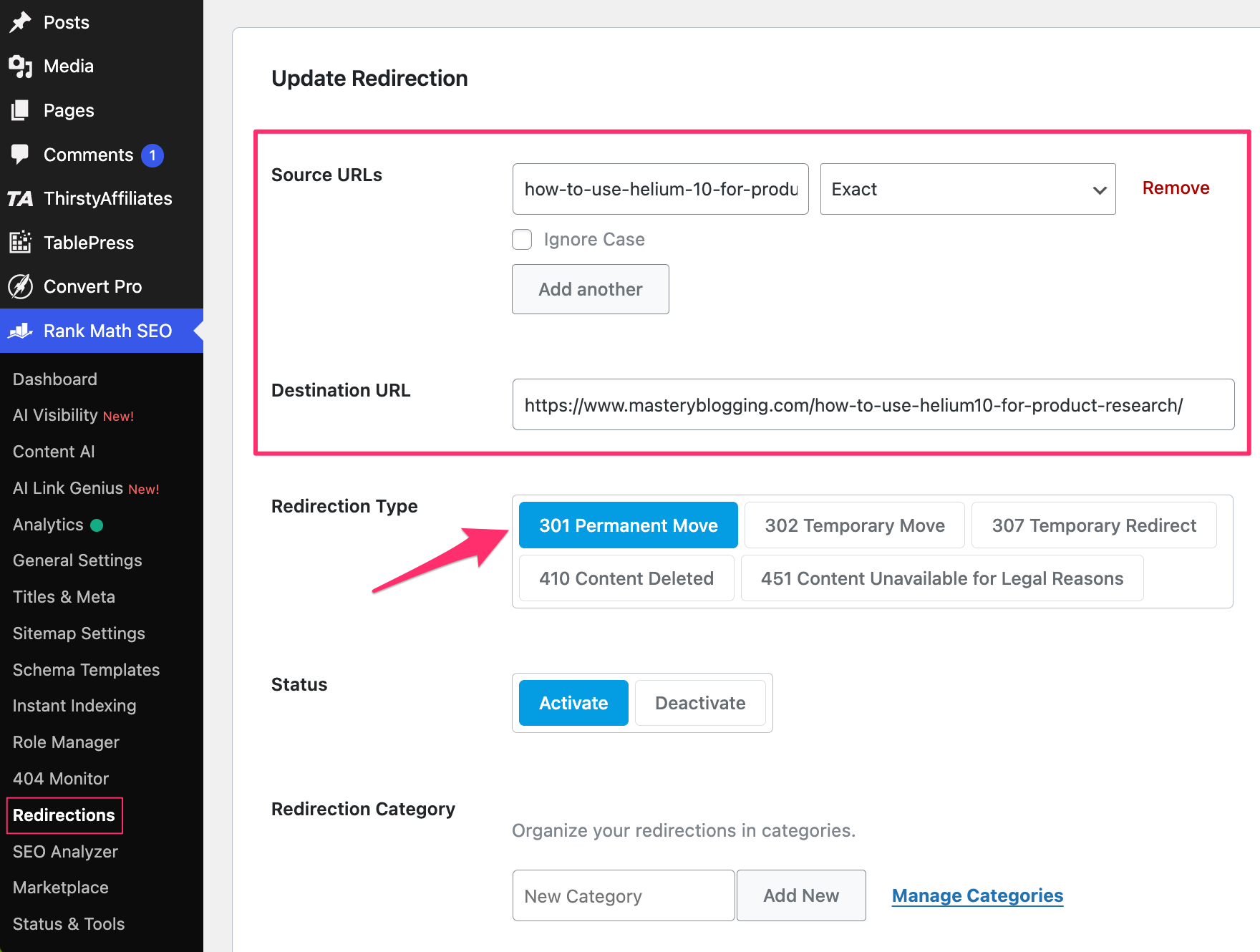
The Redirections module helps you send visitors and search engines from an old URL to a relevant new URL.
For example, if you change a blog post’s URL from:
example.com/old-seo-guide/
to:
example.com/new-seo-guide/
you may want to create a permanent redirect from the old URL to the new one.
A 301 redirect is commonly used when a page has permanently moved to a relevant replacement.
To configure redirects, go to Rank Math » Redirections, then open its settings and add the source and destination URLs.
Don’t redirect every broken URL to your homepage. If a page has no relevant replacement, leaving it as a 404 may be more appropriate.
For a brand-new website, you may not need many redirects initially. You can enable this feature when a genuine need arises.
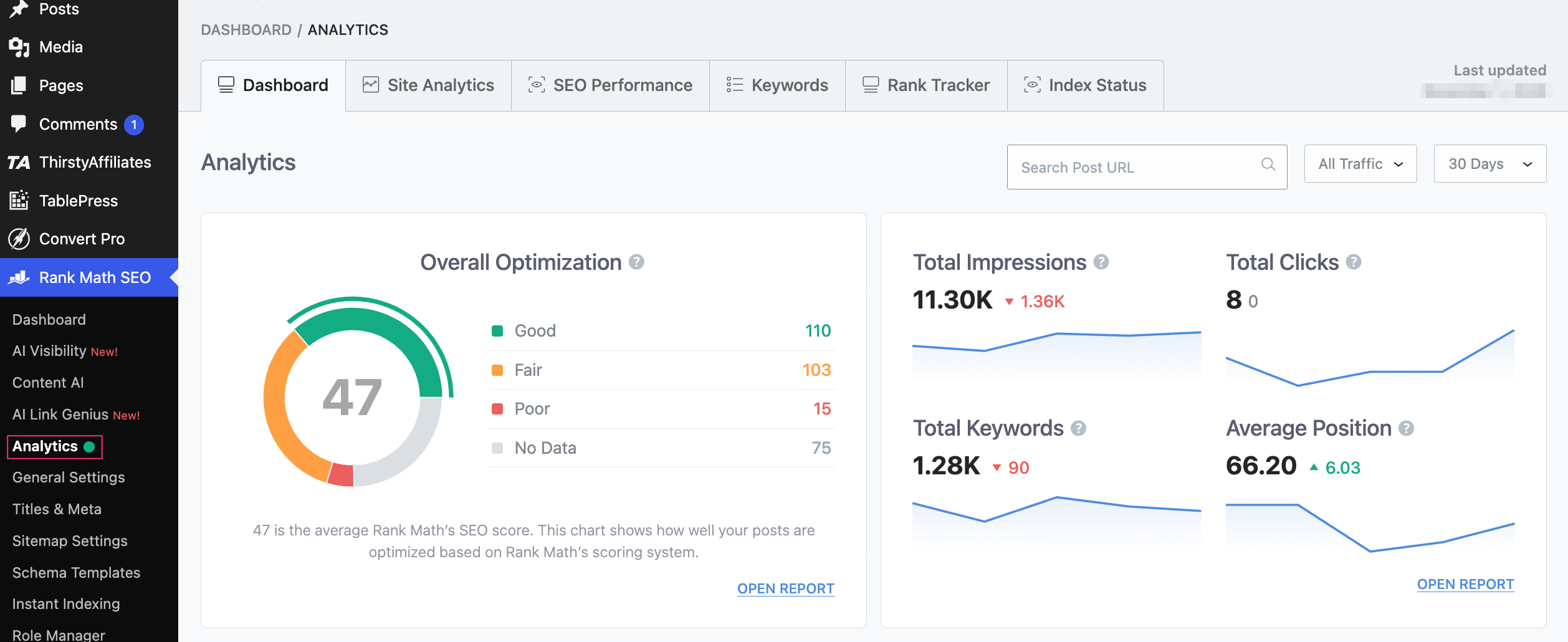
4. Review the Analytics Module
Rank Math offers analytics-related features that can connect your WordPress dashboard with supported Google services.
If you want to see selected search performance information inside WordPress, review the Analytics module and its available connection options.
You can also continue using Google Search Console and Google Analytics directly. Connecting them to Rank Math is optional and isn’t required for your website to appear in Google Search.
Choose the setup that makes it easiest for you to monitor your website without adding unnecessary complexity.
5. Leave Specialized Modules Disabled Until Needed
Some Rank Math modules are built for specific use cases, such as local SEO, WooCommerce, or other advanced features.
If you’re running a basic blog, you may not need all of them.
For example, a website selling products may benefit from WooCommerce-related SEO features, while a local business may need local SEO settings that a general blog doesn’t require.
Review the available modules and enable additional features when they match your website’s purpose.
A simple rule: Keep essential SEO settings configured, enable useful monitoring features, and leave specialized modules off until you have a clear reason to use them.
Now that your main settings are in place, it’s time to apply Rank Math to an actual blog post and see how its content optimization tools work.
Step 10: Optimize Your First Blog Post With Rank Math
Your Rank Math settings are in place. Now it’s time to use them.
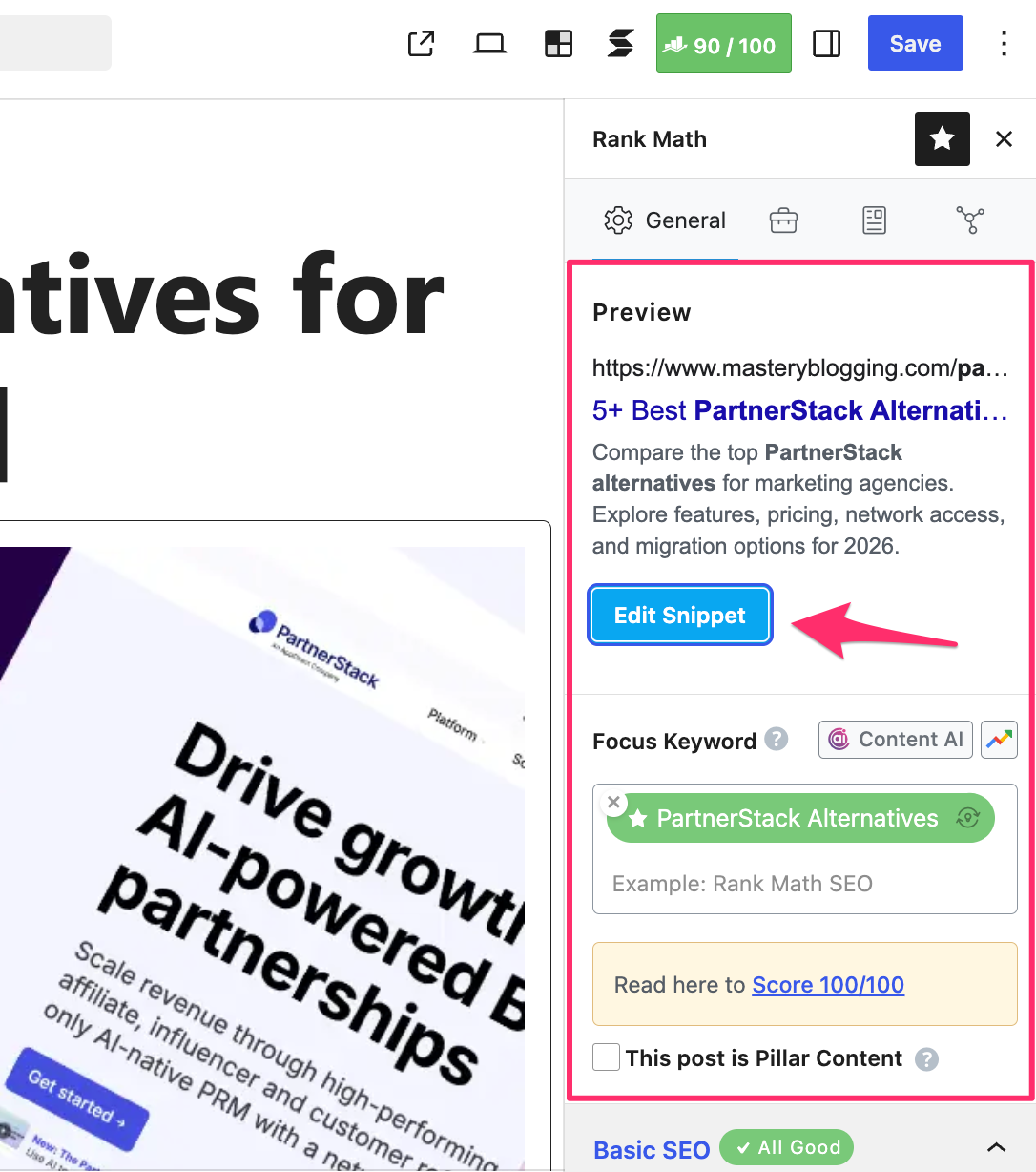
Open a blog post in WordPress or create a new one. You’ll find Rank Math’s SEO controls in the post editor, where you can review your title, meta description, focus keyword, and other recommendations.
Don’t worry if the SEO panel shows several suggestions. You don’t need to fix every item to create a useful, search-friendly article.
Let’s walk through the process.
1. Open Your Post in the WordPress Editor
From your WordPress dashboard, go to Posts » Add Post to create a new article, or open an existing post to edit it.
Write your content first. Make sure the article answers the reader’s question clearly and includes useful information.
Once your draft is ready, open the Rank Math SEO panel in the editor. You’ll usually find it in the right sidebar. Here, you can set your SEO title, meta description, focus keyword, and other SEO settings.
2. Add Your Primary Focus Keyword
The focus keyword is the main search phrase you’re targeting with your article.
For example, if you’re writing a tutorial about Rank Math, your primary keyword might be:
partnerstack alternatives
Enter the phrase in Rank Math’s focus keyword field.
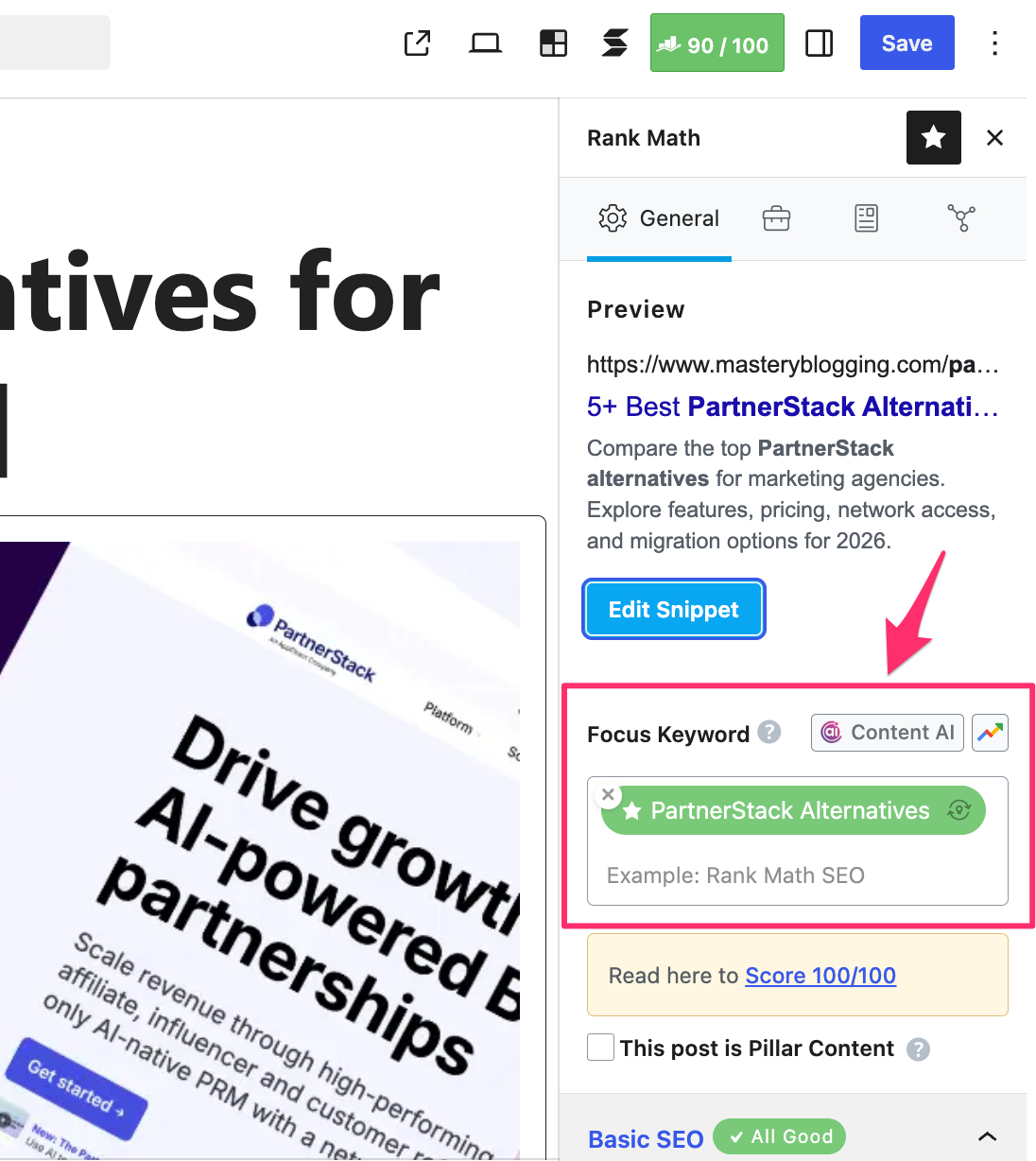
The plugin will analyze your content and provide suggestions for improving its on-page SEO.
Remember that the focus keyword field is primarily a content analysis tool. Adding a keyword there doesn’t automatically tell Google to rank your page for that phrase.
Choose a keyword that accurately reflects what readers are searching for, then use it naturally in your content.
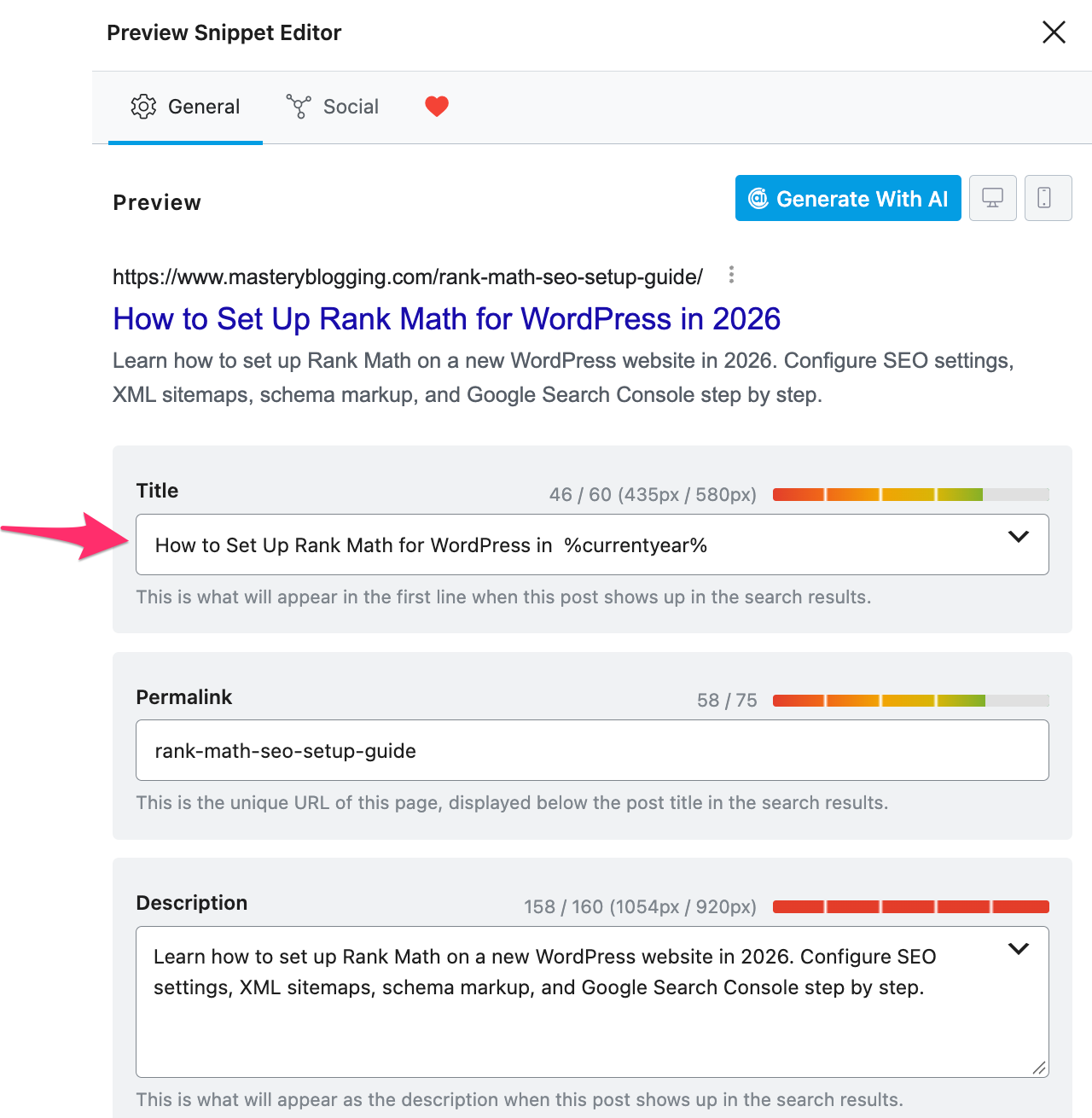
3. Write a Useful SEO Title
Your SEO title should explain what the page offers and give readers a reason to click.
For this guide, a suitable title could be:
How to Set Up Rank Math for WordPress in 2026
This title tells readers exactly what they’ll learn and includes the main topic.
Try to keep titles clear and descriptive. You don’t need to force a keyword into every part of the title, and there is no universal character limit that guarantees Google will display the full title.
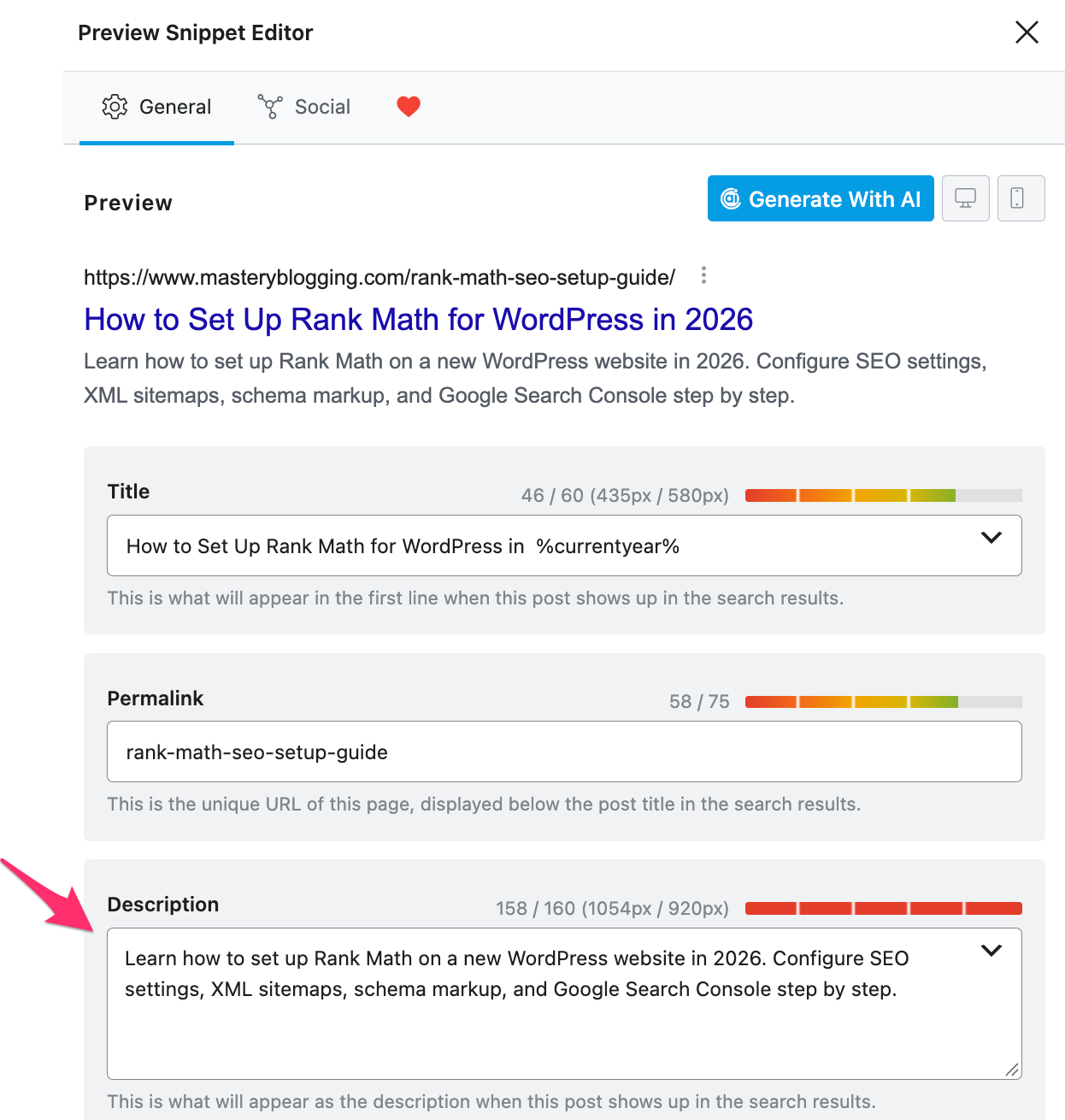
4. Add a Helpful Meta Description
Your meta description should briefly explain what readers can expect from the page.
For example:
Learn how to set up Rank Math on a new WordPress website in 2026. Configure SEO settings, XML sitemaps, schema markup, and Google Search Console step by step.
This description summarizes the content and gives readers a clear reason to visit the page.
Avoid repeating the same keyword several times or making promises the article doesn’t fulfill.
Google may choose to display text from your page instead of your meta description, depending on the search query. Even so, writing a helpful description is a worthwhile practice.
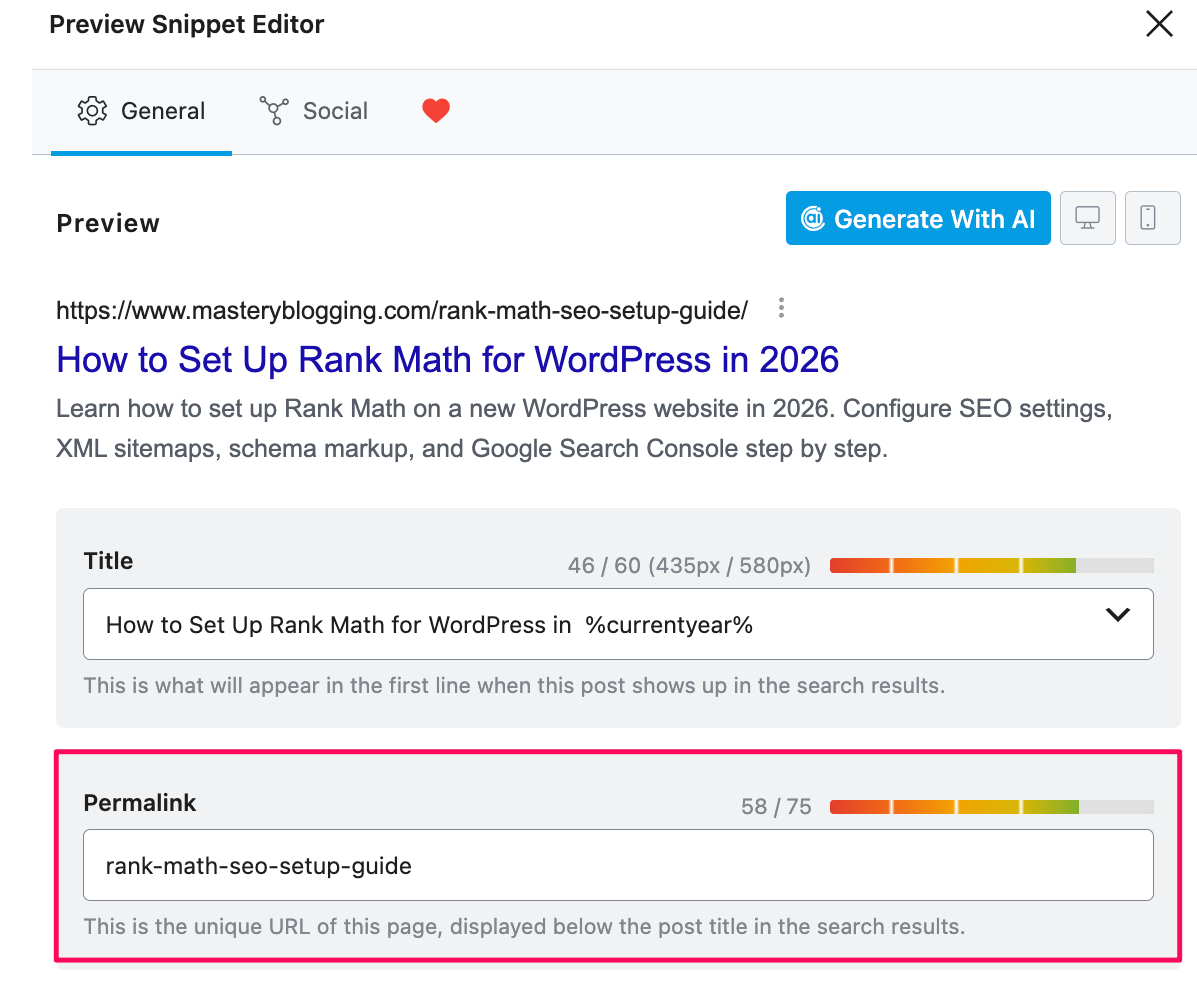
5. Create a Short, Descriptive URL Slug
Your URL slug is the part of the address that identifies the page.
For example:
example.com/rank-math-seo-setup-guide/
This is easier to understand than a long URL containing unnecessary words or random characters.
In WordPress, you can usually edit the slug from the post settings.
If you’re publishing a new article, choose a clear slug before publishing. If the post is already live, avoid changing its URL without a good reason and a plan for handling redirects.
6. Optimize Headings, Images, and Internal Links
Your article should have a clear structure that makes it easy to read.
Use an H1 heading for the main page title, then organize the content with relevant H2 and H3 headings. In WordPress, your theme generally handles the main post title as the H1, so check your page structure before adding another.
Add images when they help explain a concept. Give meaningful images descriptive alt text, and compress large image files to avoid unnecessary loading delays.
You should also link to relevant pages on your own website. For example, a Rank Math tutorial could link to a related guide about WordPress permalink settings.
These steps help readers understand your content and make it easier to find related information.
7. Review Rank Math’s SEO Suggestions
Rank Math provides an SEO analysis with recommendations based on the content and settings it can inspect.
You might see suggestions about your title, meta description, headings, links, images, or keyword usage.
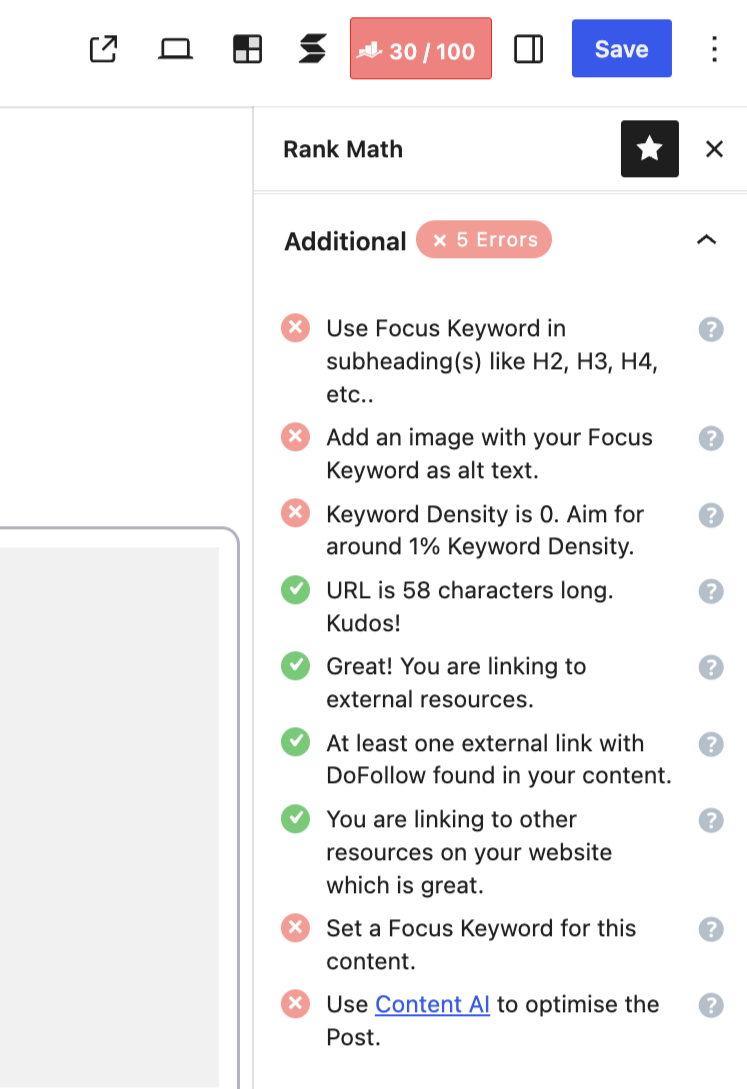
Review each suggestion and decide whether it improves the article.
For example, adding a missing internal link may be useful. Repeating a keyword unnecessarily just to improve a score is not.
Don’t chase a perfect Rank Math score at the expense of your readers. The score is a checklist, not a Google ranking factor. A well-written article that answers the searcher’s question is more valuable than content stuffed with keywords to satisfy a plugin.
8. Preview and Publish Your Post
Before publishing, check the article on desktop and mobile.
Make sure the title reads naturally, the meta description accurately describes the page, images display correctly, and internal links work.
Check that the page isn’t accidentally marked noindex if you want it to appear in search results.
Once everything looks right, publish your post.
After publication, you can inspect its URL in Google Search Console and request indexing if appropriate. Google still decides whether and when to index the page.
With your first post optimized, you’re ready for the final technical checks that help keep your new WordPress site in good shape.
Step 11: Complete Your 2026 WordPress SEO Checks
You’ve configured Rank Math, connected your Google tools, and optimized your first blog post. Before calling the setup complete, take a few minutes to check that your website is technically ready for search engines.
These final checks can help you catch problems early, when they’re easier to fix.
1. Make Sure Search Engines Can Index Important Pages
Start by checking whether your homepage, important pages, and published blog posts are available for indexing.
In WordPress, go to Settings » Reading and confirm that Discourage search engines from indexing this site is unchecked when your website is ready to launch.
Next, review the robots meta settings in Rank Math. Important pages generally shouldn’t be marked noindex if you want them to appear in search results.
You can also open Google Search Console and use the URL Inspection tool to check individual URLs.
Remember that allowing indexing doesn’t guarantee that Google will index a page. Google makes that decision based on its own systems and evaluation of the content.
2. Check Mobile Usability and Page Speed
Your website should be easy to use on both desktop and mobile devices.
Open a few pages on your phone and check that the text is readable, navigation works, images fit the screen, and buttons are easy to tap.
Next, test your website with Google’s PageSpeed Insights tool. It provides performance information and recommendations for improving loading speed and user experience.
Pay attention to Core Web Vitals, which measure aspects of loading performance, responsiveness, and visual stability.
If your site feels slow, start with practical improvements such as compressing large images, removing unnecessary plugins, and using reliable hosting and caching.
Rank Math helps with SEO settings, but it doesn’t automatically fix every speed or performance issue.
3. Check Canonical URLs and Redirects
Open several important pages and confirm that their URLs use the correct HTTPS version of your domain.
If you’ve changed a page’s URL, check that the old URL redirects to the correct replacement when a redirect is appropriate.
Also review canonical settings to make sure important pages point to the intended preferred URLs.
For example, if your main article is available at /rank-math-guide/, you don’t want its canonical URL accidentally pointing to an unrelated page.
These checks can help prevent confusing signals when search engines discover your content.
4. Review Duplicate Content and Thin Pages
A new WordPress site can generate pages beyond the posts and pages you intentionally publish. Examples include category archives, tag archives, author archives, and other automatically generated URLs.
Not every archive is a problem. Some provide useful navigation and help readers discover related content.
The important question is whether each page offers real value.
Review pages that contain very little information, duplicate another page, or serve no clear purpose. Improve them, consolidate overlapping content, or adjust their indexing settings when appropriate.
Avoid automatically blocking every archive. Make decisions based on your website’s structure and the usefulness of each page.
5. Publish Helpful, People-First Content
Technical SEO gives your website a solid foundation, but useful content is what gives people a reason to visit.
When writing a new article, answer the reader’s main question early. Use clear headings, practical examples, accurate information, and relevant links to support your advice.
Avoid publishing multiple articles that repeat the same information just to target slightly different keywords.
Instead, create content that genuinely helps your audience solve problems or understand a topic.
6. Understand AI Search and SEO in 2026
Search is changing as search engines introduce AI-powered summaries and other ways of presenting information.
However, you don’t need a special Rank Math setting to guarantee visibility in AI-powered search features. No plugin can promise that your content will be selected for these results.
Focus on the fundamentals: publish accurate and useful information, make your pages accessible to search engines, use clear headings, maintain a sensible website structure, and support important claims with trustworthy sources when appropriate.
If AI tools help you draft content, review the result carefully. Add original insights, correct errors, and make sure the final page provides real value rather than simply repeating information available everywhere.
The goal isn’t to optimize for every new search feature. It’s to build a website that people can trust, and search engines can understand.
Common Rank Math Setup Mistakes to Avoid
Setting up Rank Math is fairly straightforward, but a few small mistakes can create SEO problems later. The good news is that most are easy to prevent if you know what to look for.
Here are the common mistakes to avoid when configuring Rank Math on a new WordPress website.
1. Running Two SEO Plugins at the Same Time
Installing multiple SEO plugins that manage the same settings can create conflicts.
For example, running Rank Math alongside Yoast SEO without configuring them carefully may lead to duplicate metadata, conflicting schema markup, or overlapping sitemap functionality.
How to avoid it: If you’re switching from another SEO plugin, follow Rank Math’s migration process. Afterward, check your SEO titles, meta descriptions, schema markup, and sitemap to make sure everything works correctly.
You can still use other plugins for separate purposes, but avoid overlapping SEO features unless you understand how they interact.
2. Accidentally Blocking Search Engines
This is one of the most serious mistakes to catch before launching your website.
If the WordPress setting that discourages search engines from indexing your site remains enabled, your website may struggle to appear in search results.
Individual pages can also be marked noindex through SEO settings.
How to avoid it: Check Settings » Reading in WordPress and review the robots meta settings in Rank Math. Make sure your important public pages are eligible for indexing.
You can then use Google Search Console to inspect important URLs and check their indexing status.
3. Using Incorrect Website Information or Schema
Your website identity settings help search engines understand who publishes your content.
Entering an incorrect organization name, uploading the wrong logo, or applying an unsuitable schema type can create misleading information.
For example, a personal blog shouldn’t claim to represent a company that doesn’t operate it.
How to avoid it: Review your website name, logo, author details, and schema settings during setup. Make sure they accurately reflect your website and the content on each page.
4. Including Unwanted URLs in Your Sitemap
Your sitemap should help search engines discover important content, not direct attention toward every URL WordPress generates.
Problems can arise when a sitemap contains URLs that are redirected, marked noindex, or otherwise unsuitable for indexing.
How to avoid it: Review the sitemap settings in Rank Math and include your important public content. Check that your sitemap loads correctly and that its URLs point to the intended pages.
If you exclude a page from indexing, review whether it should also be removed from the sitemap.
5. Stuffing Keywords Into Titles and Content
It’s tempting to repeat your focus keyword several times because Rank Math checks keyword usage.
But excessive repetition can make your writing awkward and less useful.
For example, a title like Best Rank Math Setup Rank Math Guide Rank Math SEO Tutorial isn’t helpful to readers.
How to avoid it: Use your primary keyword naturally where it fits. Write descriptive titles, helpful headings, and clear paragraphs that answer the reader’s question.
Treat Rank Math’s recommendations as guidance, not a reason to sacrifice readability.
6. Redirecting Every Broken URL to the Homepage
When a page disappears, you might think sending every broken URL to the homepage is the easiest solution.
However, that can confuse visitors and search engines when the homepage isn’t a relevant replacement.
How to avoid it: Use a redirect when a page has moved to a relevant new URL. If an old page has no replacement and should remain unavailable, a 404 response may be appropriate.
Use the 404 Monitor to investigate meaningful problems rather than trying to eliminate every error report.
7. Chasing a Perfect Rank Math SEO Score
Rank Math provides a score and recommendations to help you review your content. It’s useful, but it isn’t a direct Google ranking factor.
A post with a perfect score can still fail to satisfy readers, while a helpful article may not meet every plugin recommendation.
How to avoid it: Fix meaningful problems first. Make your title clear, explain the topic thoroughly, add useful internal links, and make the page easy to read.
Don’t add unnecessary keywords or awkward headings just to increase your score.
8. Forgetting to Check the Website After Setup
Even a carefully configured website can develop issues after you install a new plugin, change a theme, or update your settings.
A sitemap may stop loading, a redirect may point to the wrong page, or an important URL may accidentally become unavailable for indexing.
How to avoid it: Check your important pages after major changes. Review Search Console periodically, test your sitemap, and keep WordPress, your theme, and your plugins updated.
You don’t need to monitor everything every day. A simple maintenance routine can help you catch problems before they affect more of your website.
The main lesson is simple: configure Rank Math carefully, keep your settings practical, and focus on helping your readers rather than chasing SEO scores.
Rank Math SEO Setup Checklist for New Websites
You’ve configured Rank Math and reviewed the essential SEO settings. Before moving on, use this checklist to make sure you haven’t missed anything important.
You don’t need to get every advanced setting perfect on day one. Focus on the basics first, then review your setup as your website grows.
Rank Math Setup Checklist
Plugin installation and basic settings
- Install and activate the official Rank Math SEO plugin.
- Complete the setup wizard.
- Choose the appropriate setup mode.
- Enter your website name and select the correct Person or Organization type.
- Add your logo and default social sharing image.
General SEO settings
- Review SEO title and meta description templates.
- Set a clear title and description for your homepage.
- Check your canonical URL settings.
- Review robots meta settings.
- Confirm that important pages are eligible for indexing.
Sitemaps and Google tools
- Enable the XML sitemap feature.
- Include important public posts and pages in your sitemap.
- Open your sitemap URL to confirm that it works.
- Set up Google Search Console.
- Submit your sitemap through Search Console.
- Configure Google Analytics 4 if you want website traffic reports.
Content and website structure
- Set a sensible permalink structure.
- Review schema markup for your posts and pages.
- Configure breadcrumbs if they suit your website.
- Add descriptive alt text to meaningful images.
- Link related articles to each other.
- Review the SEO title, meta description, and URL slug of your first post.
Technical checks and maintenance
- Confirm that your website loads over HTTPS.
- Check your site’s mobile layout and loading performance.
- Test important pages using Google Search Console’s URL Inspection tool.
- Enable useful Rank Math modules when needed.
- Create a website backup before major changes.
- Check your website periodically for broken links and indexing issues.
What Should You Do First?
If this checklist feels like a lot, start with five essentials:
- Complete the Rank Math setup wizard.
- Check your website’s indexing settings.
- Enable and test your XML sitemap.
- Set up Google Search Console and submit the sitemap.
- Publish useful content with clear titles, descriptions, and internal links.
These steps give your new website a practical starting point. You can configure optional modules, refine schema settings, and improve your technical SEO as your needs change.
Remember, Rank Math helps you manage SEO settings, but it doesn’t guarantee rankings. Your website still needs useful content, a good user experience, and ongoing attention.
With the checklist complete, let’s answer some common questions beginners have about Rank Math, but before that, let’s look at how much does Rank Math costs and its latest features you should know about.
Rank Math Paid Plans
Rank Math offers a core Free version alongside three paid tiers. All paid plans are billed annually, with promotional pricing for the first year and standard pricing upon renewal:
Rank Math Pricing Plans (Halloween Sale 2026)
| Plan | Pricing | Site Limits | Key Highlights |
| Free | $0 | Unlimited personal sites | Core SEO features, 5 focus keywords/post, 18 schema types, redirect manager, 404 monitor. |
| Pro | €5.59/mo (billed annually) | Unlimited personal sites | 500 tracked keywords, advanced schema builder, Google Analytics 4 integration, free Content AI credits. |
| Business | €17.59/mo (billed annually) | Up to 100 client sites | 10,000 tracked keywords, unlimited analytics data retention, client reporting, priority support. |
| Agency | €38.59/mo (billed annually) | Up to 500 client sites | 50,000 tracked keywords, highest-priority support, dedicated trial for Content AI Expert plan. |
The Pro license is strictly for websites that you personally own. If you manage or install the plugin on client websites, you are required to use the Business or Agency plan.
Rank Math also offers an SEO + Speed bundle (Rank Math Pro paired with a WP Rocket license) starting at €9.99/month for the first year.
(I came across these prices during the Halloween sale, when Rank Math was offering up to 40% off all its plans.)
All paid plans come with a 30-day money-back guarantee, and prices are quoted exclusive of applicable regional taxes (such as VAT/GST).
With the checklist complete, let’s answer some common questions beginners have about Rank Math, but before that, let’s look at how much Rank Math costs and its latest features you should know about.
Six New Features of Rank Math
Rank Math is going beyond traditional SEO to help website owners optimize their content for AI search engines. It has introduced several new features, including AI visibility tracking, automated internal linking, AI assistant integrations, and better technical SEO tools.
Here’s a look at the major updates.
1. AI Visibility (AEO/GEO Tracking)
Rank Math’s AI Visibility feature helps you understand how your brand appears in AI search results.
You can track brand mentions, see how often AI tools recommend your business, and compare your visibility with competitors across platforms like ChatGPT and Google Gemini.
It also helps you analyze the sentiment of AI-generated responses, review full response transcripts, and monitor visibility across different countries and languages.
2. AI Link Genius (Automated Internal Linking)
Internal linking can take a lot of time, especially when your website has hundreds of posts. AI Link Genius aims to make this task easier by helping you find linking opportunities and manage links from one place.
It can identify broken links, 404 errors, redirect loops, and blocked URLs.
You can also get internal link suggestions while writing in the WordPress block editor, map target keywords to relevant posts, and update URLs or anchor text across your website in bulk.
3. Native Model Context Protocol (MCP) Integration
Rank Math is also moving toward AI-powered SEO workflows with its native Model Context Protocol (MCP) tools.
These tools let you connect your website to compatible AI assistants, such as Claude Desktop or Cursor, using OAuth. Once connected, an AI assistant can access supported Rank Math tools to check 404 logs, review sitemap status, and work with settings related to redirects and robots.txt.
This means you can handle certain SEO tasks through AI prompts rather than navigating every setting manually. The actions available depend on the tools and permissions Rank Math exposes.
4. llms.txt Generator and Management
As AI search becomes more common, website owners are looking for ways to help AI systems understand their content. Rank Math’s llms.txt feature helps with this by generating and managing an llms.txt file at your website’s root.
The file provides a structured, Markdown-based summary of your website that AI systems can use as additional context when processing your content.
Keep in mind that llms.txt is still an emerging standard, so adding one does not guarantee that AI search engines will crawl, index, or cite your website.
5. Content AI Upgrades
Rank Math has also been improving Content AI to help you create and optimize content directly inside WordPress.
Its AI assistant can work with your content and help you complete relevant tasks within the editor. It can also identify potential focus keywords from your post content and headings, reducing the amount of manual work involved in setting up your SEO details.
Another change is its feature-based usage system, which organizes access across more than 40 writing, headline, and meta description tools. This gives you a more structured way to use Content AI features, depending on your plan and available quota.
6. Technical SEO and Schema Enhancements
Rank Math continues to improve its technical SEO and structured data features, too.
Its expanded schema options let you apply multiple schema types to a single page where appropriate. For example, a product page may benefit from Product and Review schema, while a page listing multiple products may also use ItemList schema.
Rank Math has also improved compatibility with multilingual plugins such as Polylang PRO and WPML. These updates help SEO metadata, local business schema, and analytics-related data work more consistently across translated versions of your website.
These improvements can help website owners manage more complex SEO setups without relying on as many separate tools.
Frequently Asked Questions About Setting Up Rank Math
Is Rank Math SEO free to use in 2026?
Yes. Rank Math offers a free version with core SEO features, including SEO titles, meta descriptions, XML sitemaps, and structured data options. Paid plans unlock additional tools and advanced features. For a new blog or small website, the free version is often a good starting point. You can review Rank Math’s latest pricing and features to decide whether upgrading is worth it.
Does Rank Math automatically improve Google rankings?
No, installing Rank Math won’t automatically improve your Google rankings. The plugin helps you manage important SEO settings and find optimization opportunities, but your rankings also depend on content quality, search intent, competition, website performance, and other factors. You still need to publish useful content and follow good SEO practices.
Is Rank Math better than Yoast SEO?
Rank Math and Yoast SEO are both popular WordPress SEO plugins. Rank Math offers many features in its free version, while Yoast SEO provides its own content optimization tools and SEO guidance. So, yes, Rank Math is better than Yoast.
How do I set up Rank Math SEO in WordPress?
To set up Rank Math SEO, install and activate the plugin from your WordPress dashboard. Then, follow the setup wizard to configure your website details, connect Google services if needed, set up your sitemap, and choose your basic SEO settings. Once you’re done, review the settings for your posts and pages before publishing new content.
Can I switch from Yoast SEO to Rank Math?
Yes, you can migrate from Yoast SEO to Rank Math. Rank Math provides migration tools to help transfer supported SEO settings. Before switching, back up your website and follow the official migration process. Afterwards, check your SEO titles, meta descriptions, schema markup, redirects, and sitemap. Also make sure the old plugin isn’t still generating duplicate SEO output.
How do I submit my Rank Math sitemap to Google?
First, enable the Sitemap module in Rank Math and open your XML sitemap. You can usually find it at yourdomain.com/sitemap_index.xml. Then, open Google Search Console, select your website, go to Sitemaps, and submit the sitemap URL. Google can use it to discover your site’s URLs, but submitting a sitemap doesn’t guarantee that every page will be indexed.
What is the best Rank Math SEO score for a blog post?
Rank Math uses a score out of 100 to assess how well a post follows its built-in SEO recommendations. A score of 80 or higher can be a useful target, but you don’t need to reach 100 for every article. Focus on search intent, helpful content, natural keyword use, and a good reading experience rather than chasing a perfect score.
Do I need Rank Math PRO for a new WordPress website?
No, you don’t need Rank Math PRO when starting a new WordPress website. The free version covers many essential SEO tasks, including metadata, sitemaps, and basic schema settings. You can upgrade later if you need the extra features available in the paid version.
Does Rank Math SEO slow down my WordPress website?
Rank Math is built to handle common SEO tasks within WordPress, but its effect on your website’s performance depends on your hosting, website setup, and active features. If you notice slow loading times, test your website’s performance and review your plugins, theme, and hosting before blaming Rank Math alone.
What should I do after setting up Rank Math SEO?
After completing the setup, check that your sitemap works, connect Google Search Console, review your indexing settings, and configure SEO titles and meta descriptions. When publishing articles, optimize each post for its target keyword, add relevant internal links, and use appropriate schema markup. Monitor your website’s performance in Google Search Console to identify areas that need improvement.
Can I use Rank Math without Google Analytics?
Yes. Google Analytics is optional, and you can use Rank Math without connecting it. You can configure your SEO titles, meta descriptions, sitemaps, and other supported settings independently. You can also use Google Search Console separately to monitor search performance and indexing. Analytics is useful when you want to understand how visitors interact with your website, but it isn’t required for Rank Math to function.
Conclusion: Get Your WordPress SEO Setup Right With Rank Math
Setting up Rank Math on a new WordPress website doesn’t have to be complicated. Once you understand the basic settings, you can build a solid SEO foundation without getting lost in technical details.
Start by completing the setup wizard, configuring your website information, checking your indexing settings, and enabling your XML sitemap. Then connect Google Search Console, review your schema markup, and optimize your first blog posts.
You don’t need to configure every Rank Math feature on day one. Focus on the settings that matter, avoid common mistakes, and improve your website as it grows.
Most importantly, remember that an SEO plugin is only one part of the process. Helpful content, a good user experience, and consistent effort are what give your website the best chance of earning search visibility over time.
Now that your Rank Math setup is complete, start publishing useful content and monitor your progress through Google Search Console.
Have questions about setting up Rank Math? Share them in the comments, and let us know which part of the setup process you found most challenging.