Ever feel like your blog posts just sit there… not ranking, not getting traffic, even though you did everything “right”?
I’ve been there. You write great content, hit publish, and wait… but nothing really moves.
Here’s what most people overlook: internal linking.
It may sound basic, but it plays a big role in how Google reads and ranks your site. In fact, many SEO experts now say smart internal linking can boost rankings faster than writing new posts.
The problem? Doing it by hand takes time, gets messy, and it’s easy to make mistakes.
That’s where Rank Math’s AI Link Genius comes in. Let me show you how to use it to build internal links the smart (and fast) way.
What Is Internal Linking (And Why It Matters More Than You Think)
Look, internal linking sounds boring at first. It’s just linking one page on your site to another, right?
But here’s the truth most beginners miss…
Internal links are how Google “reads” your website.
Think of your site like a city. Each blog post is a house. Internal links? They’re the roads connecting everything. If there are no roads, Google gets lost. And when Google gets lost, your pages don’t rank.
Simple as that.
When you build a solid internal linking strategy, three big things happen:
First, Google finds and indexes your pages faster.
Second, it understands which pages matter most (your important posts start getting more authority).
And third, your visitors stick around longer because they have somewhere to go next.
That’s why smart SEOs don’t just write content — they connect it.
And honestly? This is where most websites fall apart. They either ignore internal links completely or just sprinkle a few random ones and hope for the best.
We’re not doing that.
The Problem With Manual Internal Linking
Let’s be real for a second… manual internal linking sounds easy until you actually try to do it.
I remember sitting there with 30+ blog posts open, jumping between tabs, trying to figure out where to add links. It felt productive… but honestly, it was exhausting.
At first, you tell yourself, “I’ll just add a few links while writing.”
But once your site grows past 20, 30, 50 posts… it turns into a mess.
Now you’re asking yourself:
- “Did I already link to this post?”
- “Which page should I link here?”
- “Am I using the right anchor text?”
And suddenly, something that should take minutes starts eating up hours.
Here’s where it really breaks down.
You miss good linking opportunities because you simply forget your older content exists.
Your anchor texts become repetitive or random.
And worst of all, your most important pages don’t get the links they actually need.
It’s like trying to organize a library without a catalog. Books are there… but no one can find them.
That’s why manual internal linking doesn’t scale. Not if you’re serious about growing traffic.
You either burn out trying to keep up… or your SEO slowly plateaus.
And this is exactly the gap tools like Rank Math AI Link Genius are trying to solve.
What Is Rank Math AI Link Genius?
Here’s the tool that actually changes how you handle internal links in WordPress.
Rank Math AI Link Genius is a feature built inside Rank Math that helps you automatically find and add internal links across your website.
But don’t think of it like those old-school tools that just throw random links into your content.
This one actually understands context.
Instead of blindly matching keywords, it scans your content and figures out where links actually make sense. It looks at what your post is about, then suggests relevant pages from your site you should link to.
Almost like having an SEO assistant sitting next to you saying, “Hey, this sentence? You should link it to that post.”
And the best part?
It doesn’t just stop at suggestions.
You can go through everything, approve multiple links at once, edit anchor text if needed, and apply changes across different posts in just a few clicks. What used to take hours or even days now gets done in a short session.
So you’re no longer trying to remember old posts or figure out where links should go.
You end up with a system that ties your content together without all the manual work.
Read my full Rank Math AI Link Genius review.
Key Features of Rank Math AI Link Genius
Here are the key features of the AI Link Genius module:
1. AI-Powered Link Recommendations
Instead of manually searching for relevant posts to link to, the AI analyzes your content’s semantic meaning and intent.
- Editor Integration: While writing in the Block Editor, you can highlight text and let the AI suggest the most relevant target page instantly.
- Link Opportunities Panel: A dedicated sidebar panel that scans your post and lists high-value internal link opportunities with one-click insertion.
- Contextual Awareness: It doesn’t just look for keyword matches; it understands the topic to ensure links feel natural to readers.
2. Advanced Link Auditor & Dashboard
Link Genius provides a “Command Center” for every link on your site (internal and external).
- Centralized Inventory: View every link, anchor text, and status code (200, 404, 301, etc.) in a single, filterable table.
- Broken Link Detection: Automatically identifies 404 errors or redirected links that could be leaking “link juice” or hurting user experience.
- Nofollow Management: Easily spot internal links that are accidentally set to
nofollowand convert them todofollowwith one click to ensure authority flows correctly.
3. Automated Keyword Mapping
This feature allows you to build “Keyword-to-URL” relationships to automate future linking.
- AI Variations: You provide a primary keyword, and the AI generates synonyms and semantic variations (e.g., “SEO tips” might also link for “search engine optimization advice”).
- Auto-Link on Publish: When you publish new content containing these keywords, Rank Math can automatically create the links to your designated “pillar” pages.
4. Bulk Update with Rollback
If you change a URL or want to update anchor text across your entire site, you no longer have to edit posts individually.
- Search & Replace: Filter links by type, status, or post date, and update them in bulk.
- Safety Net: It includes a Preview step to see exactly what will change and a Rollback feature that lets you undo a bulk update within 30 seconds if you make a mistake.
5. Orphan Post Detection
Orphan posts are pages with zero incoming internal links, making them nearly invisible to search engines.
- Warning Badges: Link Genius flags these posts with a warning icon in your post list.
- Strategic Strengthening: You can sort your content by “Incoming Links” to identify which valuable pages need more internal support to rank higher.
6. AI-Powered Related Posts
Beyond basic category matching, this feature uses AI to suggest related content that actually makes sense for the user.
- Smart Blocks: Insert a “Related Posts” block that uses semantic analysis to keep readers on your site longer.
- Customizable Layouts: You can control the design, image settings, and titles of these blocks directly in the editor.
Here’s the bottom line:
It doesn’t just save time… it helps you build a smarter internal linking strategy without overthinking every decision.
Comparison – Manual vs. Rank Math AI Link Genius
| Feature | Manual Linking | Rank Math AI Link Genius |
| Finding Links | Time-consuming search | Instant AI suggestions |
| Broken Links | Requires external tools | Built-in real-time auditor |
| Site Growth | Impossible to manage | Scales effortlessly with 1,000s of posts |
| Updating Links | Edit every post one by one | 1-Click Bulk Update |
How to Use AI Link Genius for Internal Linking in WordPress
Before you start adding internal links, turn on the Link Genius module.
Head to your WordPress dashboard and open Rank Math SEO (paid version). Find the Link Genius module and switch it on. Once it’s active, you can start adding internal links with AI inside your posts.
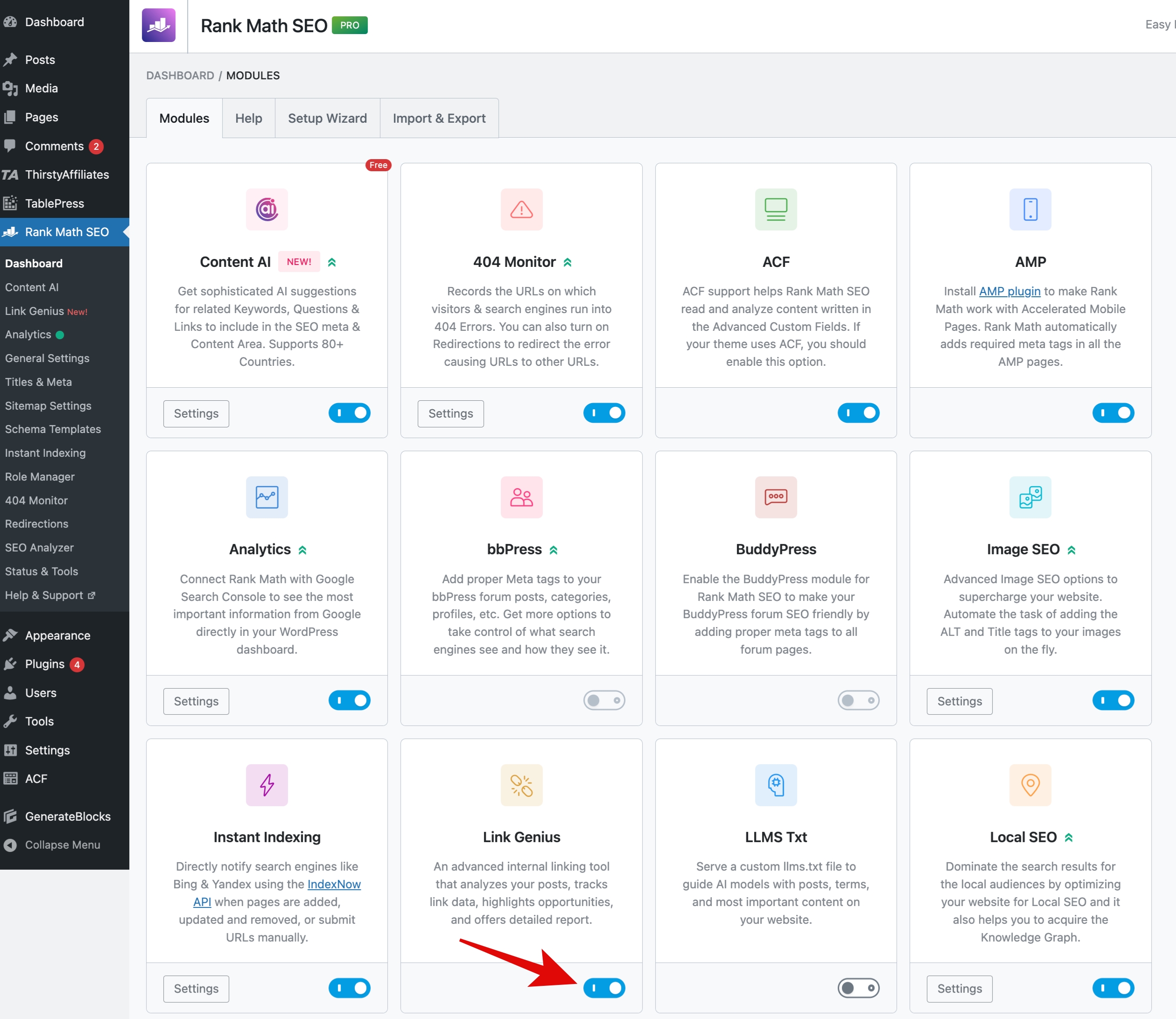
AI Link Genius lets you place internal links while you write, so you don’t have to switch back and forth later.
Here are the three main ways to do it.
Using the Command Center
Open your post in the editor and move to the part where you want to add a link. Highlight the text you want to use as anchor text.
As soon as you highlight it, the formatting toolbar appears. Click on the Content AI icon, then choose Generate Link.
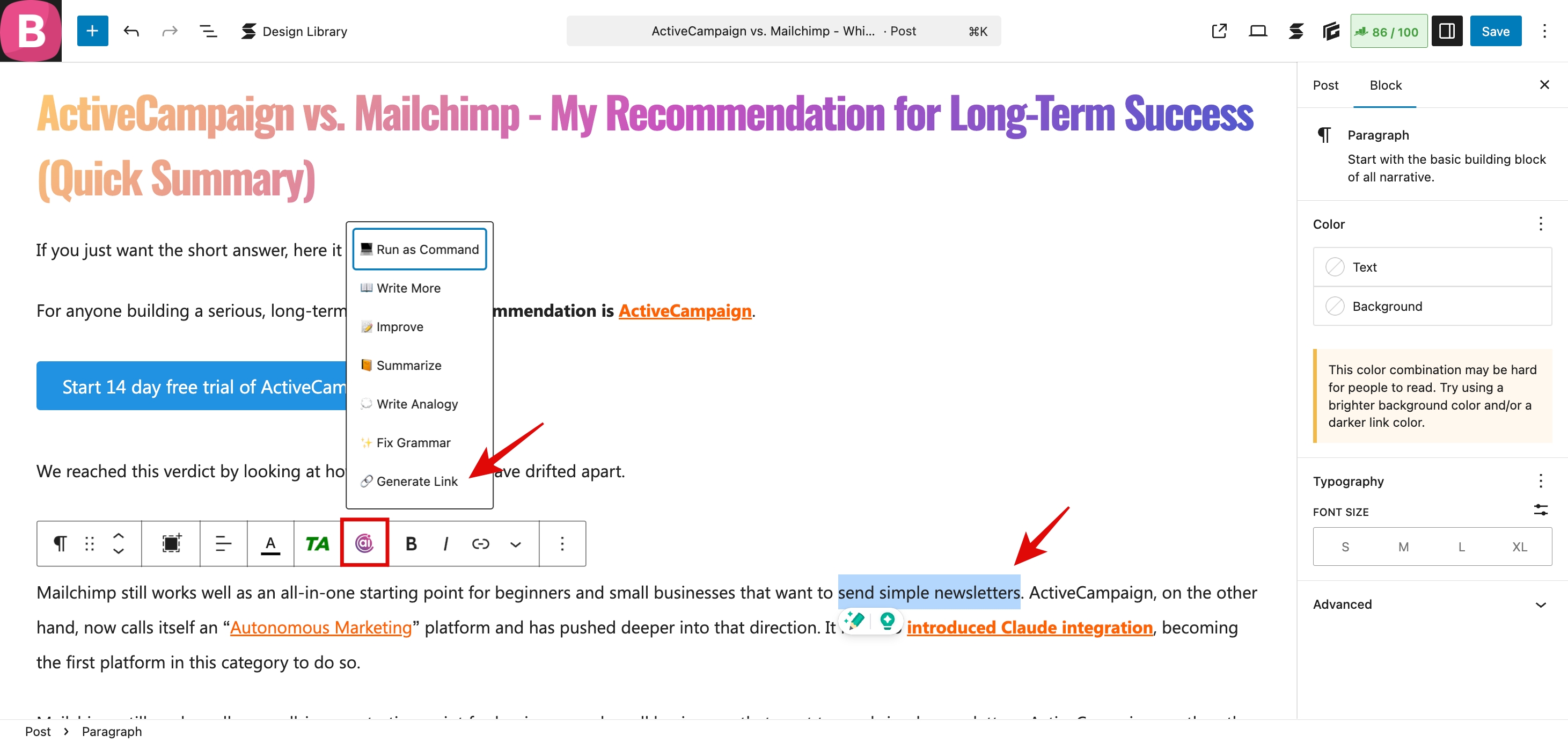
AI Link Genius will scan your content and suggest relevant internal links. Pick the one that fits, and it will be added to your selected text right away.
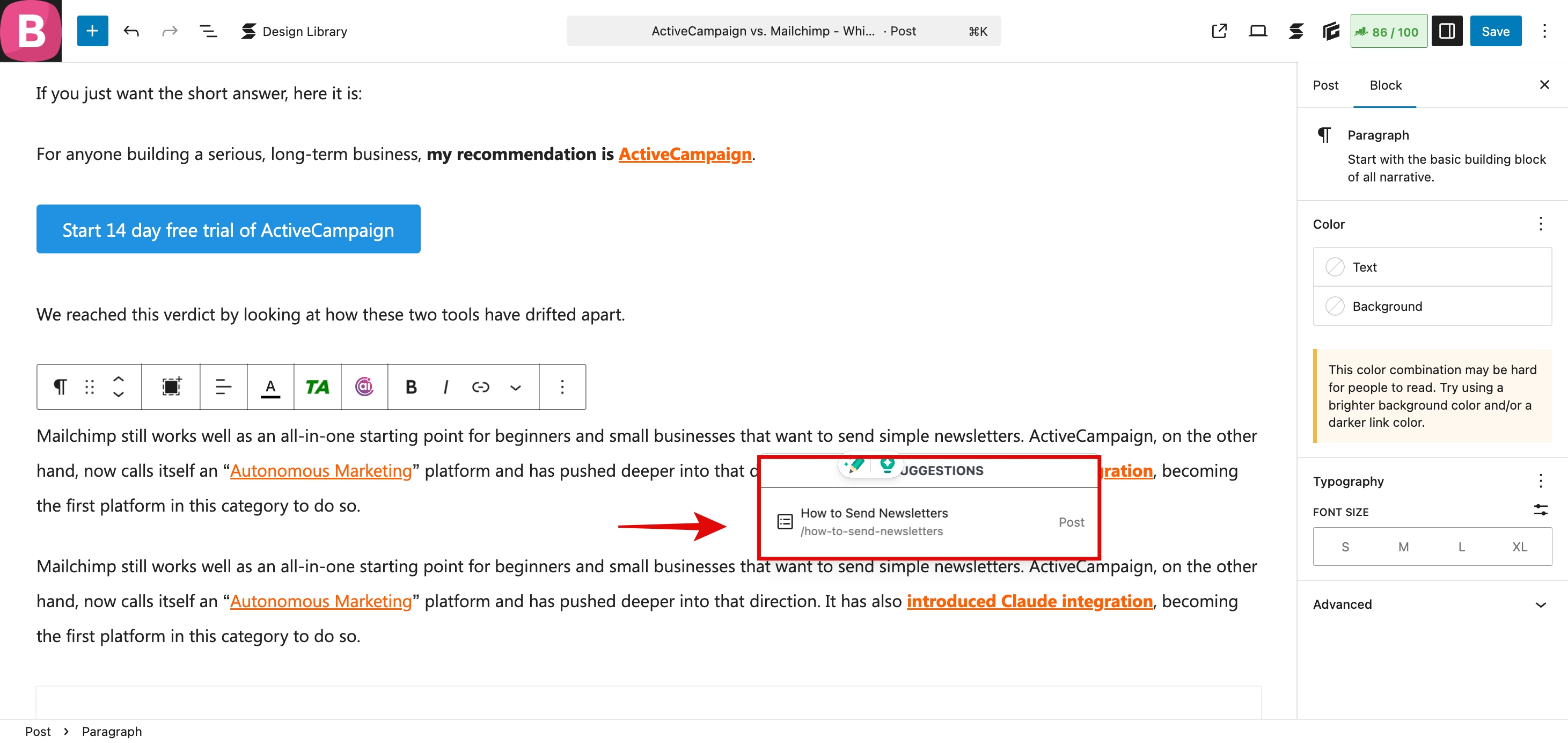
This works well when you want to choose your own anchor text but still rely on AI for link suggestions.
Using Link Opportunities
You can also add internal links using the Link Opportunities feature.
Open your post in the WordPress editor and click the Rank Math SEO icon. Scroll to the Link Opportunities section and click Generate.
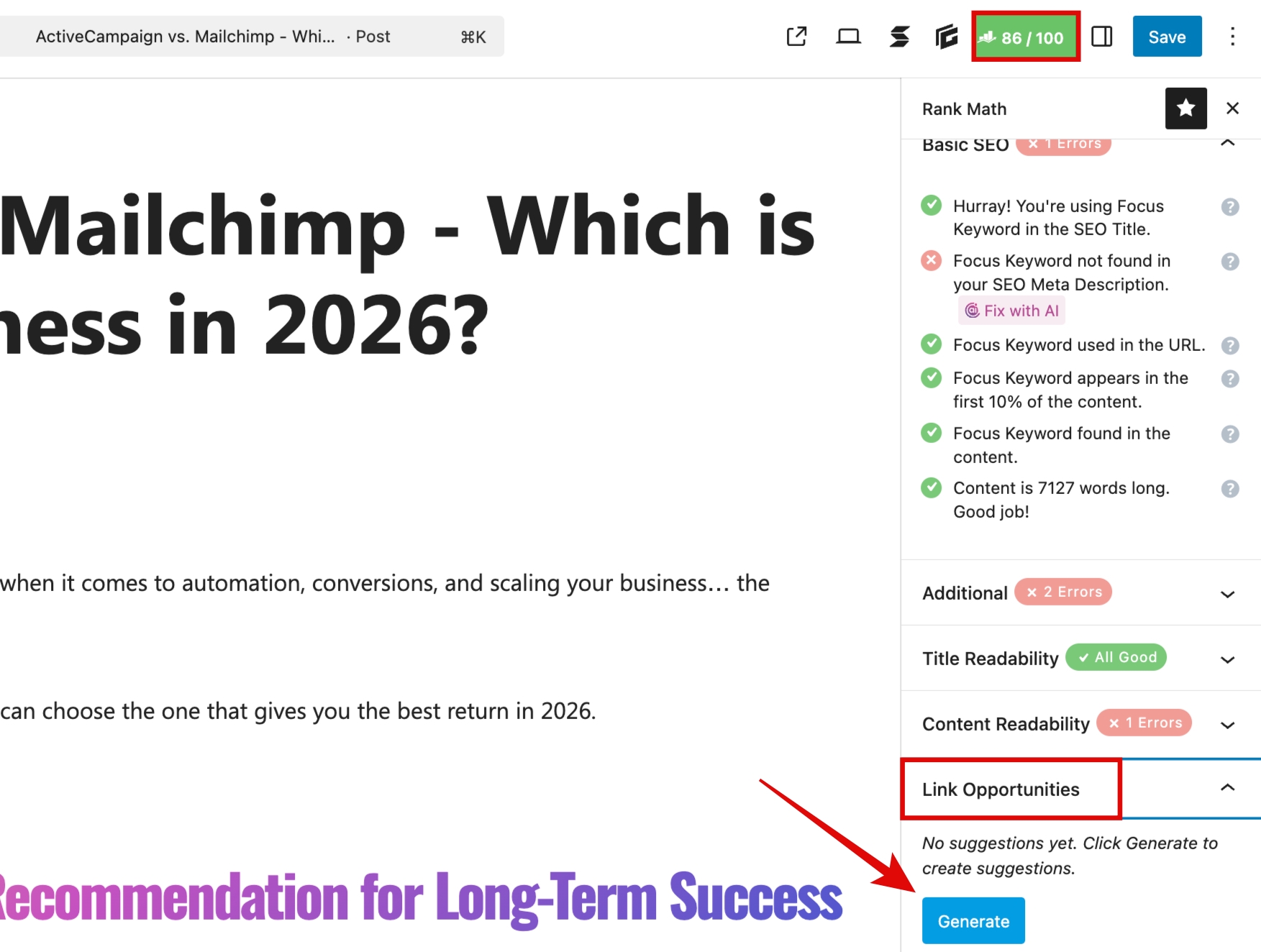
AI Link Genius will review your content and suggest links that fit naturally within your article.
For each suggestion, you’ll see two options:
- Copy Link URL – copies the link so you can place it manually
- Insert URL – adds the link directly to your content
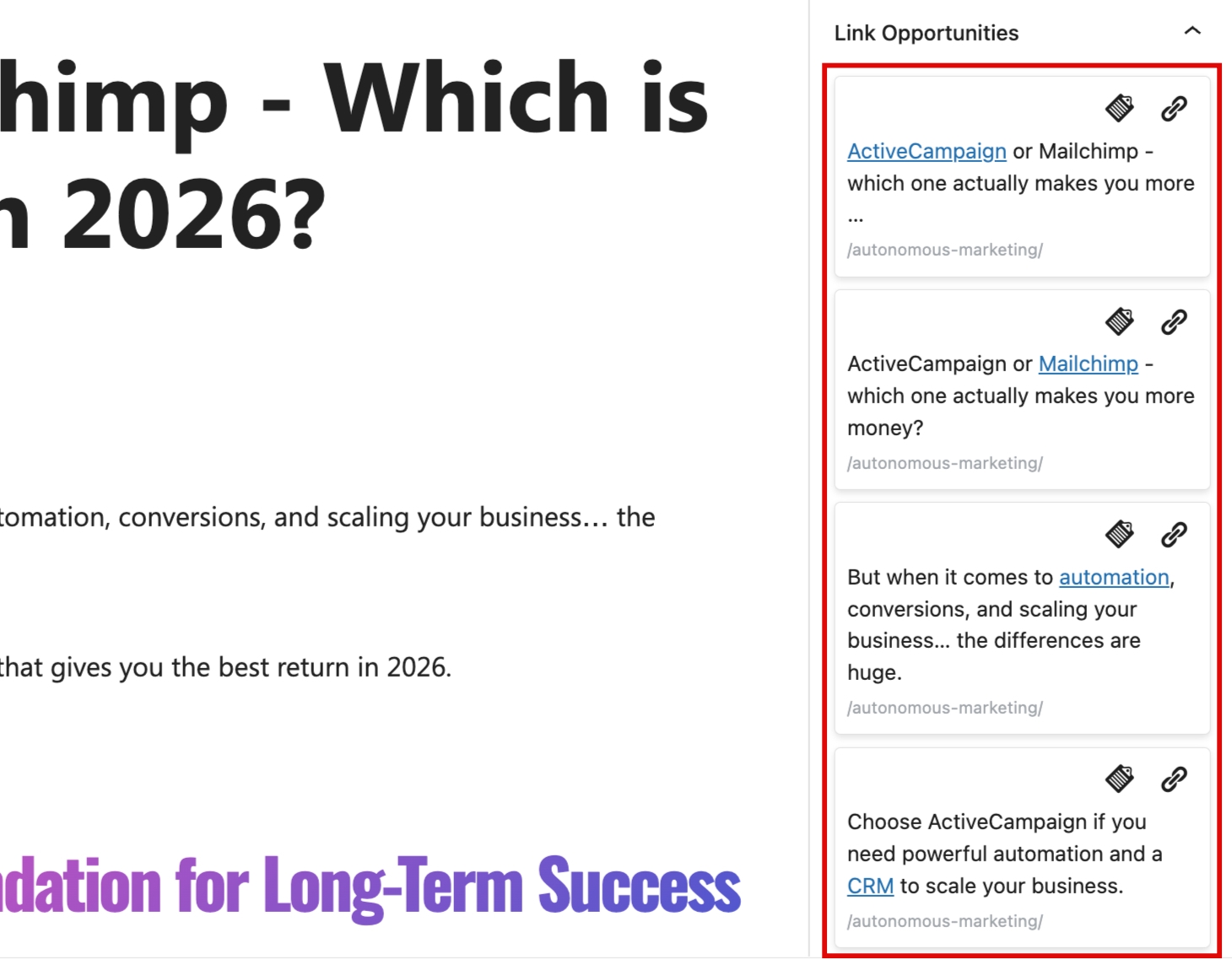
This method works well when you want to add links without breaking your writing flow.
Adding Related Posts
This tool automatically links your current article to other relevant content on your site, which helps readers stay on your page longer.
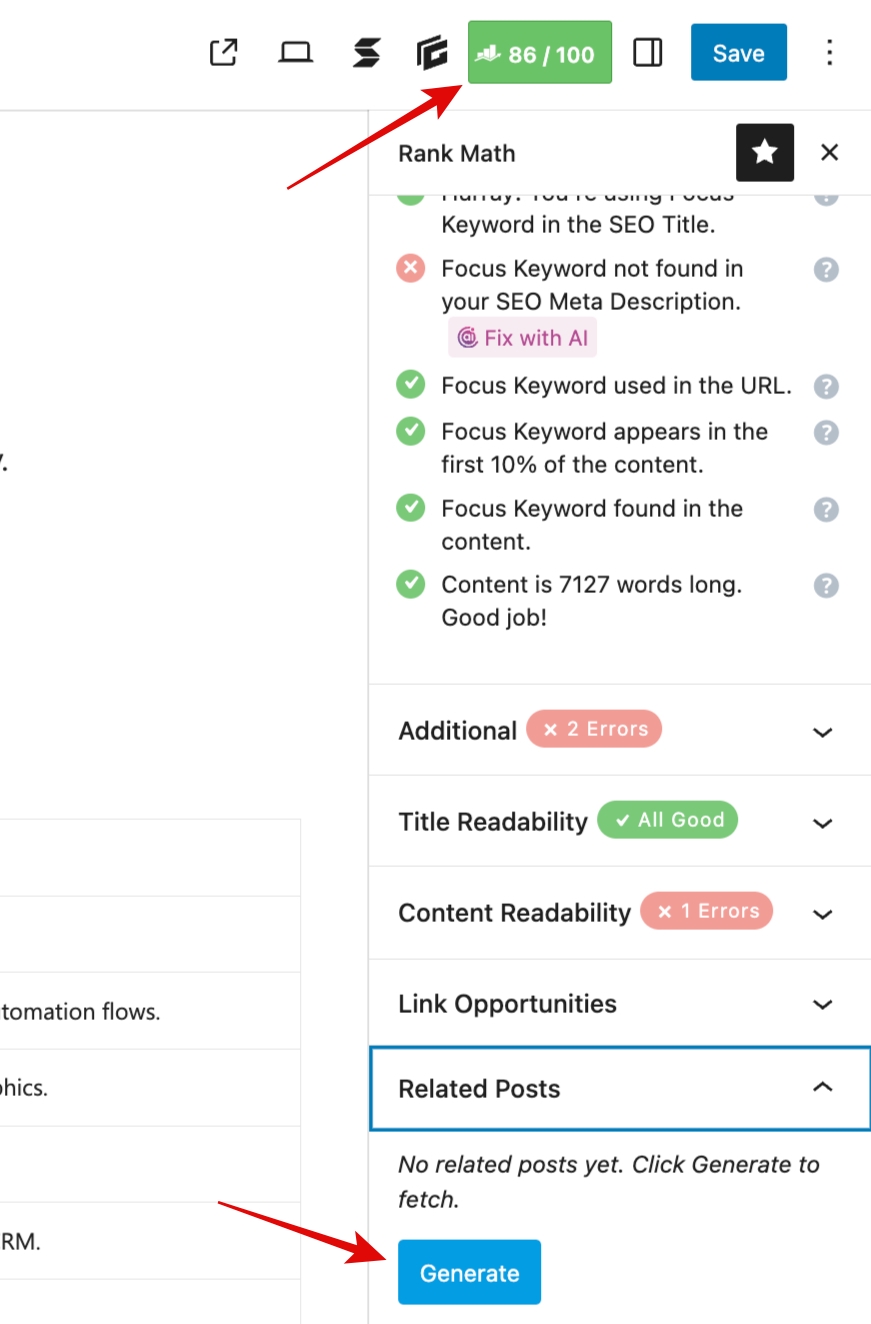
To use this, open your article in the WordPress editor. Click the Rank Math SEO icon and scroll to the Related Posts section. Then click Generate.
Next, click Insert Related Posts to add the block to your content.
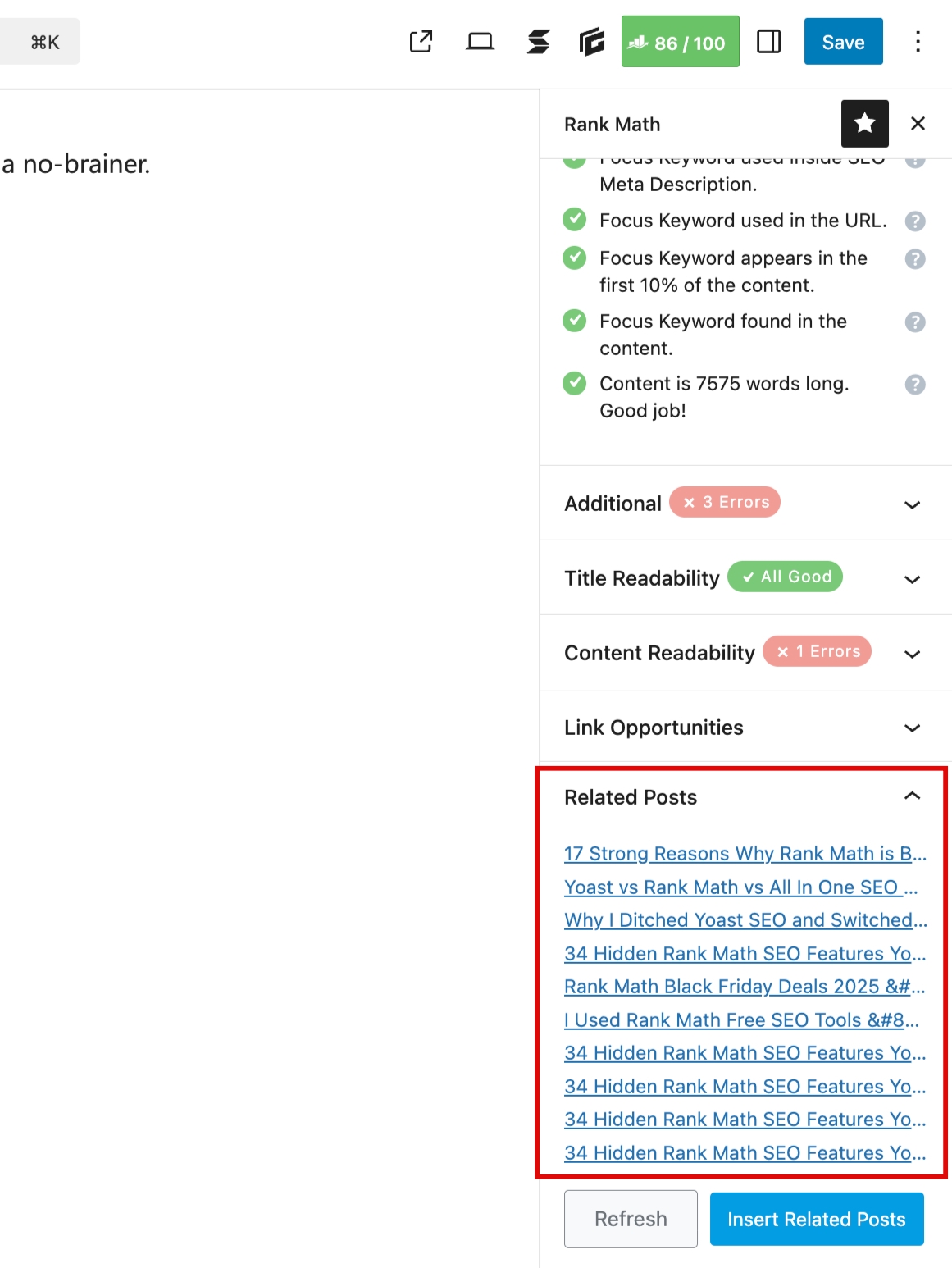
By default, it shows up to three relevant articles. You can change how it looks and behaves:
- Choose the layout style
- Set how many posts to display
- Show or hide featured images
- Edit titles and buttons
- Add custom CSS
- Save layouts as reusable patterns
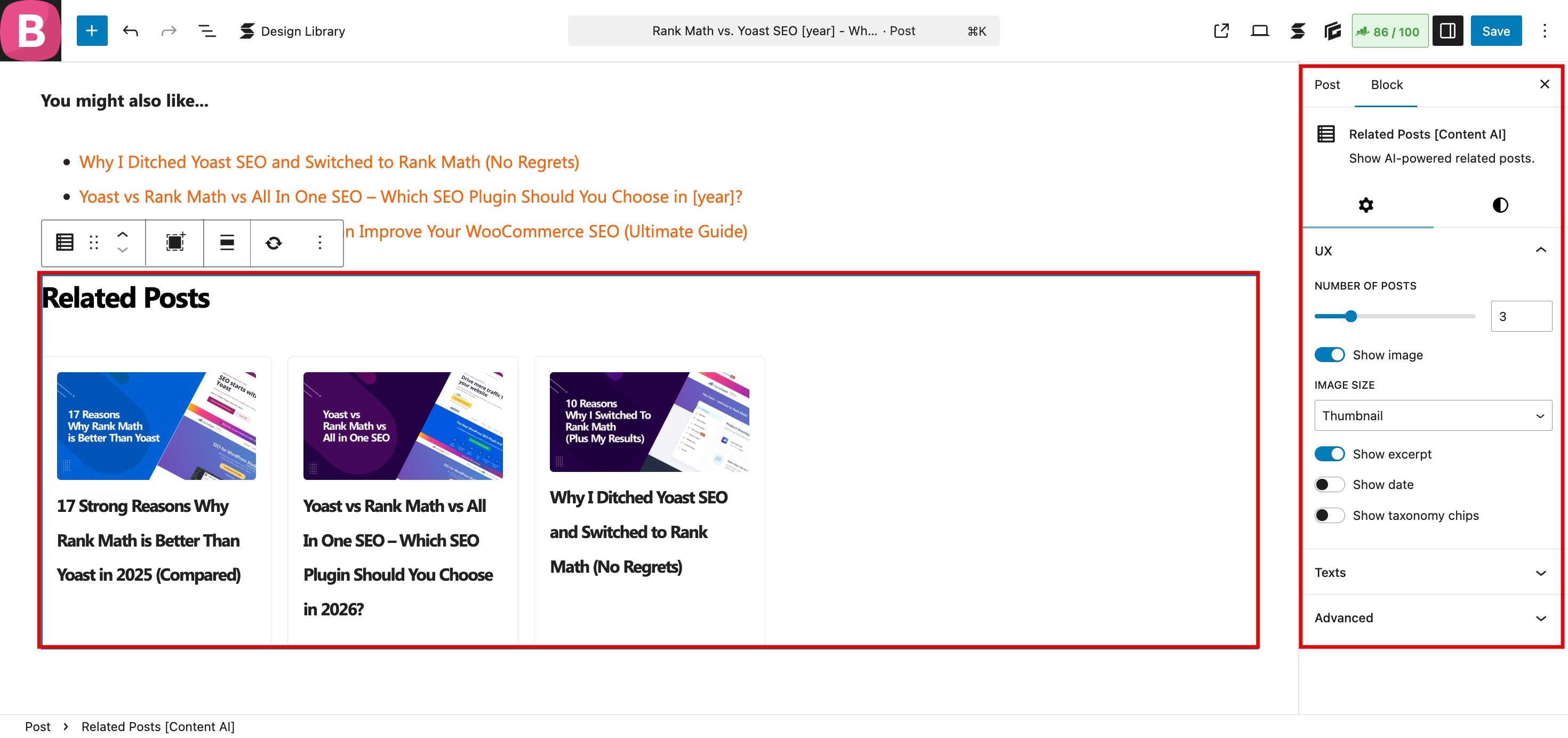
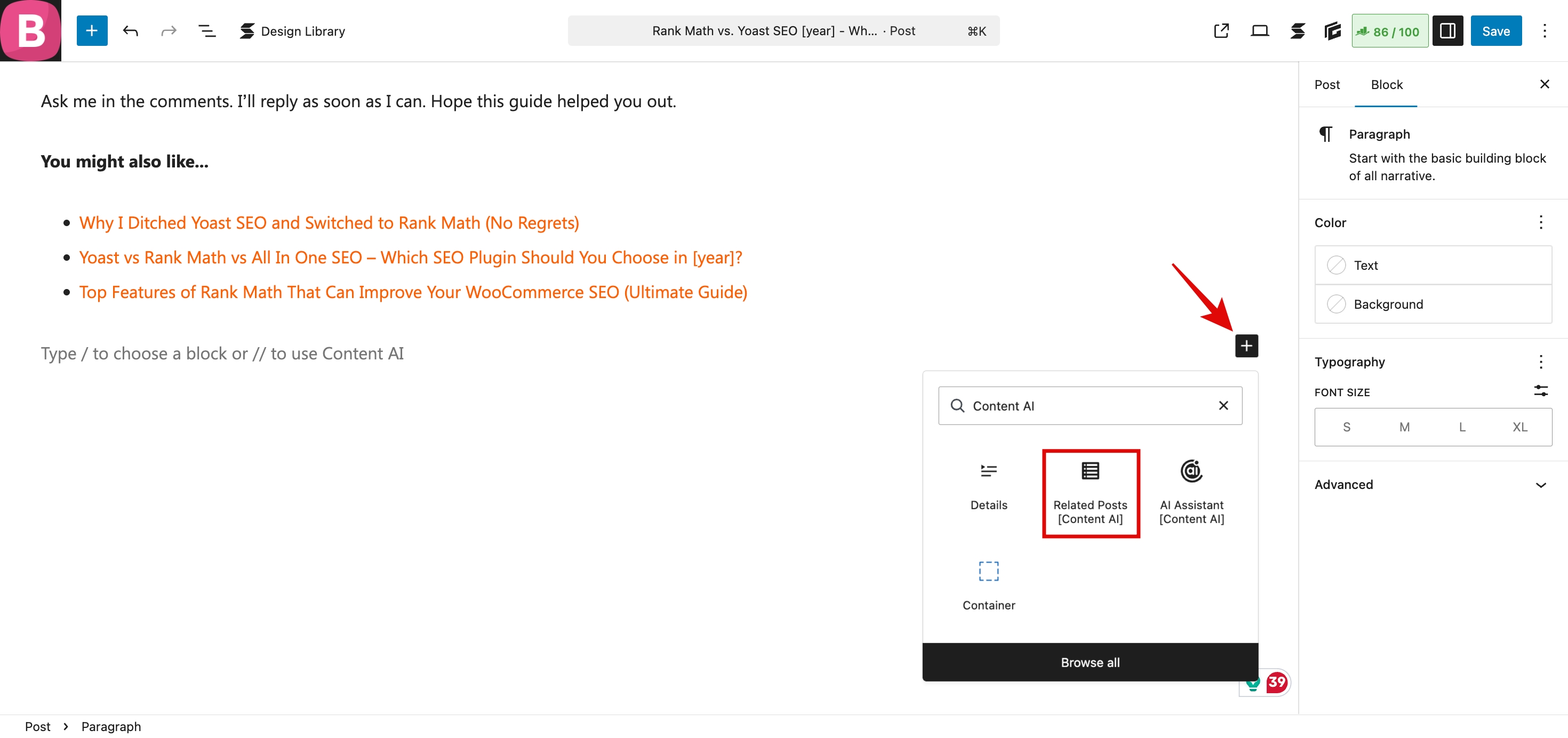
If you use the Block Editor, click the + icon and search for the Related Posts [Content AI] block. Once added, it will pull in AI-recommended posts based on your content.
If you use the Classic Editor or want to place it in theme files, you can use this shortcode:
It supports the same settings as the block.
These related posts act as internal links that guide readers to more content on your site. It also helps keep visitors engaged without adding links manually throughout your article.
To control how many posts appear, click the Related Posts block in your editor and open the WordPress settings sidebar. From there, you can change the number of posts and choose whether to display images.
You can also edit layout options like alignment, colours, typography, spacing, and borders. This helps you control how internal links appear at the end of your post while keeping everything organized.
How to Automate Internal Links with Keyword Maps
If you want to automate internal links, use Keyword Maps.
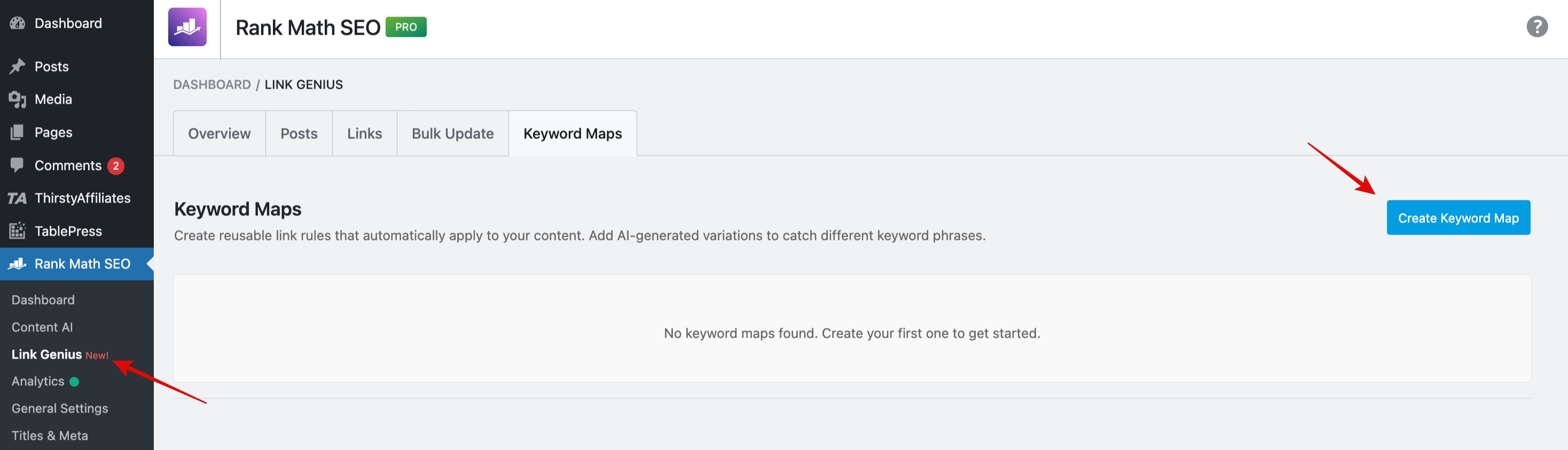
Go to Rank Math SEO > Links > Keyword Maps, then click Create Keyword Map.
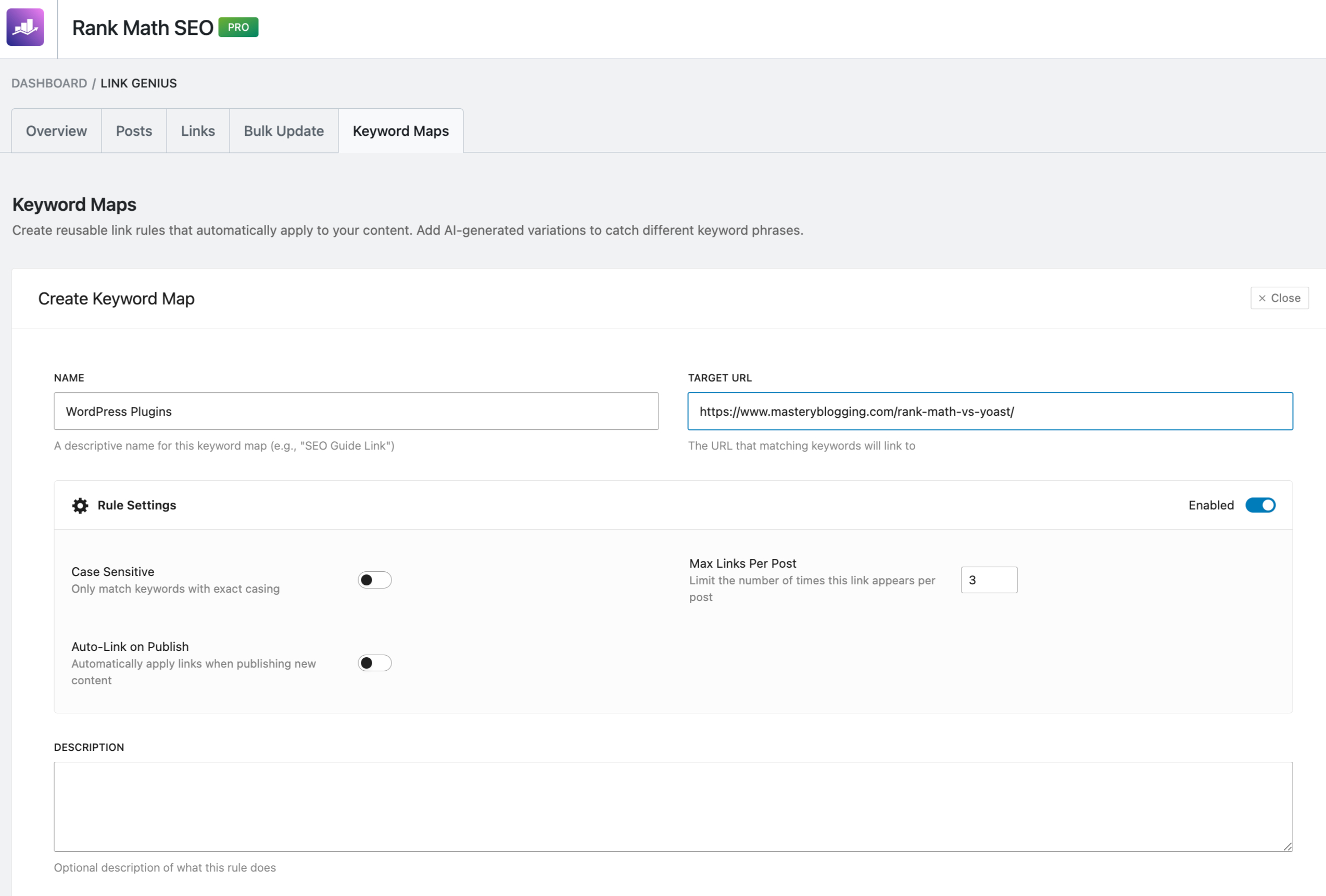
Start by adding a name. This is just for your reference, so keep it simple.
Next, enter the Target URL, which is the page you want to link to. Make sure you add the full URL. You can also add a short description to explain the purpose of this map.
Now move to Keyword Variations. Add the words or phrases that should trigger the internal link. You can separate them with commas or place each one on a new line.
Click Add Variations. If you want more ideas, click Generate AI Variations.
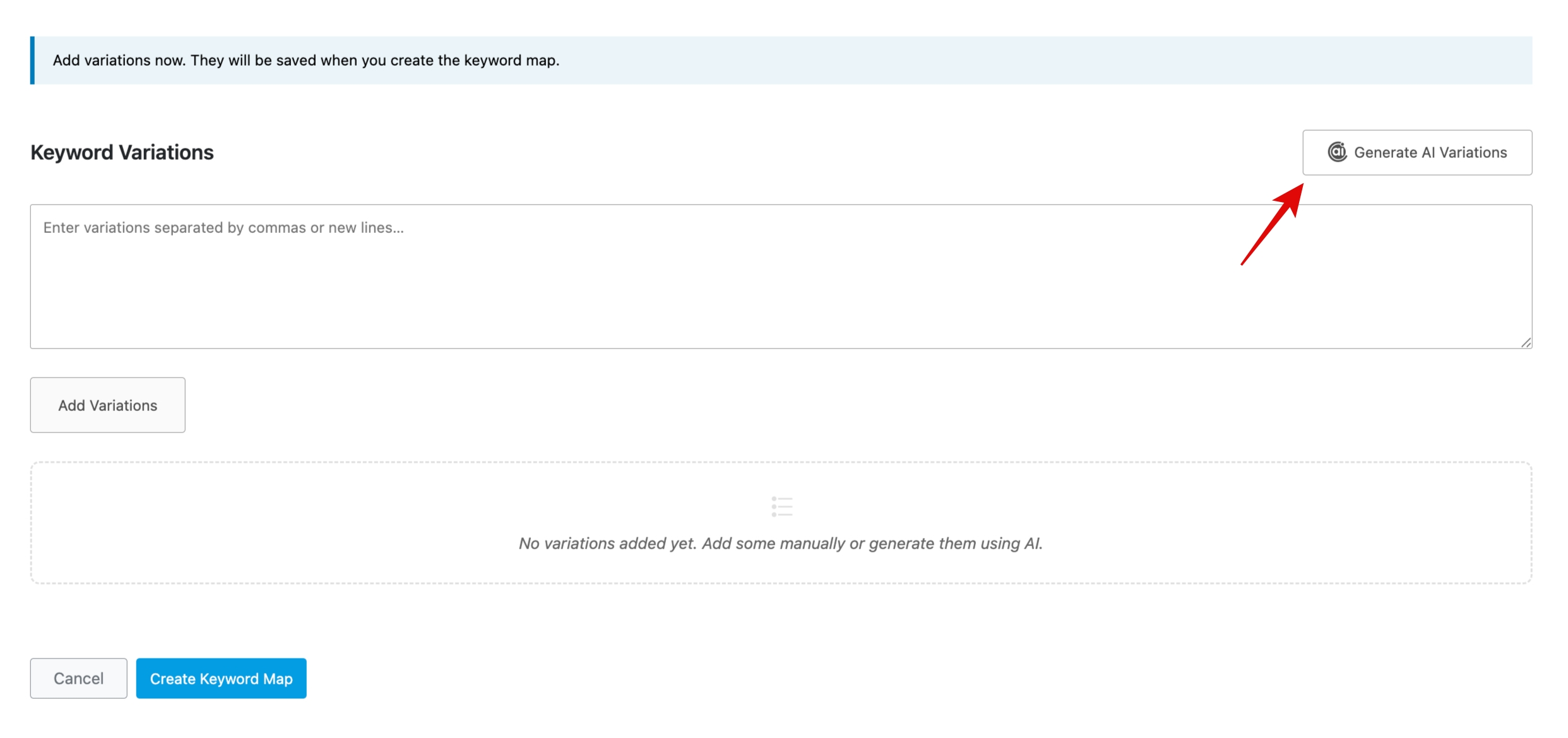
AI Link Genius will suggest similar phrases, long-tail keywords, and even common misspellings. Review them and disable anything you don’t want. Then click Add Variations.
Once added, you can control how often the link appears using Max Links per Post. For example, if you set it to three, the link will only appear up to three times in a post, even if the keyword appears more often.
You can also enable Case Sensitive if you want the link to trigger only when the keyword matches the exact letter case.
To apply links automatically to new content, turn on Auto-Link on Publish. When enabled, any new post with your selected keywords will include the internal link automatically. If you leave it off, it will only update existing posts.
Finally, click Create Keyword Map to save everything.
From that point on, whenever your selected keywords appear in your content, the system will insert the internal link to your target URL.
You can always edit your keyword maps later. Just click Edit, make your changes, and hit Update Keyword Map.
Best Practices for Internal Linking (Even When Using AI)
Look, just because Link Genius makes things easy… doesn’t mean you should go wild with it.
This is where a lot of people slip.
They turn on automation, apply everything, and assume more links = better SEO.
Not quite.
Here’s how to do it the right way:
- Keep it natural, always: If a link feels forced when you read the sentence out loud, it probably is. Even AI suggestions need a human check.
- Don’t overload your content: Adding 20–30 internal links in one post doesn’t make it stronger. It just makes it messy. Focus on quality, not quantity.
- Link to relevant pages only: Every link should help the reader go deeper into the topic. If it doesn’t add value, skip it.
- Prioritize your important pages: Your key posts (like money pages or pillar content) should get more internal links. This signals to Google: “Hey, this page matters.”
- Use varied, natural anchor text: Avoid repeating the exact same keyword every time. Let it flow naturally within the sentence.
Here’s the simple rule to remember:
Just because you can automate internal linking… doesn’t mean you should stop thinking.
Use AI to speed things up — but let your judgment guide the final result.
Common Mistakes to Avoid
Alright, this part matters more than most people think.
Because one wrong move with internal linking can quietly hurt your SEO… even if everything else looks fine.
Let’s make sure that doesn’t happen.
1. Blindly Accepting All AI Suggestions
I get it — the “apply all” button is tempting.
But not every suggestion is perfect. If you don’t review them, you can end up with links that feel awkward or out of place.
Quick scan. That’s all it takes.
2. Linking to Irrelevant Pages
Just because you can link something… doesn’t mean you should.
If the link doesn’t help the reader understand the topic better, it’s just noise. And Google notices that.
3. Over-Optimizing Anchor Text
Stuffing exact keywords into every link? That’s old-school SEO — and it can backfire.
Keep it natural. Write for humans first.
4. Ignoring Orphan Pages
These are pages with no internal links pointing to them.
And here’s the problem: if nothing links to a page, Google may never fully value it.
Use Link Genius to surface and fix these — it’s one of its biggest advantages.
5. Treating Internal Linking as a One-Time Task
This is a big one.
You don’t “set it and forget it.”
Every time you publish a new post, there are new linking opportunities. If you ignore this, your site structure slowly weakens over time.
Here’s the bottom line:
Internal linking can boost your SEO quietly in the background…
Or quietly hold you back if done wrong.
Real Results – How Internal Linking Impacts SEO
Let me paint a simple picture.
Imagine you have 30 blog posts on your site.
Before internal linking, they’re just sitting there… isolated.
Some get traffic, most don’t. Google doesn’t fully understand how they connect.
Now you go in (or use Link Genius) and start linking them properly.
Suddenly, everything changes.
Your important posts start receiving more internal links, which signals to Google that they matter more.
Your older content starts getting rediscovered.
And your visitors? They stop bouncing and start clicking deeper into your site.
I’ve seen this play out where a post stuck on page 2 slowly climbs to page 1… without adding new content — just better internal linking.
Not overnight. But steadily.
And here’s the underrated part:
Internal linking spreads “link value” across your site. So instead of one strong post… You start building a strong network of content.
That’s how smaller sites compete with bigger ones.
Rank Math AI Link Genius Cost
Since AI Link Genius is a module within the Rank Math SEO plugin, you must have a paid Rank Math plan to access it.
| Plan | Annual Price (approx.) | Monthly Equivalent | Key “Link Genius” Access |
| PRO | $83.88 | $6.99 | Unlimited Personal Sites + AI Link Genius Module |
| Business | $299.88 | $24.99 | 100 Client Sites + AI Link Genius Module |
| Agency | $659.88 | $54.99 | 500 Client Sites + AI Link Genius Module |
Is Rank Math AI Link Genius Worth It?
Short answer?
For most people… yeah, it is.
But let’s not hype it blindly. Here’s the real breakdown.
If you’re a blogger, niche site owner, or running multiple content-heavy sites, this tool can save you hours every week. Not just time — mental energy too. You’re no longer guessing where to add links or digging through old posts.
It gives you structure without the overwhelm.
And if you’ve been ignoring internal linking because it feels tedious or confusing… this basically removes that barrier.
Now, let’s be fair.
It’s not magic.
You still need to review suggestions, make sure links feel natural, and actually care about your content. If you expect one-click perfection without thinking, you’ll be disappointed.
Also, depending on your plan, access to AI features is not fully free, so that’s something to consider if you’re just starting out.
Comparison – AI Link Genius vs. Competitors
| Feature | AI Link Genius | Link Whisper | Yoast SEO | All in One SEO | SEOPress |
| AI-Powered Related Post Suggestions | ✓ | X | X | X | X |
| Dedicated Related Post Block | ✓ | X | X | X | X |
| Dedicated Related Posts Shortcode | ✓ | X | X | X | X |
| Nofollow Link Detection | ✓ | X | X | X | X |
| Filter Internal Nofollow Links | ✓ | X | X | X | X |
| 1-Click Nofollow Removal | ✓ | X | X | X | X |
| Bulk Link Updates | ✓ | – | X | X | X |
| Regex-Based Link Replacement | ✓ | X | X | X | X |
| Bulk Update History Log | ✓ | X | X | X | X |
| Bulk Update Rollback | ✓ | X | X | X | X |
| AI-Powered Keyword Mapping | ✓ | – | X | X | X |
| Auto-link posts | ✓ | ✓ | X | X | X |
| Generate Keyword Variations with AI | ✓ | – | X | X | X |
| AI-Powered Link Recommendations | ✓ | ✓ | X | X | X |
| Context Aware Anchor Text Suggestions | ✓ | ✓ | X | X | X |
| Advanced Link Audit | ✓ | ✓ | X | ✓ | X |
| Visual Link Health Dashboard | ✓ | ✓ | X | ✓ | X |
| Broken Link Checker | ✓ | ✓ | X | ✓ | ✓ |
| Orphan Posts Detection | ✓ | ✓ | ✓ | ✓ | X |
| Filter by status code | ✓ | – | X | X | X |
| Detect link redirects | ✓ | X | X | ✓ | X |
| Detect links blocked by robots.txt | ✓ | X | X | X | X |
| Export Links Data | ✓ | ✓ | X | X | – |
| Automatic Re-audit on Link Changes | ✓ | ✓ | X | X | X |
| Historical Audit Data Tracking | ✓ | ✓ | X | ✓ | X |
My Personal Verdict
I’ll be honest — if this tool existed when I was manually linking dozens of posts, it would’ve saved me a ton of time (and frustration).
What I like most is that it doesn’t just speed things up… it actually helps you spot linking opportunities you would’ve missed on your own. That alone makes a big difference.
Do I depend on it completely? No.
I still go through the suggestions and make sure everything reads naturally and fits the context. But as a starting point, it does a great job.
If you publish content regularly and actually want your site to grow—not just sit there—this is one of those tools that keeps adding value in the background without demanding much from you.
Frequently Asked Questions
How many internal links should I add per post?
There’s no fixed number, but a good rule is: add links where they naturally make sense. For most posts, 3–8 solid internal links is more than enough. Focus on usefulness, not hitting a number.
Can internal links hurt SEO?
Yes — if done poorly. If you’re forcing links, overusing exact-match anchors, or linking to irrelevant pages, it can confuse both readers and search engines. But when done right, it quietly boosts your rankings.
Is Rank Math AI Link Genius free?
No, Rank Math AI Link Genius is not free. It is a premium module exclusively available in the paid versions of Rank Math (PRO, Business, and Agency).
Does it work on old blog posts?
Yes — and this is one of the best parts. You can scan your existing content and instantly find new linking opportunities across posts you’ve already published. It’s a quick way to improve SEO without writing new articles.
Conclusion
Here’s the simple truth:
Most websites don’t have a content problem… they have a connection problem.
You can write amazing posts, but if they’re not linked together properly, Google won’t fully understand your site — and your rankings will reflect that.
That’s why internal linking matters so much.
And with tools like Rank Math AI Link Genius, what used to take hours can now be done in minutes — without losing control over your content.
Start small.
Run a scan. Add a few smart links. Watch what happens.
Because sometimes, the fastest way to grow your traffic… isn’t writing more.
It’s connecting what you already have.