Affiliate Disclosure: This article contains affiliate links. If you choose to sign up for WordPress.com through these links, I may earn a small commission at no additional cost to you.
What WordPress plugins do you actually need as a blogger?
If you’ve ever searched for this, you’ve probably seen long lists with 20, 30… even 50 plugins.
And that just makes things worse.
Because now you’re stuck wondering:
Which ones matter? Which ones do I ignore?
I’ve been there.
The truth is, you don’t need a lot of plugins. You just need the right ones.
And now, with the latest update, even WordPress.com users on paid plans can install plugins, which means you finally have access to the same tools bloggers have been using for years.
So in this guide, I’ll keep it simple.
No overwhelm. No unnecessary tools.
Just the essential plugins that actually help you grow your blog.
Let’s go.
Quick Answer (For Skimmers)
If you don’t want to go through the full list, here’s what you actually need as a blogger:
You only need a handful of plugins to run a successful blog.
That’s it.
Start with these core types:
- An SEO plugin – to help your posts show up on Google
- A performance plugin – to keep your site fast
- A security plugin – to protect your site
- A backup plugin – to save your content
- An image optimization plugin – to speed up pages
- A form plugin – to let people contact you
- An analytics plugin – to see what’s working
That might sound like a lot, but in reality, you’ll only install 5 – 7 plugins.
And each one has a clear purpose.
Simple rule:
If a plugin doesn’t help you:
- Get more traffic
- Protect your site
- Or improve user experience
You probably don’t need it.
If you want the exact plugins and how to choose them, keep reading — I’ll break it down step by step.
What Makes a Plugin “Worth It” for Bloggers?
Here’s the truth.
Most plugins aren’t necessary.
And installing too many is one of the fastest ways to slow down your site and confuse yourself.
So before you install anything, it helps to know what actually makes a plugin worth using.
It solves a real problem
A good plugin should fix something specific.
Not “nice to have.” Not “maybe useful someday.”
Something real.
Like:
- Helping your blog show up on Google
- Making your site load faster
- Protecting your content
If it doesn’t solve a clear problem, skip it.
It’s easy to use (especially for beginners)
You shouldn’t need tutorials just to set it up.
The best plugins are simple.
Install -> activate -> maybe adjust a few settings -> done.
If it feels complicated, it’s probably not worth it (at least not right now).
It doesn’t slow down your site
Some plugins look great… but quietly make your site slower.
And that hurts:
- User experience
- Your Google rankings
So always choose plugins that are known to be lightweight and reliable.
It’s regularly updated and trusted
This one is important.
A good plugin is:
- Updated often
- Used by a lot of people
- Has good reviews
That usually means it’s safe and works well.
It helps you grow, not just decorate
This is the big filter.
A plugin should help you:
- Get more traffic
- Improve your site
- Or save time
Don’t just add fancy features you’ll never use.
Simple way to think about it:
Every plugin should earn its place.
Once you understand this, choosing plugins becomes much easier.
9 Best WordPress Plugins for Bloggers (Core List)
You don’t need dozens of plugins.
You just need a few that do important jobs really well.
Let’s go one by one.
1. Yoast SEO: Rank Higher on Search Engines
Main Goal: Boost your site’s visibility and help search engines read your pages. Price: Free for the basic version; Premium costs $9.90/month. Best for: Site owners who want more organic traffic without a headache.
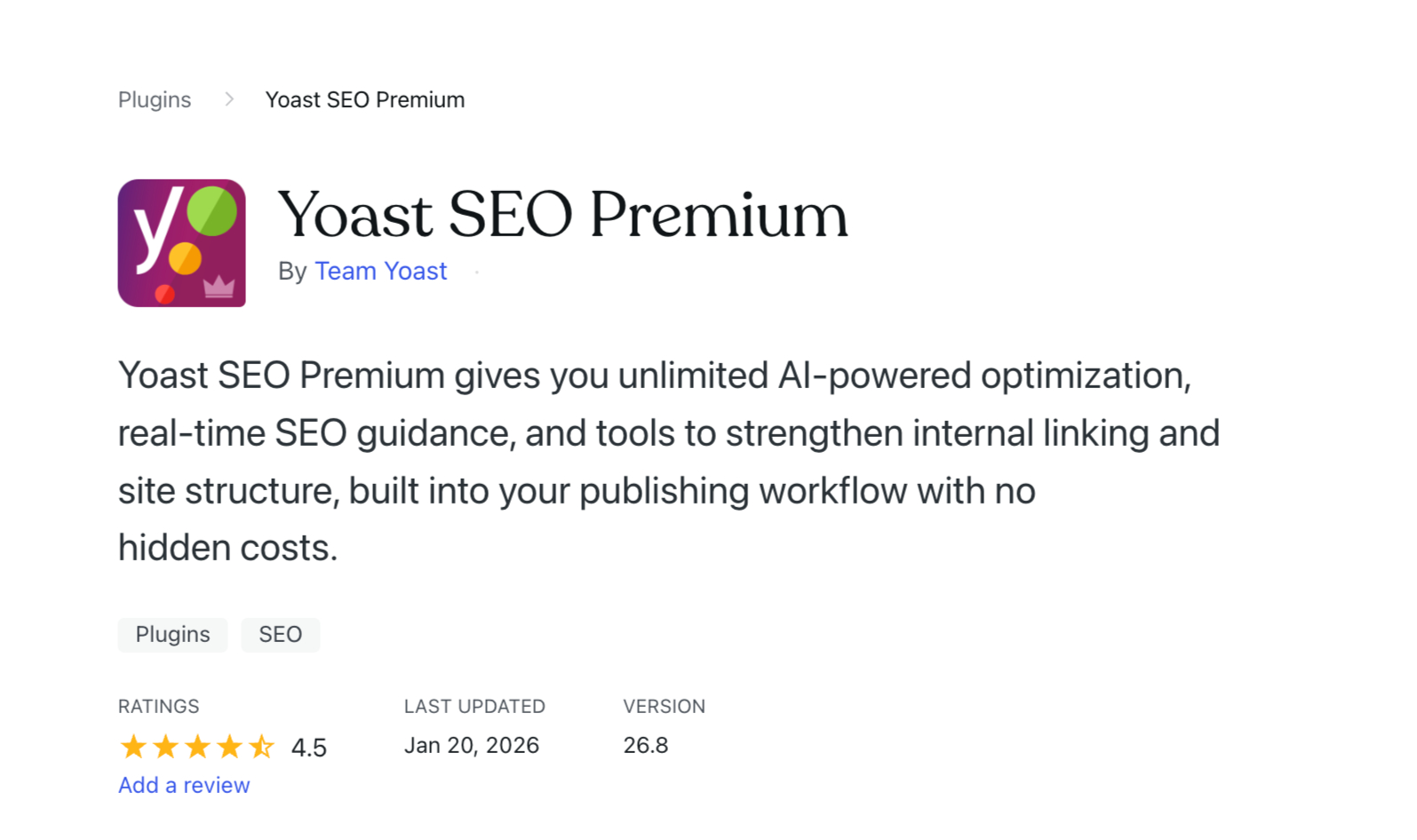
Yoast SEO handles the heavy work for your website’s structure. It builds XML sitemaps and adds schema markup automatically, which helps Google understand exactly what your content is about.
While you write, the plugin monitors your progress. It alerts you if you forget a meta description, tracks how often you use your keywords, and evaluates how easy your text is to read. It provides these suggestions before you go live.
If SEO feels overwhelming, this tool teaches you the fundamentals while you work.
Key Features
- Automatic Sitemaps and Data: The plugin manages the technical backend so search engines can crawl your site. You won’t have to touch a single line of code.
- Live SEO Feedback: Yoast scores your keyword usage and reminds you to fill in vital tags as you type.
- Readability Checks: The tool offers advice to simplify your sentences and keep your audience interested.
Pro Tip: WordPress.com users already have access to built-in SEO tools through Jetpack. This includes sitemaps, social previews, and AI writing help if you prefer not to install an extra plugin.
Why do you need it
Search engines remain the primary way people find new websites. Without optimization, your content stays hidden. Yoast provides the specific steps needed to climb the rankings, allowing you to focus on your business rather than technical jargon.
2. Jetpack: The All-in-One Powerhouse
Main Goal: Ongoing security and maintenance. Price: Core tools cost nothing on any WordPress.com plan; advanced features come with Business and higher plans. Best for: Owners who want a single fix for security, speed, and growth.
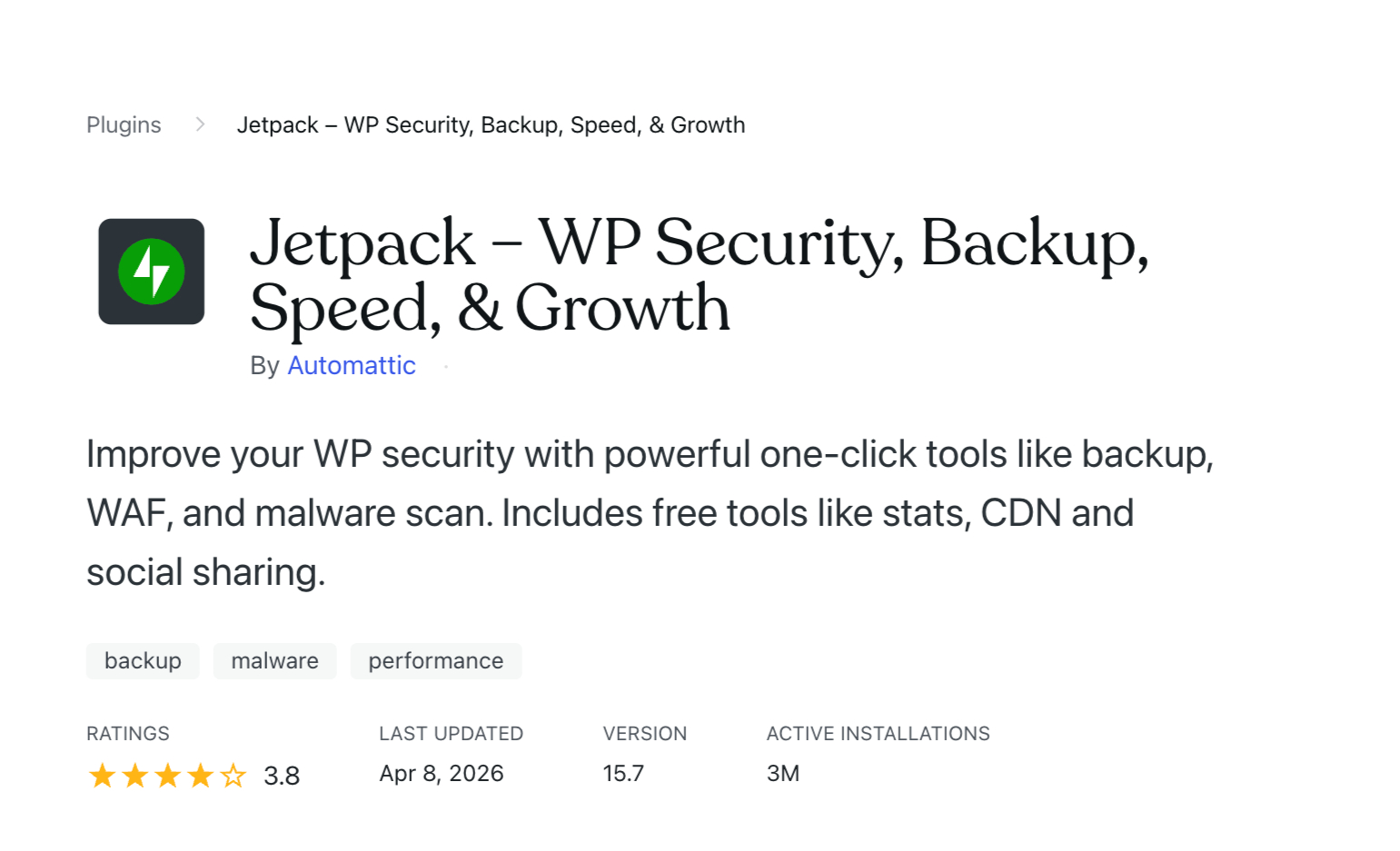
Jetpack acts as a toolkit that replaces a half-dozen separate plugins. Rather than hunting for individual tools to handle backups, speed, and analytics, you manage everything from one dashboard.
I prefer how the main features turn on with a single click. You won’t spend your afternoon hunting through menus.
Unlike smaller plugins that developers might abandon, Jetpack receives constant updates. This means you won’t run into broken features or security holes when WordPress updates its software.
Key Features
- Security: You get brute force protection and spam filtering on all WordPress.com plans. Business plans add real-time backups, one-click restores, and malware scanning.
- Performance: This includes a global image CDN and video hosting.
- Growth: Track your visitors with site stats, use SEO tools for sitemaps, and automate your social media posts.
- Content: Access an AI writer, payment buttons, and newsletter signup forms.
Why do you need it
If you’re starting out or don’t want to test dozens of plugins, Jetpack covers the basics in one install. You can always add advanced tools later, but this sets a strong base.
3. Akismet: The End of Comment Spam
Main Goal: Blocks junk and ads from your comment sections. Price: Free for all WordPress.com users. Best for: Any site that allows comments or contact form entries.
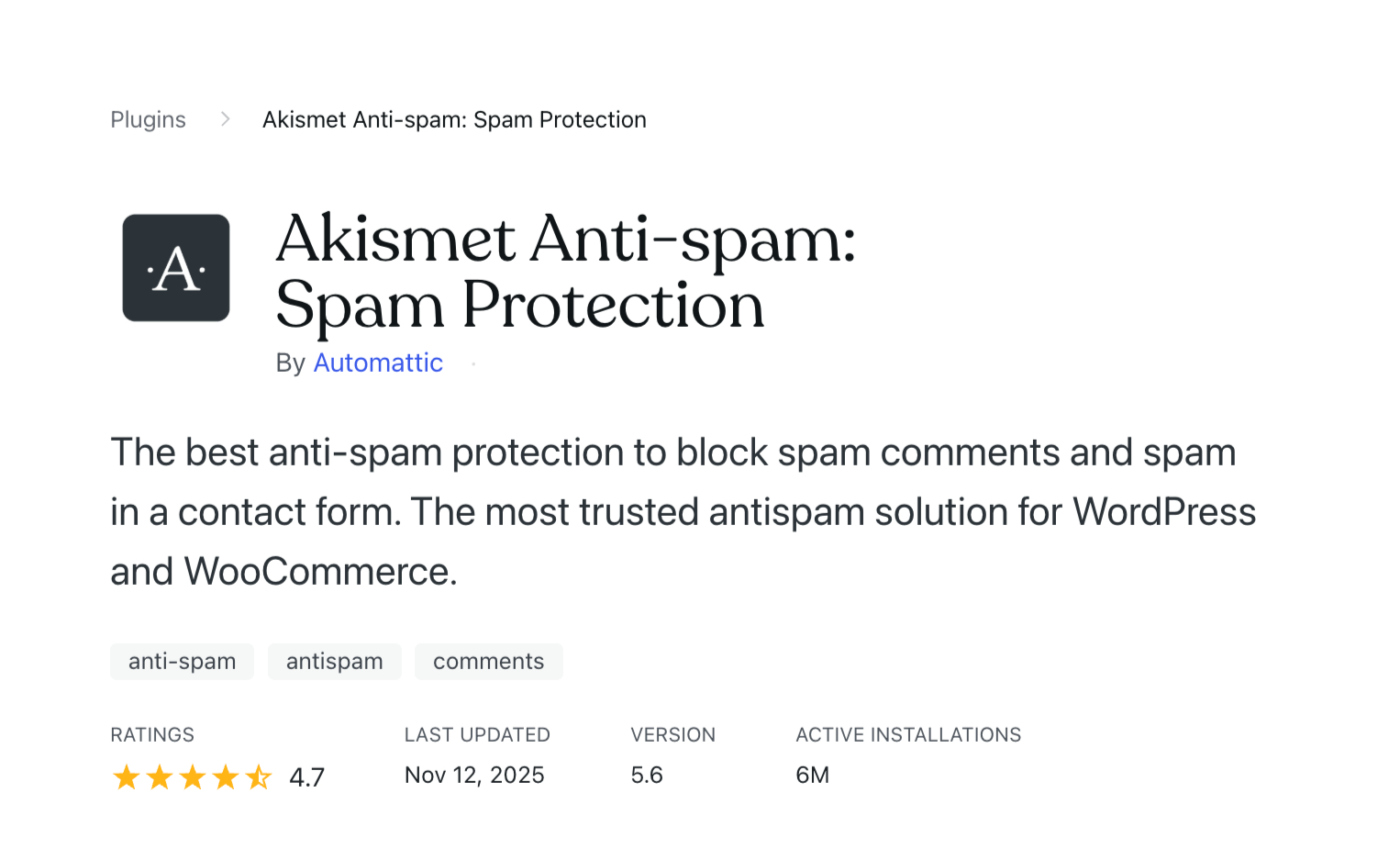
Akismet catches over 99.99% of spam. It keeps your site looking professional and your inbox empty of junk.
The best part? You rarely notice it. I check the blocked folder once in a while, but the filter is so accurate that I usually find exactly what belongs there: garbage.
Tip: Akismet comes as part of Jetpack Security. If you use any of the WordPress.com paid plans, you likely have it running already.
Key Features
- AI Filtering: It learns how to identify spam and stops it before it ever hits your page.
- Analytics: See exactly how much junk the plugin blocked right in your dashboard.
- Settings: You can tell Akismet to delete spam automatically or hold it for you to look at.
- GDPR Ready: Includes the necessary notices to stay compliant with European privacy laws.
Why do you need it
If you open your site to the public, bots will find you. Akismet works behind the scenes, so you don’t have to waste time deleting fake comments manually.
4. Google Site Kit: Your All-in-One Analytics Hub
Main Goal: Bring Google’s powerful site data directly into your WordPress admin area. Price: Free. Best for: Website owners who want to monitor traffic and engagement without leaving their site.
Google Site Kit serves as the official bridge between your WordPress site and Google’s suite of tools. It pulls data from Analytics, Search Console, PageSpeed Insights, and AdSense into a single, organized view.
You no longer need to log into multiple platforms to see how your site performs. Right from your dashboard, you can see how visitors find you, which content they enjoy most, how fast your site loads, and your current ad revenue.
If complex data feels intimidating, this plugin helps. The interface highlights the numbers that impact your growth and skips the fluff.
Key Features
- Simple Integration: Connect your Analytics, Search Console, PageSpeed Insights, and AdSense accounts with a few clicks.
- Centralized View: See search performance, visitor stats, and earnings in one area.
- Native Access: View your reports within WordPress while you manage your content.
Why do you need it
Growth requires knowing what your visitors do. If you don’t track your performance, you can’t improve your results. This plugin provides the evidence you need to make better decisions for your site.
Pro Tip: If you prefer a more basic approach, WordPress.com offers Jetpack Stats on all plans. It tracks visitors and top pages natively, so you don’t have to sync external accounts.
5. Page Optimize: Maximum Speed with Zero Effort
Main Goal: Optimize site code for fast loading. Cost: Free for all WordPress.com users. Best for: People who aren’t coders but want a fast site without manual technical work.
Page Optimize makes your website faster by stripping out unnecessary bits of code. This reduces the time a browser needs to process your pages. It also prioritizes which parts of your site load first so visitors don’t stare at a white screen.
Working with developers taught me that while different code can lead to the same result, some paths are much faster than others. Since many themes and plugins add extra weight, this tool helps keep the backend tidy.
Key Features
- Code Consolidation: It merges HTML and CSS and removes extra spaces to help browsers read your site faster.
- Script Timing: It prioritizes the most important parts of your page so the text and images appear first.
Why do you need it
Since this is built into WordPress.com, you don’t have to configure anything. Site speed is vital because visitors leave when a page takes too long to appear. Faster sites keep people around longer and help you rank better in search results.
6. WooCommerce: The Heart of WordPress E-Commerce
Main Goal: Build and manage an online store within WordPress. Price: The core plugin is free. Best for: Small businesses, niche retailers, and creators selling custom merchandise.
WooCommerce transforms a standard WordPress site into a functional online store. It provides everything you need to manage product pages, shopping carts, and secure checkout processes.
By using this plugin, you avoid the heavy commissions charged by marketplaces like Amazon or Etsy. You keep more of your revenue, paying only the standard fees required by your payment processor.
The initial setup guides you through the fundamental steps, while a vast library of extensions allows you to add specific tools for subscriptions, bookings, or gift cards as your business expands.
Key Features
- Inventory Control: Build listings with high-res images, tiered pricing, and specific categories. You can also manage stock levels and offer different product variations (like size or color).
- Integrated Shopping: Your customers get a fluid experience from browsing to payment without needing external software.
- Onboarding: The setup wizard moves you through the initial configuration so you can go live fast.
- The Add-On Library: You can expand your store’s functionality with hundreds of extensions for memberships, recurring subscriptions, or shipping logistics.
Why do you need it
If you use WordPress to sell products, WooCommerce is the obvious choice. Because it is open-source, you maintain total ownership of your store and customer data. You aren’t rented space on someone else’s platform; you own the digital real estate. As your volume increases, the platform scales with you through its massive library of specialized features.
7. WPForms Lite: The Simple Way to Build Forms
Main Goal: Build no-code contact forms, surveys, and lead capture tools. Price: The Lite version is free. Advanced features require WPForms Pro, starting at $50/year. Best For: Gathering structured data from potential customers, event attendees, or survey participants.
WPForms Lite takes the headache out of gathering information from your visitors. Whether you need a basic contact page or a detailed feedback survey, this plugin helps you build professional forms without touching a single line of code.
Most websites fail because they make it too hard for people to reach out. Relying on a raw email address often leads to a messy inbox full of spam. WPForms fixes this by letting you choose exactly what information you want to collect.
Submissions arrive in your inbox organized and ready for you to handle. Plus, because you aren’t posting your email address publicly, you keep scrapers and bots away.
Key Features
- Drag-and-Drop Builder: Select the fields you want and move them into place. It works exactly how you expect it to.
- Templates: Skip the blank screen. Pick a template for newsletter signups or feedback and go live in minutes.
- Spam Protection: Built-in tools block junk entries so you only see real messages from real people.
- Mobile-Ready: Your forms look great and work perfectly whether your visitor is on a laptop or a phone.
- Instant Alerts: You get an email the moment someone hits “submit,” so you never miss a lead.
Why do you need it
Every site needs a bridge between the owner and the audience. WPForms Lite provides that bridge by giving you total control over how people contact you. It turns your website into a two-way conversation that stays organized and secure.
8. Imagify: Image Optimization
Main Goal: Resizing and compressing images for faster page speeds. Price: Free up to 20MB/month; paid plans up to $10/month. Best for: Sites with large galleries, product shots, or heavy visual content.

Imagify shrinks your image file sizes so your pages load fast. High-resolution photos usually drag down site performance, but this tool works in the background to cut down file sizes while keeping your visuals sharp.
I found the bulk optimization tool particularly helpful. You don’t have to re-upload your old photos; the plugin handles your entire existing library in one go.
Key Features
- Bulk optimization: Compress every image on your site with a single click and handle new uploads automatically.
- WebP conversion: Convert your images to the WebP format to help your site load even faster.
- Compression levels: Choose from three different settings—Normal, Aggressive, or Ultra—to find the right balance between file size and visual quality.
Why do you need it
Large images are often the biggest reason a website feels sluggish. Imagify fixes this problem automatically, so you don’t have to think about it.
9. MailPoet: Email and Newsletter Management
Main Goal: Email marketing and newsletter management. Price: Free for up to 500 contacts; paid plans from $10/mo. Best for: Sending regular updates to your audience without leaving WordPress.
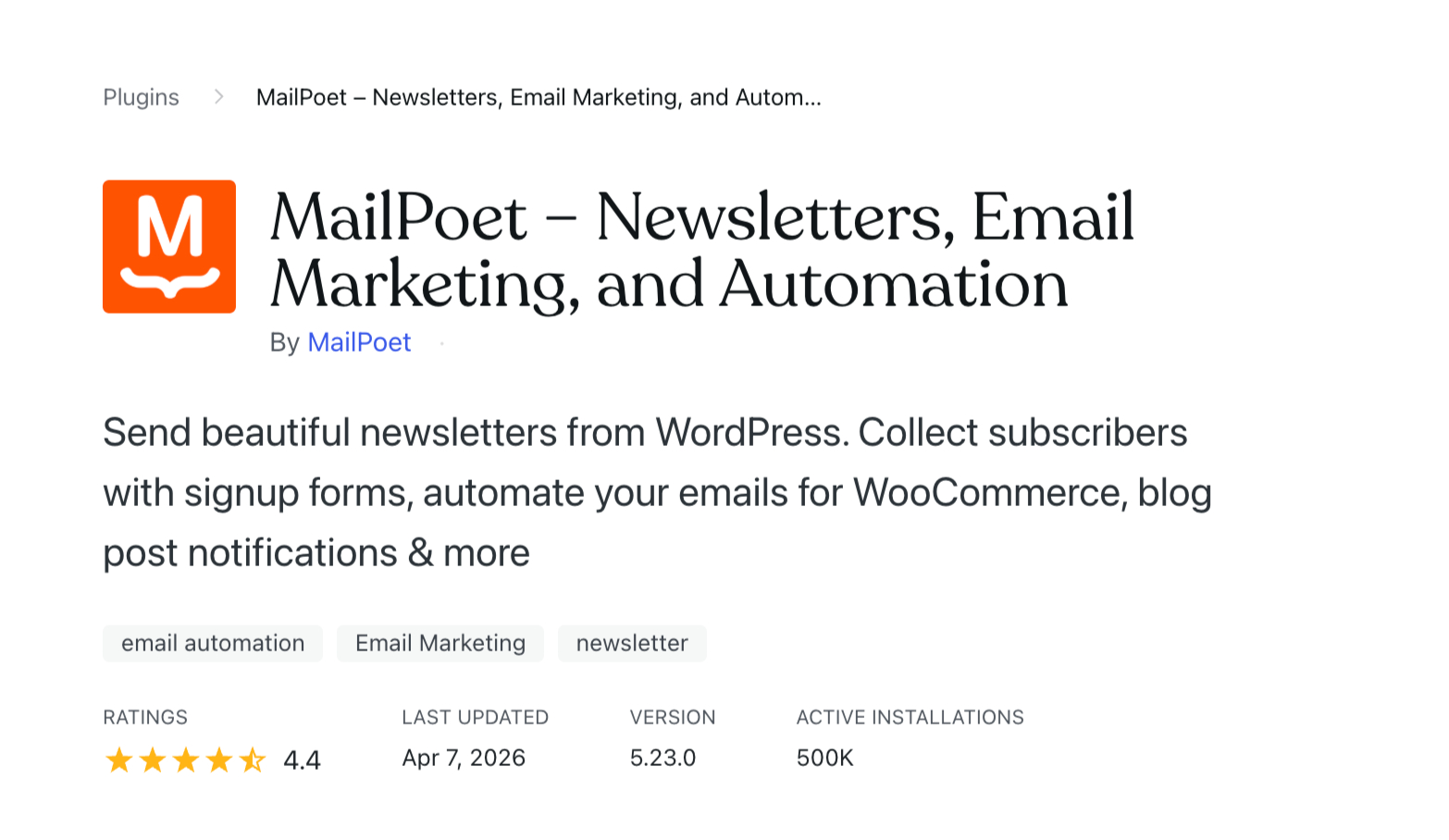
MailPoet turns your WordPress dashboard into a full-scale email marketing hub. You can draft newsletters, send one-off updates, or set up automated sequences without ever logging into a separate service.
Since the plugin lives right inside your site, you don’t have to worry about syncing contact lists or connecting external tools. Your subscriber data and site activity stay in one place. You can build signup forms, pop-ups, and subscription blocks using a simple drag-and-drop editor that requires zero coding.
Key Features
- Drag-and-drop builder: Create emails and forms directly within the WordPress interface.
- Subscriber growth: Add pop-up forms or banners to your pages to grab new emails and add them to your lists automatically.
- Automated triggers: Send emails when someone joins your list or buys a product from your shop.
Why do you need it
Email remains the most direct way to speak to your audience. Regular newsletters keep people coming back to your site, helping you turn casual visitors into loyal fans.
Best Plugins for WordPress.com Users (2026 Update)
For a long time, WordPress.com users had a big limitation.
You couldn’t install plugins unless you were on higher-tier plans.
That meant most beginners missed out on tools that could actually help their blog grow.
That’s changed now.
With the latest update, all paid WordPress.com plans now support 50,000+ plugins, themes, global styles, font uploads, and CSS customization.
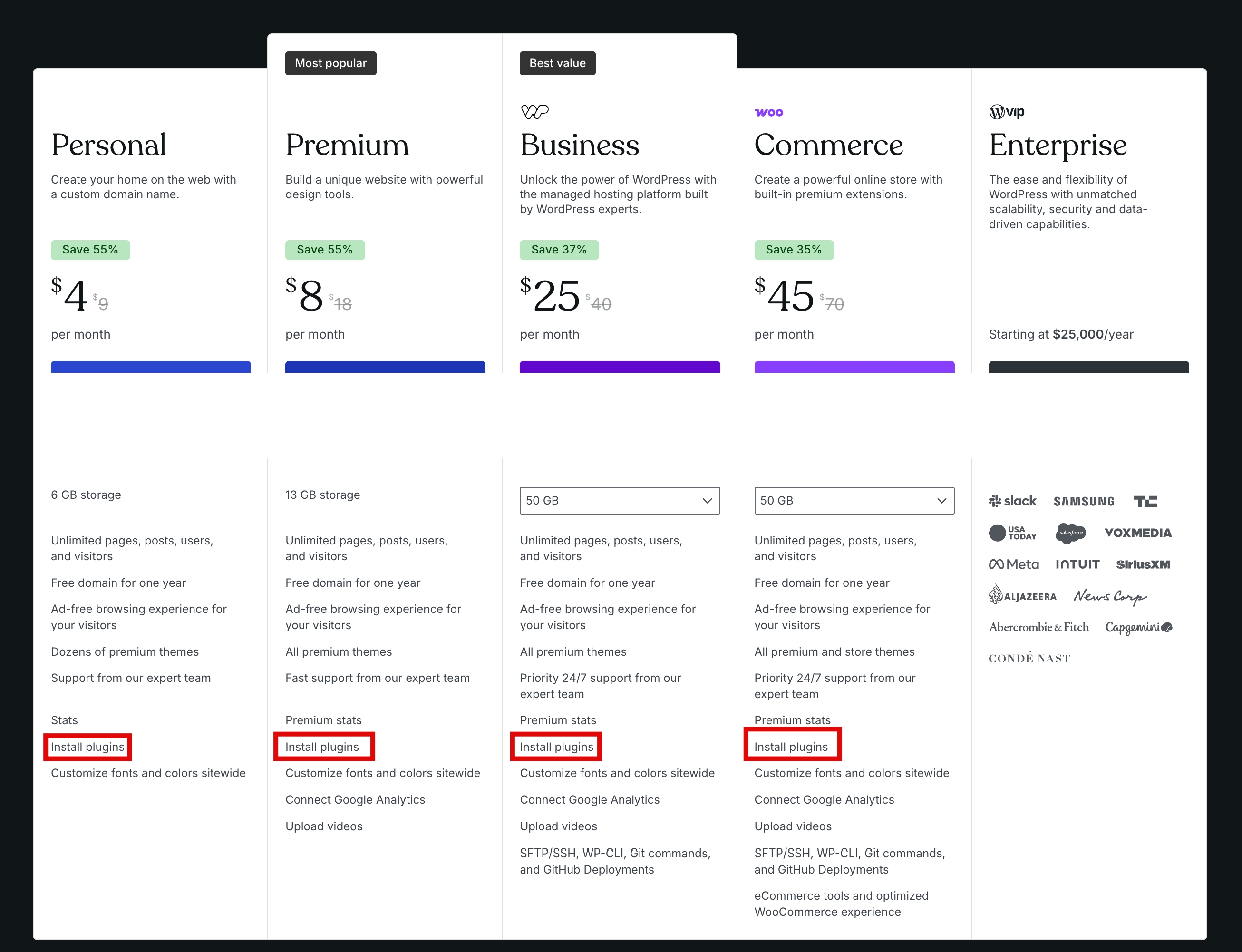
That’s a big deal.
What does this mean for you as a blogger?
If you’re using WordPress.com, you now have access to the same plugin ecosystem as self-hosted users.
That means you can:
- Improve your SEO
- Speed up your site
- Add security and backups
- Customize your blog more freely
In short, you’re no longer limited.
This update makes WordPress.com a much more serious option for beginners.
You can start simple… and still grow without switching platforms right away.
If you’re just starting, this removes one of the biggest barriers.
How Many Plugins Should You Install?
This is where most beginners go wrong.
They install too many plugins.
More plugins feel like more features… but in reality, it often leads to:
- A slower website
- More errors
- A confusing dashboard
So what’s the right number?
There’s no exact number.
But for most bloggers, 5 to 7 plugins are more than enough.
That’s it.
Focus on essentials, not extras
Instead of asking:
“What else can I add?”
Ask:
“What problem am I solving?”
If a plugin doesn’t help you:
- Get traffic
- Improve speed
- Protect your site
- Or make things easier
You probably don’t need it.
More plugins ≠ better blog
A fast, simple blog with the right tools will always perform better than a cluttered one.
This is something most people learn the hard way.
Start small, then grow
Install only what you need right now.
As your blog grows, you can add more — but do it with a purpose.
Simple rule:
Fewer plugins. Better results.
Common Mistakes Bloggers Make with Plugins
Most plugin problems don’t come from the plugins themselves.
They come from how people use them.
Here are the mistakes that trip up most bloggers — and how to avoid them.
Installing too many plugins
This is the biggest one.
It’s easy to get excited and install everything that looks useful.
But too many plugins can:
- Slow your site down
- Cause conflicts
- Make things harder to manage
Keep it simple. Only install what you actually need.
Choosing plugins just because they’re popular
A plugin might have millions of installs… and still not be right for you.
What matters is:
- Does it solve your problem?
- Is it easy to use?
Don’t install something just because “everyone uses it.”
Ignoring updates
Plugins need updates to stay secure and work properly.
If you ignore updates, you’re increasing the risk of:
- Security issues
- Broken features
Keep everything updated — it only takes a minute.
Not checking compatibility
Some plugins don’t work well together.
Or they might not work properly with your theme.
If something breaks after installing a plugin, this is usually why.
Installing and forgetting
Some plugins need basic setup.
If you just install and ignore them, you’re not getting the full benefit.
Take a few minutes to check the settings after activation.
Using plugins for things you don’t really need
This happens a lot.
People install plugins “just in case.”
But every plugin adds weight to your site.
If you’re not using it, remove it.
The goal isn’t to have more plugins.
It’s to have the right ones.
Final Thoughts
If you remember one thing, let it be this:
You don’t need a lot of plugins to grow your blog.
You just need the right ones.
It’s easy to get overwhelmed when you see long lists of tools.
But most of them won’t make a real difference.
The plugins that matter are the ones that help you:
- Get traffic
- Keep your site fast
- Protect your work
- Understand what’s working
That’s it.
And now, with WordPress.com allowing plugins on all paid plans, beginners finally have access to the same tools bloggers have been using for years.
That changes things.
You can start simple… and still grow without switching platforms later.
So here’s what you should do next:
Pick 3–5 plugins from this guide.
Install them.
Set them up properly.
And focus on creating content.
Don’t overthink it.
Start small. Improve as you go.
That’s how real blogs grow.
Launch Your Site on WordPress.com
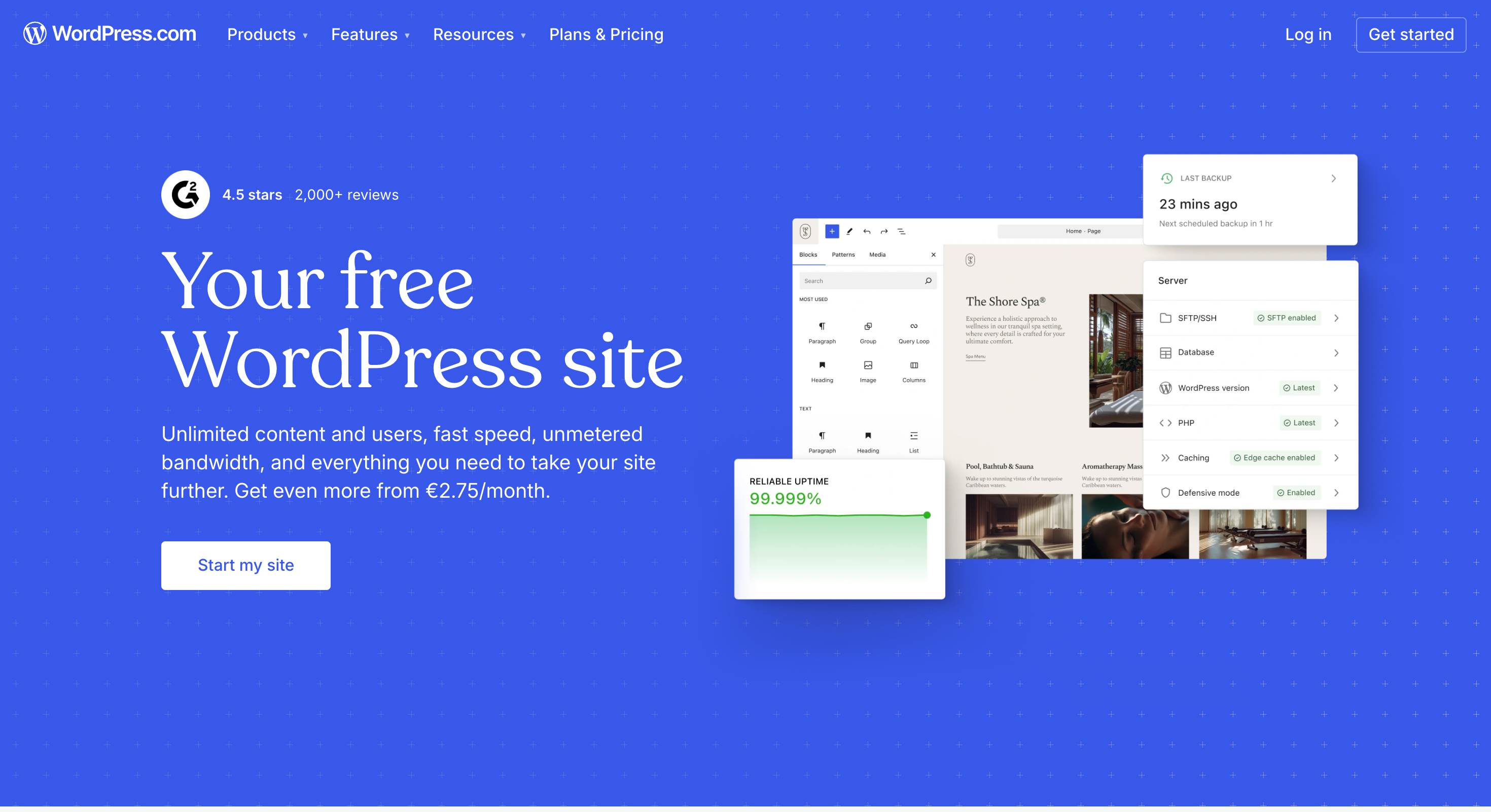
The fastest way to test these plugins is to build your site on WordPress.com.
You can browse the plugin library yourself, check out the built-in tools, and pick exactly what your project requires.
Every WordPress.com plan includes Jetpack, professional themes, and an AI site builder. They provide everything in one place so you can grow your site without managing a dozen different services.